Customers List
Overview
Customers List is used to manage customer records, account balances, customer payments, and invoice history.
Administrators and sales users can use this page to find a customer, add a new customer, open the customer detail page, review account activity, and check related invoices.
Accessing Customers List
Go to Customers -> Customers List.

Customers List Table
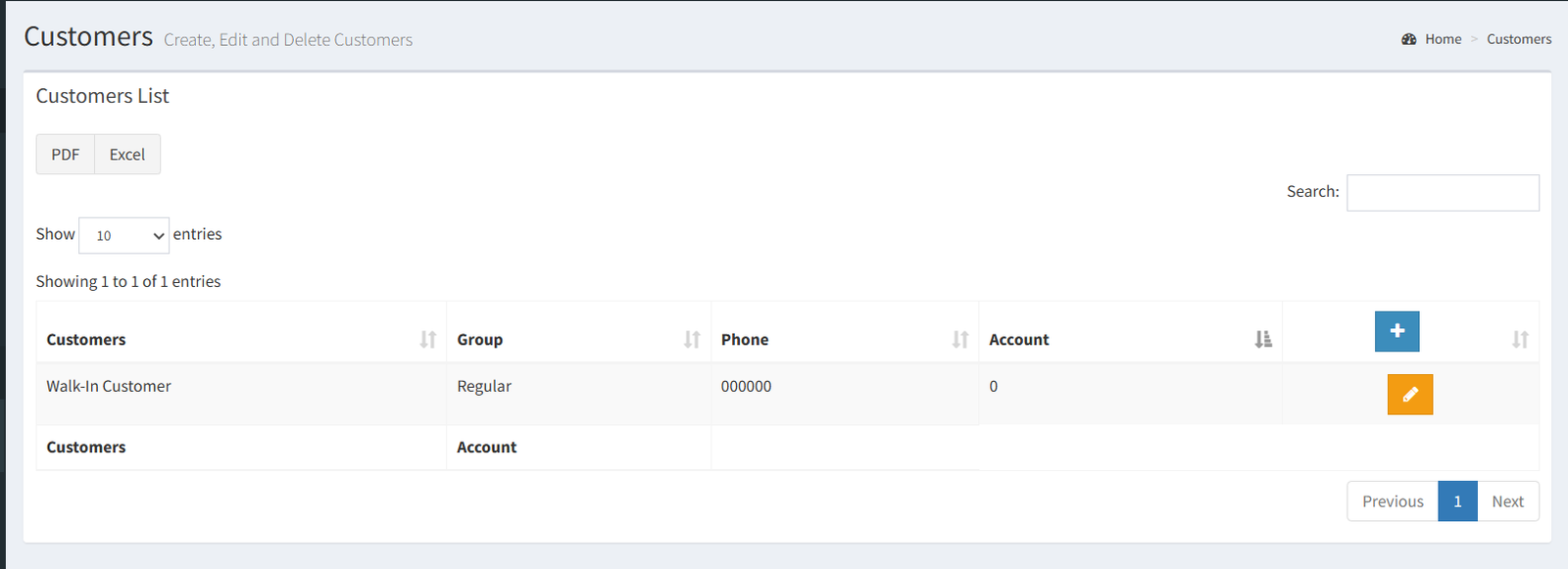
The Customers List table shows the main customer records in one place.
Columns:
- Customer: the customer name.
- Group: the customer group assigned to the customer.
- Phone: the customer phone number.
- Account: the current customer account balance.
- Actions: opens the customer detail/edit page.
The table supports:
- Search using the table search box.
- Sorting by table columns.
- Paging through customer records.
- PDF export.
- Excel export.
Adding a Customer
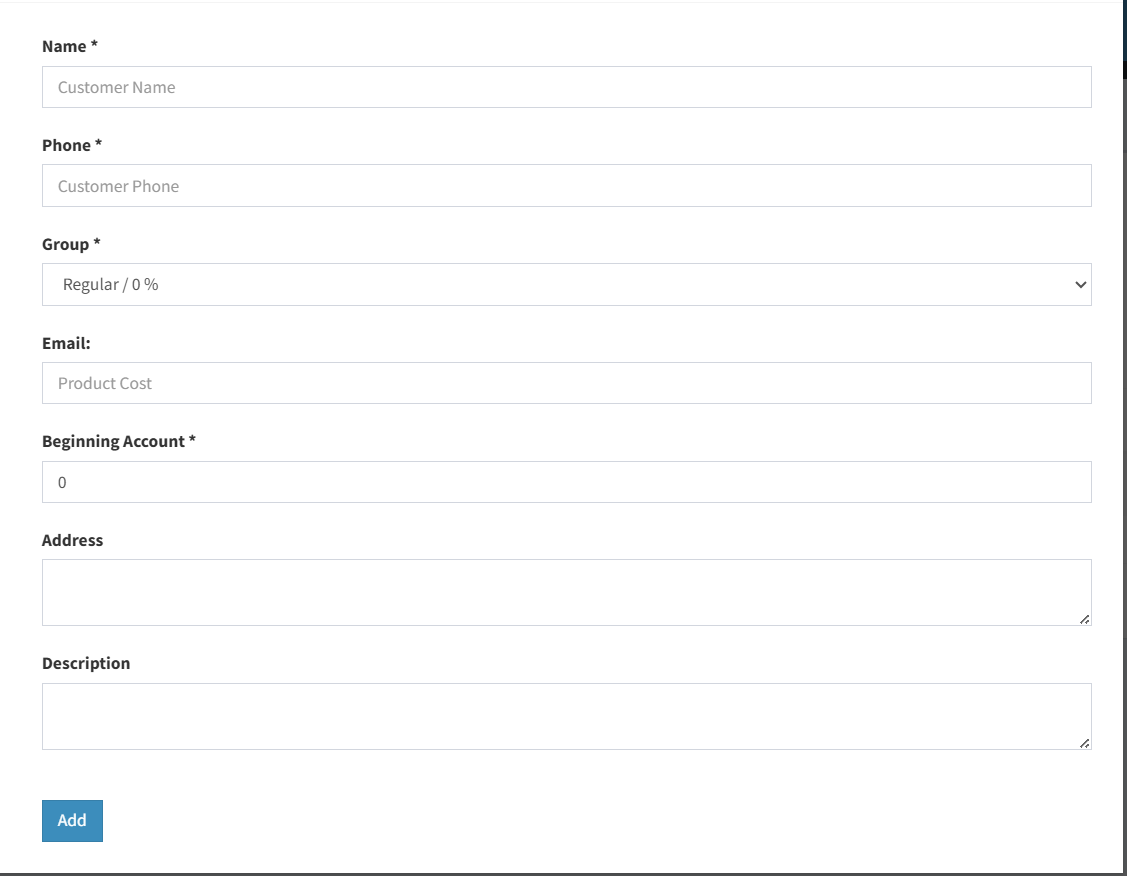
Use the Add Customer button on the Customers List page to open the Add Customer modal.
Visible fields include:
- Customer name
- Phone
- Group
- Beginning account
- Address
- Description
After saving, the customer record is created and the user is sent to the customer detail/edit page.
Editing a Customer
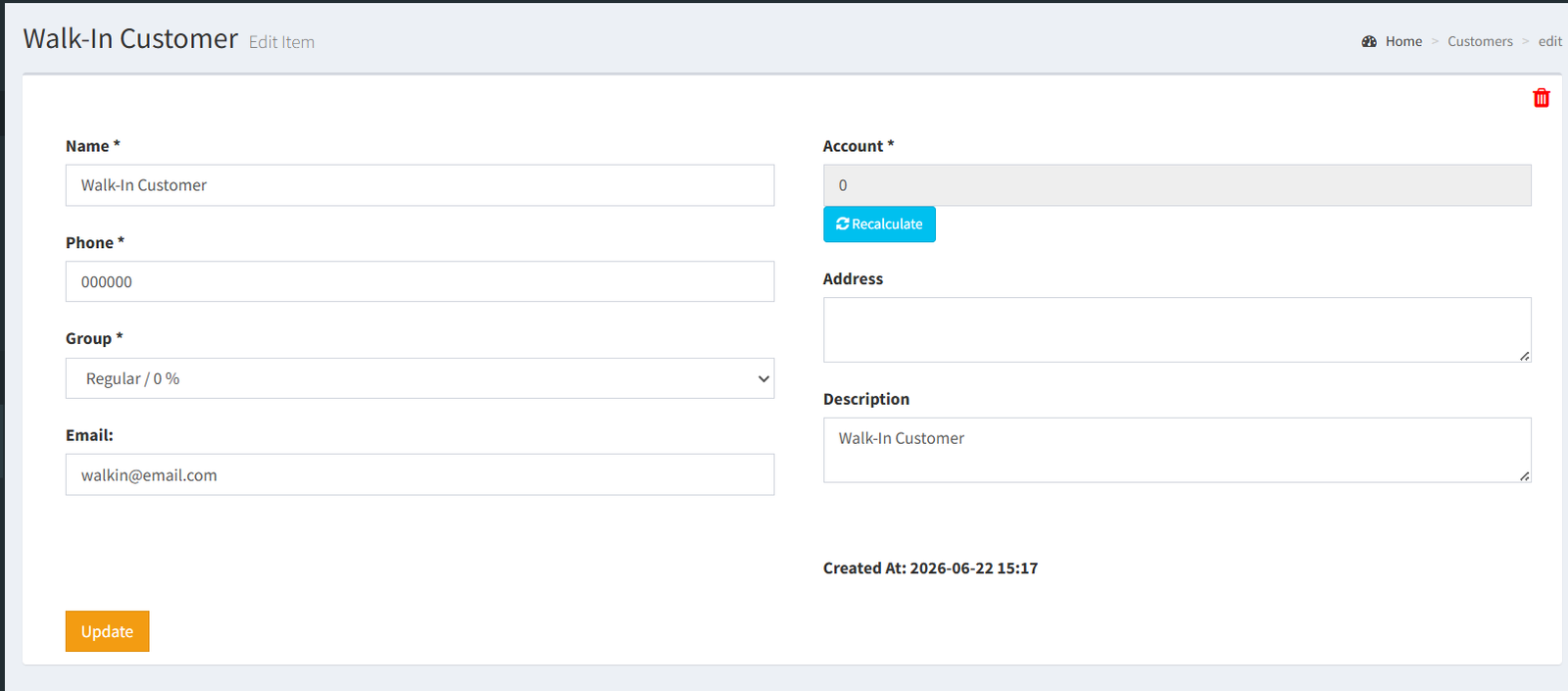
Use the edit action in the Customers List table to open the customer detail/edit page.
From this page, users can update the customer information that is visible in the form, such as name, phone, group, email, address, and description.
Customer Details Page
The customer profile and customer editing workflow are combined in one page. There is no separate read-only customer profile page in the current UI.
The customer details page can show:
- Customer information
- Account balance
- Customer payments
- Cars or vehicles linked to the customer, if visible
- Related invoices
Customer Balance and Payments
The Account value shows the customer account balance.
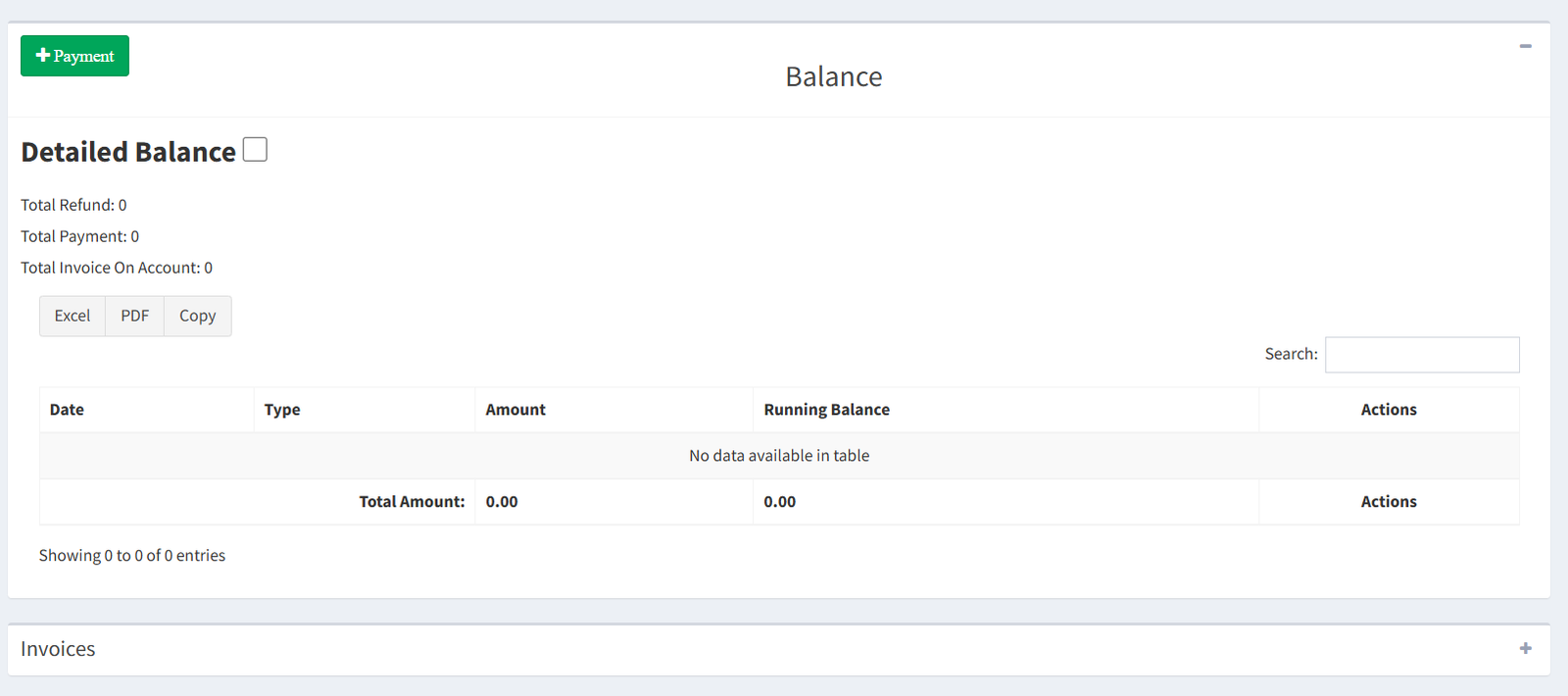
From the customer detail page, users can:
- Add a customer payment.
- Delete a customer payment when the action is available.
- Print a customer payment receipt.
- Review standard and detailed balance tables.
The balance section helps users understand how invoices and payments changed the customer account.
Customer Invoice History
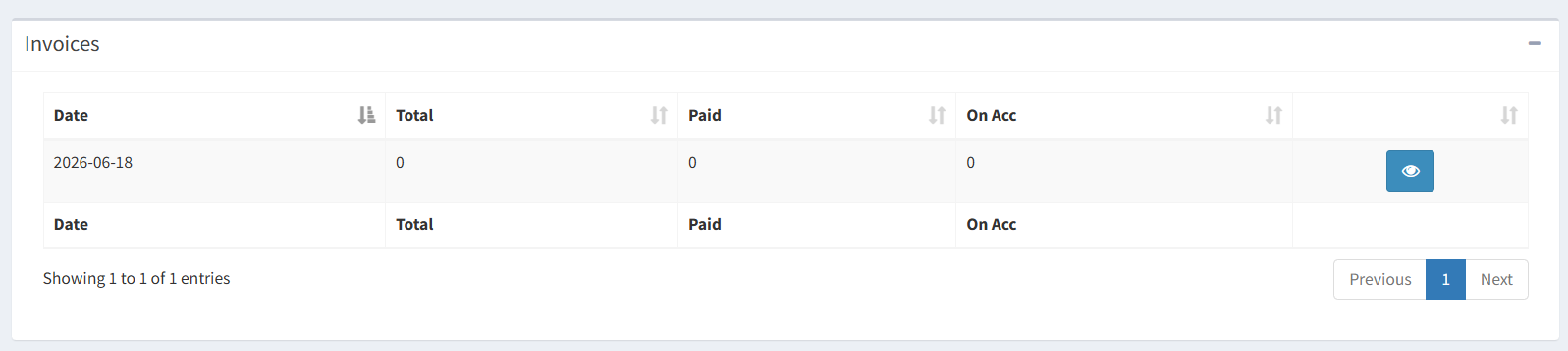
The customer detail page includes an Invoices section.
Related invoices are listed with invoice totals, paid amounts, on-account amounts, and an action to open the related sale.
Deleting a Customer
Customer deletion is done from the customer detail page, not directly from the Customers List table.
The delete action is admin-only in the verified UI. The system also warns that customers with related data cannot be deleted.
Where Customers Are Used
Customers are used in several sales and reporting workflows:
- POS: customers can be connected to POS invoices and account activity.
- Sales: sales can use an existing customer or create a new customer during the sale workflow.
- Reports: customer data appears in customer analytics and payment-related reports.
- Payments: customer payments update the customer account balance and can be printed from the customer detail page.
- No dedicated filters were found on the Customers List page.
- The table search is available, but there are no separate date, group, balance, or status filter controls.
- No separate read-only customer profile page exists. Customer details and editing are combined on one page.
- Bulk account recalculation is not documented because it was not confirmed as an active UI feature.
- Expecting to delete a customer directly from the Customers List table. Open the customer detail page first.
- Expecting dedicated filters for group or balance. Use the table search and sorting options instead.
- Editing the account balance field directly. Account balance is managed through invoices and customer payments.
- Looking for a separate customer profile page. The profile and edit page are the same page.
Troubleshooting
The customer is not easy to find.
Use the table search box and sort the table columns.
The delete button is not available.
The delete action is admin-only in the verified UI and appears on the customer detail page.
The customer cannot be deleted.
Customers with related records, such as invoice history, may be blocked from deletion.
The account balance looks wrong.
Review the customer balance tables, payments, and related invoices on the customer detail page.
A payment is missing from the balance.
Confirm that the payment was added from the customer detail page and check the detailed balance view.