Expenses Management
Overview
Use Expenses to record non-sales costs such as rent, utilities, supplies, salaries, delivery charges, or other business outflows.
Expenses are saved with a date, title, value, optional description, and optional attachment. They are also included in financial reports, including the Profit & Loss report.
Accessing Expenses
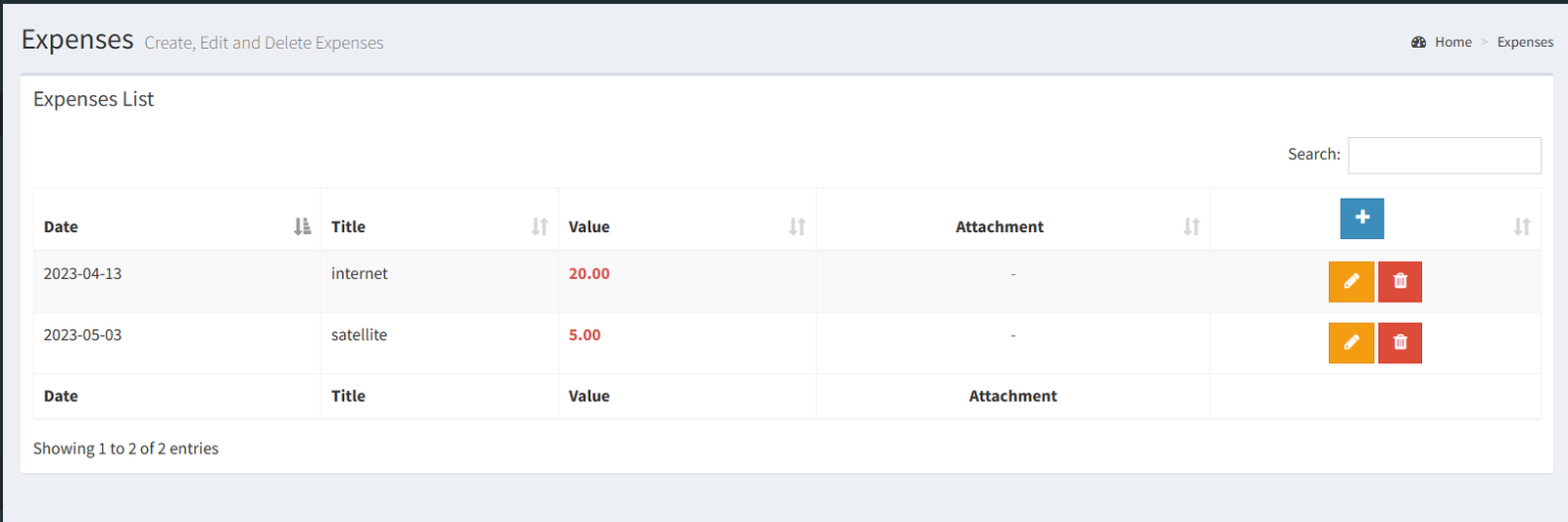
Open the page from the main sidebar:
- Go to Sales.
- Select Expenses.
Depending on your user permissions, the Expenses link may not be visible. Users need access to the Expenses permission under Sales.
Expenses list
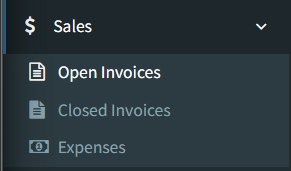
The Expenses page shows a table of recorded expenses.
The list includes:
- Date
- Title
- Value
- Attachment
- Edit and Delete actions
The table can be searched and sorted from the page. Attachments, when available, can be opened from the View button.
Adding an expense
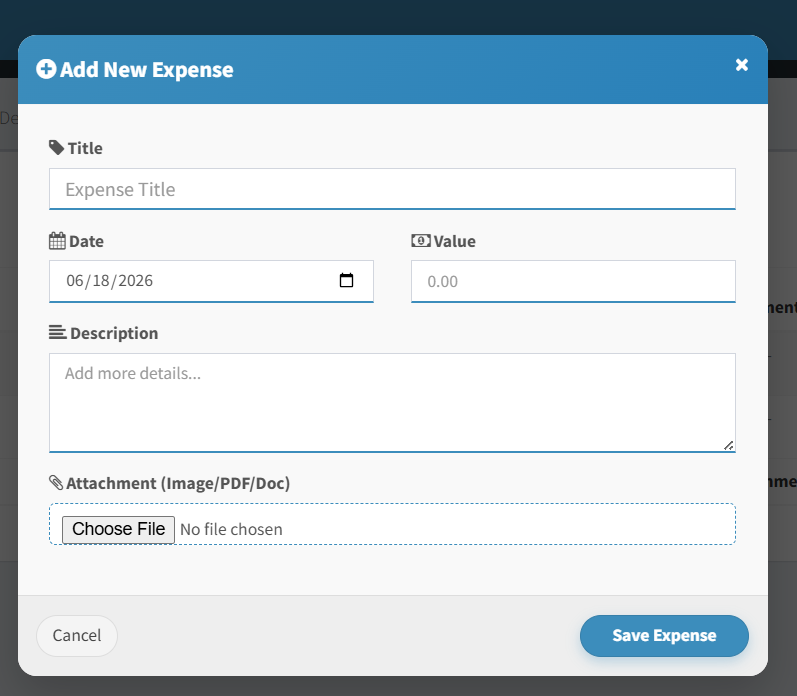
Click the plus (+) button in the Expenses list header to open the Add New Expense form.
Required fields:
- Title
- Date
- Value
Optional fields:
- Description
- Attachment
The Date field defaults to the current date. The attachment field can be used for a receipt, invoice, or related file.
After entering the details, click Save Expense.
Editing an expense
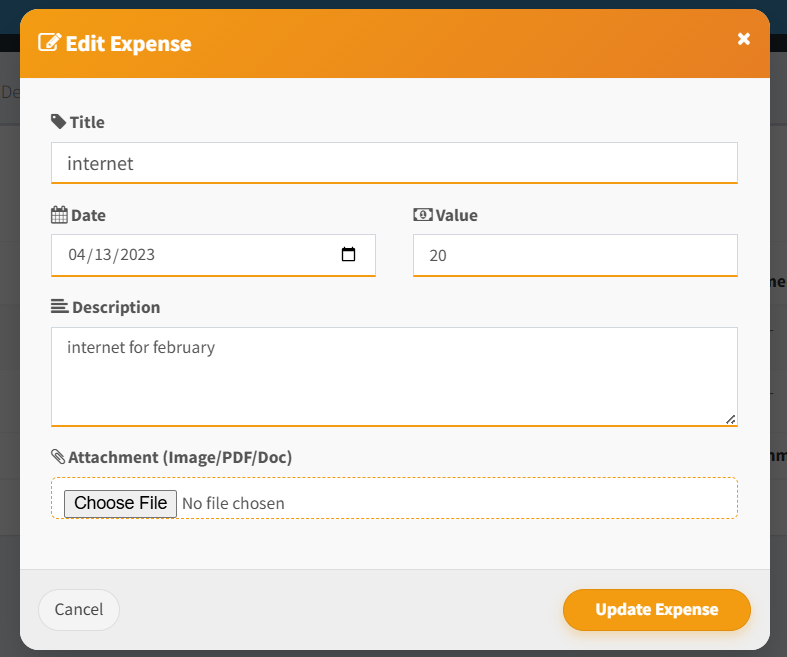
Click the pencil button beside an expense to open the Edit Expense form.
You can update:
- Title
- Date
- Value
- Description
- Attachment
If the expense already has an attachment, the current file is shown in the edit form. Uploading a new attachment replaces the old one.
Click Update Expense to save the changes.
Deleting an expense
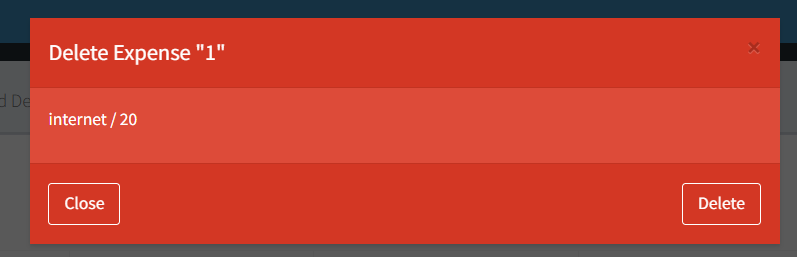
Click the trash button beside an expense to open the delete confirmation window.
The confirmation shows the expense title and value. Click Delete to remove the expense.
If the expense has an attachment, the attachment file is also removed when the expense is deleted.
Expense categories
Expense categories are not available in the current Expenses page.
There is no category field, category list, category color, or category management screen in the verified workflow.
Branch/register impact
Expenses are not assigned to a branch from the Expenses form.
The current form does not include a branch, store, register, or cashier field. Expenses are recorded as general expense entries with a date and value.
Cashier and dashboard screens may show expense totals, but the expense itself is not linked to a specific register from this page.
Reports impact
Expenses are included in financial reporting.
Reports can show:
- Total expenses for a selected date or date range
- Expense rows inside the full report
- Profit & Loss calculations where expenses reduce net profit
In the Profit & Loss report, net profit is calculated as:
- Leaving the Title, Date, or Value field empty.
- Entering the wrong date, which can place the expense in the wrong report period.
- Expecting categories to appear in reports. Categories are not part of the current expense workflow.
- Expecting expenses to be filtered by branch. Expenses are currently recorded without branch assignment.
- Forgetting to upload a receipt or invoice when one is needed for later review.
Troubleshooting
I cannot see Expenses in the Sales menu.
Your user may not have the Sales Expenses permission. Ask an administrator to check your permissions.
The expense does not appear in a report.
Check the expense date and make sure the report date or date range includes it.
The attachment is missing.
Open the expense from the list and check whether an attachment is shown. If a new attachment was uploaded during editing, it replaced the previous one.
I cannot select a category, currency, branch, or register.
Those fields are not available in the current Expenses page.