Transfers History
Overview
Transfers History shows completed transfers.
A transfer appears here after it has been received or approved. These records are kept for review, printing, and admin correction when needed.
Accessing Transfers History
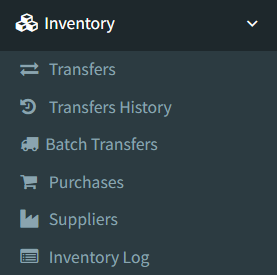
Open Inventory -> Transfers History.
Access depends on user permissions. If the menu item is not visible, ask an administrator to check the Inventory Transfers History permission.
Transfers History List
The Transfers History page opens to a table of completed transfers.
The list shows:
- ID: the transfer record number.
- Date: the transfer date.
- Source: the store stock was moved from.
- Destination: the store stock was moved to.
- Items: the total item quantity on the transfer.
- Status: completed transfers show as Received.
- Created By: the user who created the transfer.
- Action: opens the transfer details page.
Only received or approved transfers appear in Transfers History. Pending and dispatched transfers remain on the main Transfers page.

Searching and Filtering
Use the table search box to find transfers by visible table information, such as transfer ID, date, source, destination, status, or creator.
The table also supports sorting by column. Transfers are loaded in pages, with the newest transfer records listed first.
Viewing Transfer Details
Click the view action on a transfer row to open its details.
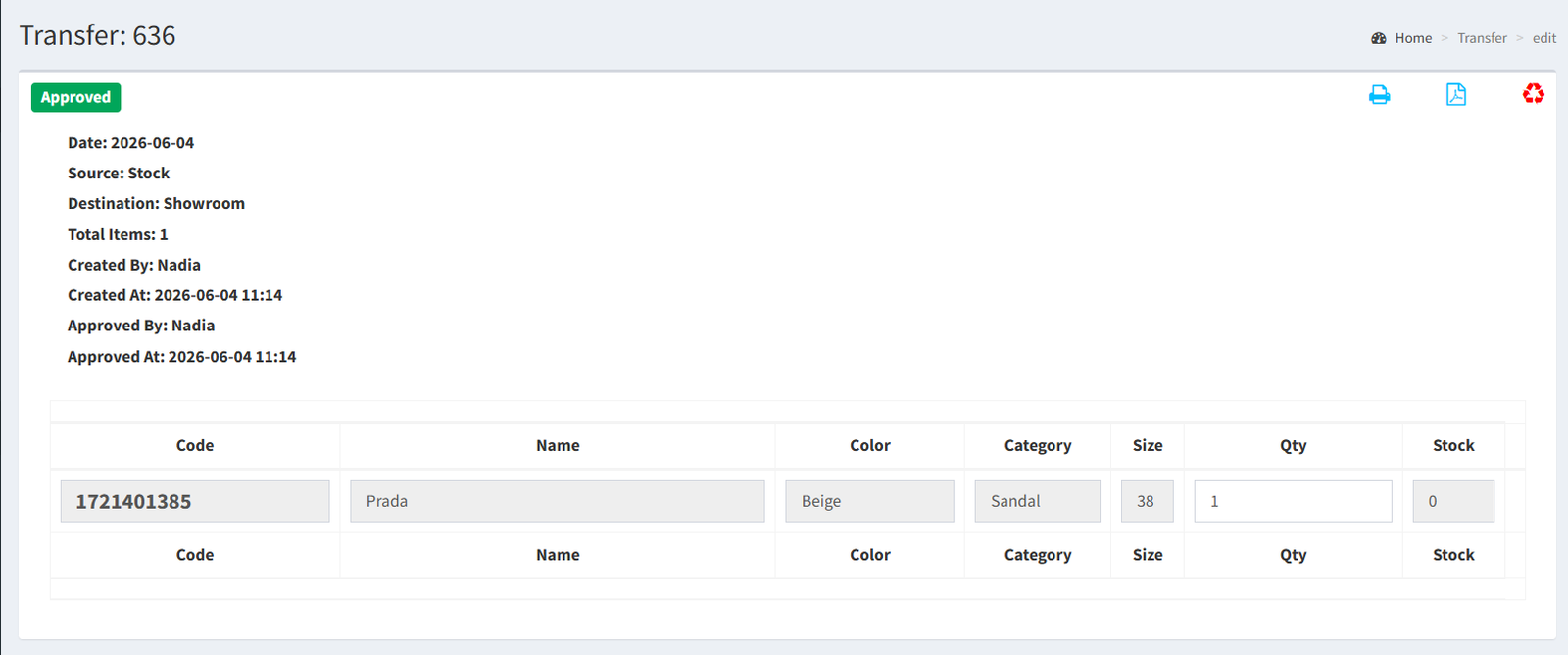
The detail page shows the transfer header information, including:
- Transfer date.
- Source store.
- Destination store.
- Total items.
- Description, if one exists.
- Created by and created at details.
- Approved by and approved at details.
The item table shows the products included in the transfer, their quantities, and related product information. Completed transfer details are not edited from the normal history view.
Printing Historical Transfers
The transfer detail page includes print actions for historical transfers.
Available print actions are:
- Print: opens the compact transfer print view.
- PDF print: downloads a PDF copy of the transfer.
Use these actions when a completed transfer needs to be reviewed, filed, or shared.
Void or Reopen Actions
Administrators may see a void action on completed transfer details.
Voiding a completed transfer reverses the stock movement and returns the transfer to draft status. After voiding, the transfer no longer belongs in Transfers History because it is no longer completed.
There is no separate reopen button in the active UI. Reopening happens as the result of the admin void action.
Difference Between Transfers and Transfers History
Use Transfers for active transfer work. This includes pending and dispatched transfers that may still need items, saving, dispatching, receiving, approving, or deleting.
Use Transfers History for completed transfers. This page is mainly for lookup, review, printing, and admin void correction.
Key differences:
- Transfers shows pending and dispatched transfers.
- Transfers History shows only received or approved transfers.
- Transfers includes the create transfer action.
- Transfers History does not include the create transfer action.
- Transfers opens transfers for active work.
- Transfers History opens completed transfers for review.
- Looking for pending or dispatched transfers in Transfers History.
- Expecting the create transfer button to appear on Transfers History.
- Expecting completed transfers to stay on the main Transfers page.
- Trying to edit completed transfer lines from the history view.
- Looking for a separate reopen button instead of the admin void action.
Troubleshooting
- Transfers History is not visible: ask an administrator to check your Inventory Transfers History permission.
- A transfer is missing from history: check the main Transfers page. It may still be pending or dispatched.
- A transfer disappeared from history after voiding: voiding returns the transfer to draft status, so it moves out of Transfers History.
- Search does not find a transfer: search only checks visible table values on the loaded list.
- Print is not working: open the transfer detail page and use the print or PDF print action from there.
Related Pages
- Transfers
- Batch Transfers
- Inventory Log