Purchases
Overview
Purchases are used to receive stock from suppliers and increase inventory. A purchase starts as a pending record, then becomes a posted purchase when the stock is added to inventory.
Use Purchases to record supplier invoices, choose the receiving store, enter item quantities and costs, update stock, and print purchase documents or product labels.
Accessing Purchases
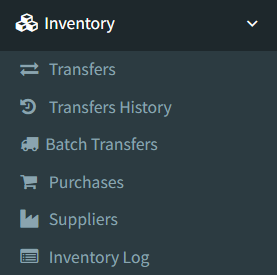
Open Inventory → Purchases.
Access depends on user permissions. If the Purchases page is not visible, ask an administrator to check your Inventory permissions.
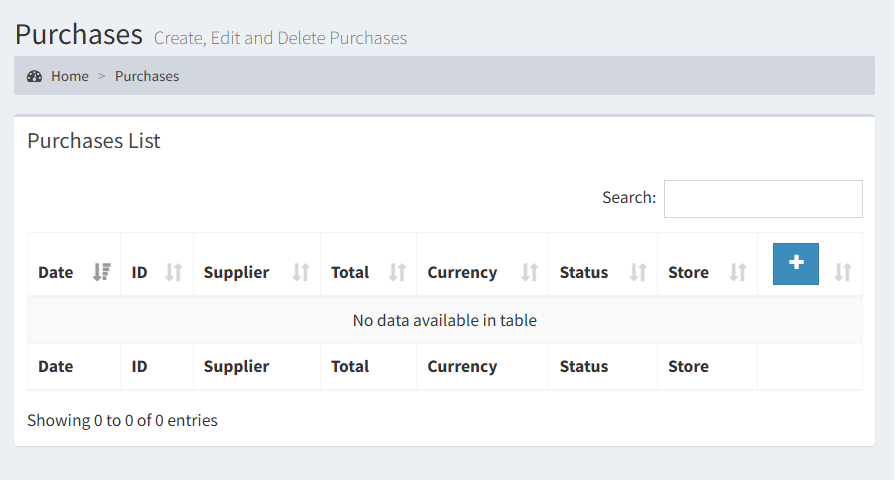
Purchases List
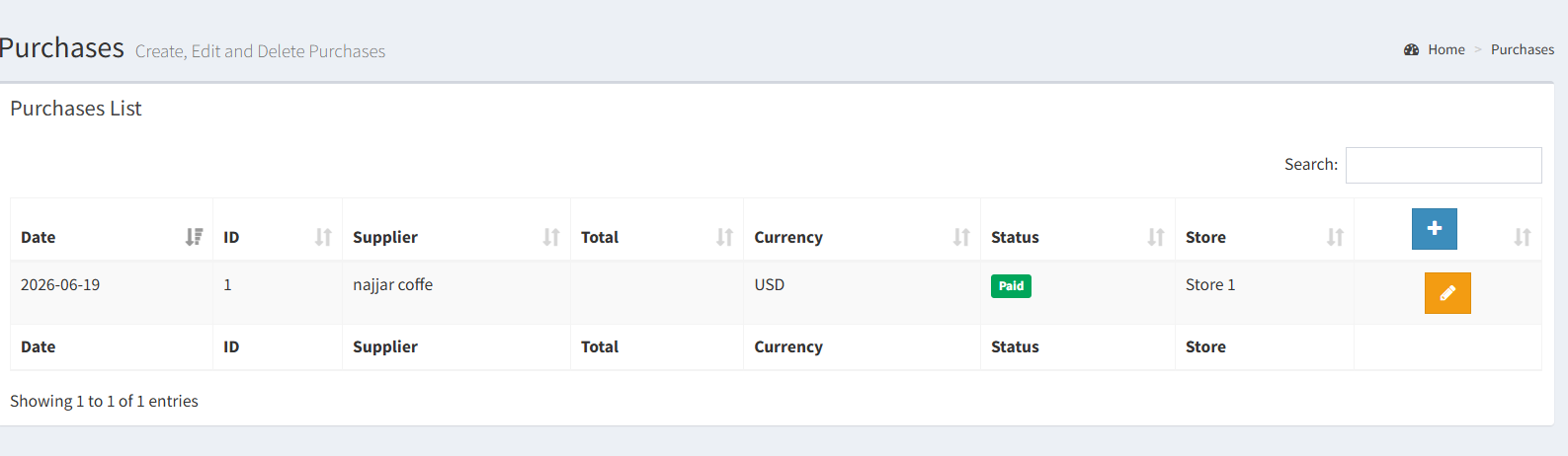
The Purchases page opens to a searchable list of purchase records.
The table shows:
- Date: the purchase or invoice date.
- ID: the purchase record number.
- Supplier: the supplier selected when the purchase was created.
- Total: the total purchase amount.
- Currency: the invoice currency.
- Status: whether the purchase is pending or paid.
- Store: the store where stock will be received.
- Actions: opens the purchase edit page.
Use the table search to find purchases by visible information such as supplier, ID, currency, status, or store.
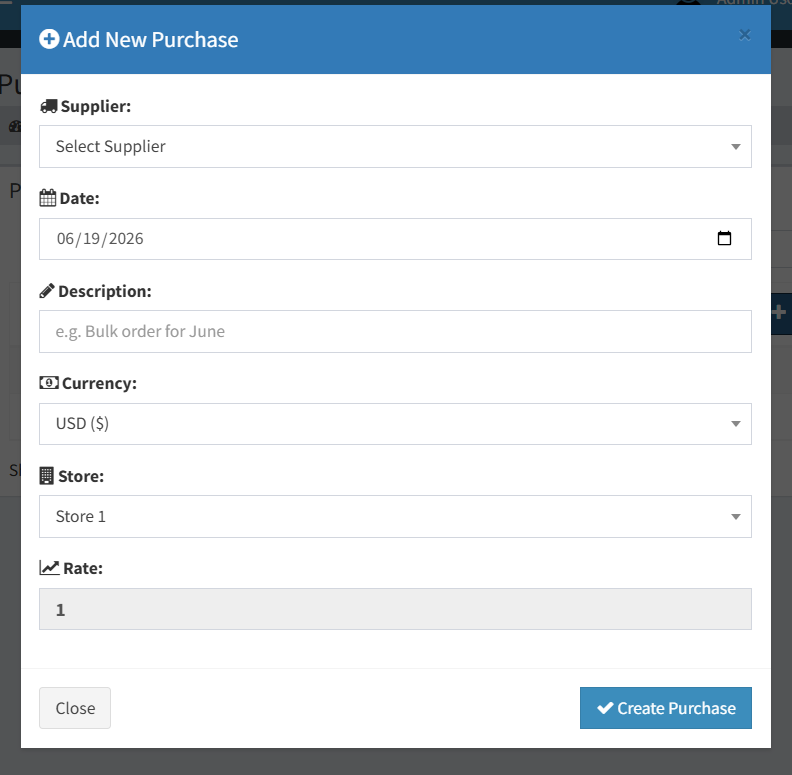
Adding a Purchase
Click the plus button on the Purchases List to open the Add New Purchase modal.
Complete the visible fields:
- Supplier: choose the supplier for this purchase. This is required.
- Date: enter the purchase or invoice date.
- Description: add an optional note, invoice reference, or internal description.
- Currency: choose the purchase currency.
- Store: choose the store that will receive the stock.
- Exchange Rate: confirm the currency rate. The rate is filled from the selected currency and may be editable depending on currency setup.
After creating the purchase, the system opens the purchase edit page where items can be added.
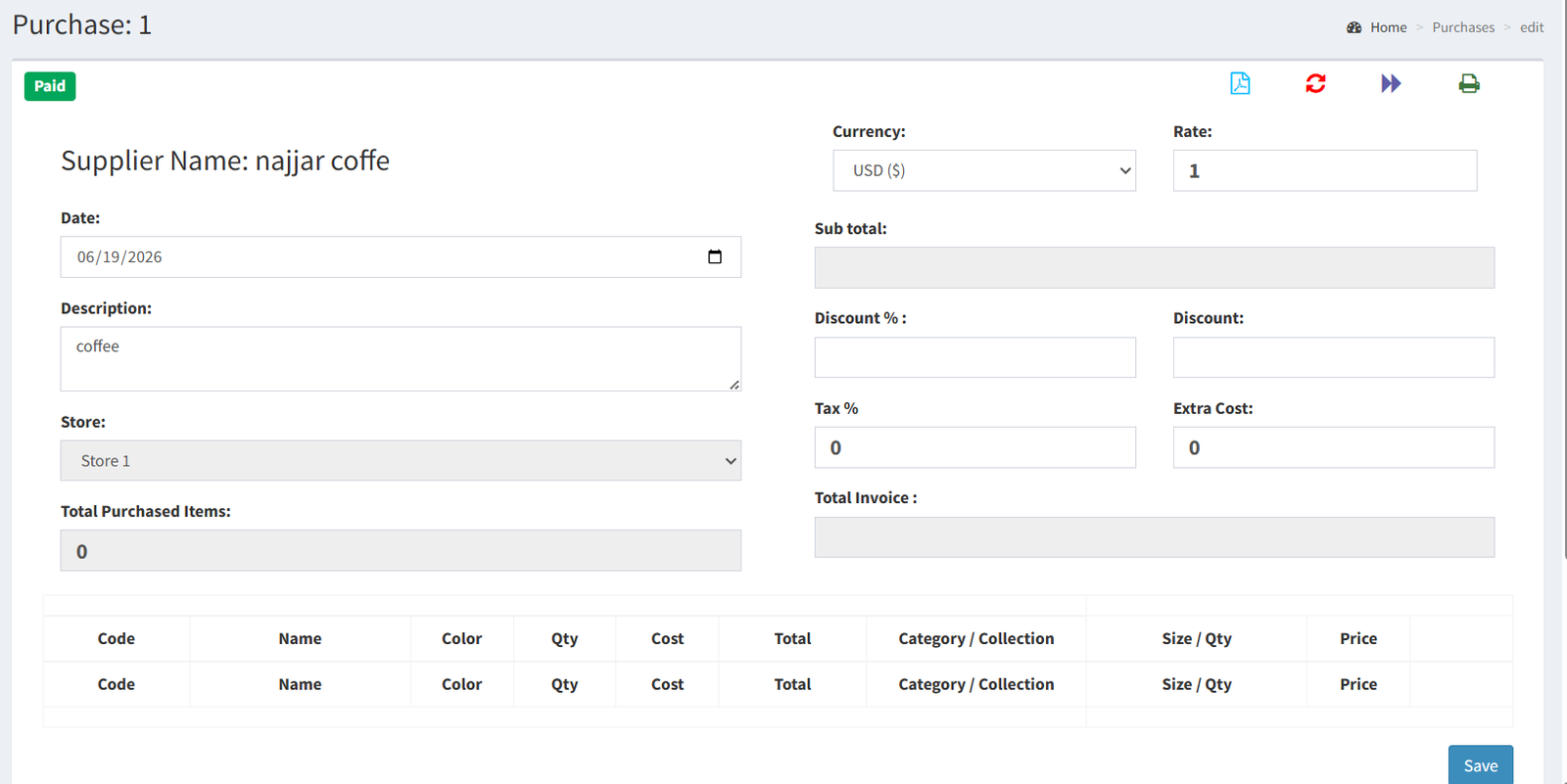
Editing a Purchase
Open a purchase from the Purchases List using the action button.
The purchase edit page shows the purchase status, purchase header fields, totals, and item table. You can update the date, description, store, currency, exchange rate, discount, tax, extra cost, and purchase items while the purchase is still pending.
The supplier name is shown on the edit page, but the supplier is not changed from this screen. If the wrong supplier was selected, create a new purchase with the correct supplier before posting.
Adding Purchase Items
Use the purchase items table to add products to the purchase.
For each line, enter or search by product code in the Code field. When an existing product code is selected, the system can fill product details such as name, color, cost, price, category, and collection from the product record.
Purchase item fields include:
- Code: product search or item code.
- Name: product name.
- Color: shown when color tracking is enabled.
- Quantity: the number of units received.
- Cost: supplier unit cost in the purchase currency.
- Total: line total calculated from quantity and cost.
- Category / Collection: product attributes used for the received stock.
- Size / Qty: shown when size tracking is enabled. Use the size configuration button to split the received quantity across sizes.
- Price: selling price for the product.
Use Save to save the purchase header and item lines before posting.
Posting a Purchase
Posting is the step that receives stock into inventory.
On a pending purchase, use the Mark as Paid / Post Purchase action. When the purchase is posted, the system:
- checks that item quantities are valid,
- creates or updates product inventory records,
- increases stock in the selected store,
- records the stock movement,
- updates supplier account balances,
- marks the purchase as paid.
Posting is not the same as saving. Saving keeps the purchase editable. Posting finalizes the inventory update.
Payment Status
Purchases use two visible statuses:
- Pending: the purchase has not been posted. Items can still be edited, purchase lines can be removed, and the purchase can be deleted.
- Paid: the purchase has been posted. Stock has been added to inventory.
The post modal can also add a supplier payment when posting the purchase.
Printing Purchases
The purchase edit page includes printing actions.
Available printing options are:
- Purchase PDF: downloads a PDF for the purchase record.
- Product labels: available after the purchase is posted. Labels are generated for purchased items and include product barcode information.
Purchase Actions Reference
| Icon / Button | Where It Appears | Action | When To Use It | Notes |
|---|---|---|---|---|
| + | Purchases List | Add purchase | Start a new purchase record. | Opens the Add New Purchase modal. |
| ✓ | Add New Purchase modal | Create purchase | Save the new purchase header after supplier, date, currency, store, and rate are entered. | After creation, the purchase edit page opens so items can be added. |
| ✎ | Purchases List | Edit purchase | Open an existing purchase. | Opens the purchase edit page. |
| Purchase edit page | Print purchase | Download or print the purchase document. | Generates a purchase PDF. | |
| $ | Purchase edit page | Post / Mark as Paid | Finalize a pending purchase and receive the stock into inventory. | Opens the Post Purchase modal. The modal can also add a supplier payment. |
| ⌫ | Purchase edit page | Delete purchase | Remove a pending purchase before it is posted. | Only available for unpaid purchases. |
| ↻ | Purchase edit page | Refund purchase | Reverse a posted purchase when allowed. | The system can block refunding if purchased items already have related transactions. |
| ⎙ | Purchase edit page | Print labels | Print product labels for purchased items. | Available after the purchase is posted. |
| + Product | Purchase items table | Add purchase item line | Add another product line to the purchase. | Available while the purchase is pending. |
| ▦ | Purchase items table | Configure size quantities | Split a product quantity across sizes. | Shown when size tracking is enabled. Size totals must match the line quantity. |
| − | Purchase items table | Delete unsaved line | Remove a newly added line before saving. | Used for rows added on the current edit screen. |
| − | Existing purchase line | Delete purchase line | Remove an existing line from a pending purchase. | Opens a Delete Record confirmation modal. |
| ⧉ | Existing purchase line | Duplicate purchase line | Add a similar line using the existing item details. | Available while the purchase is pending. |
| ✎ | Existing purchase line on posted purchase | Edit item code details | Update limited item code details after posting. | Shown for paid purchases instead of delete/duplicate actions. |
| Save | Purchase edit page | Save purchase changes | Save header and item changes without posting. | Saving does not receive stock. |
| ⌫ | Size Breakdown modal | Clear size quantities | Clear the entered size split and start again. | Does not apply changes until Save & Apply is used. |
| ✓ | Size Breakdown modal | Apply size quantities | Save the size split back to the purchase line. | The assigned size total must match the item quantity. |
Deleting Purchases
Only unpaid or pending purchases can be deleted from the active UI.
Use the delete action on the purchase edit page before posting. Posted purchases should not be deleted because they have already affected inventory.
Deleting Purchase Lines
Pending purchase lines can be deleted from the items table using the line delete action.
After deleting a line, save the purchase so totals and item records stay correct.
- The Purchase-to-Transfer option exists in the UI, but it is disabled in the backend. Do not use it as an active workflow.
- The supplier cannot be changed from the purchase edit page after creation.
- Currency and exchange rate affect purchase cost calculations and inventory valuation.
- Posting a purchase increases inventory. Saving a purchase does not receive stock.
- Product label printing is available after posting because labels depend on created or updated inventory items.
- Posting before all item quantities, costs, and size quantities are correct.
- Expecting Save to receive stock. Use Post Purchase to update inventory.
- Selecting the wrong supplier during creation. The supplier is not edited later from the purchase screen.
- Using the wrong currency or exchange rate, which can affect item costs.
- Trying to delete a purchase after it has been posted.
Troubleshooting
- The purchase will not post: check item quantities and size breakdowns. Size totals must match the line quantity when size tracking is enabled.
- The currency rate looks wrong: review the selected currency and the exchange rate before posting.
- The supplier is wrong: create a new purchase with the correct supplier if the purchase has not been posted.
- Labels do not print: confirm that the purchase is posted first.
- Stock did not increase: confirm the purchase status is Paid. Pending purchases have not updated inventory.
Related Pages
- Suppliers
- Products
- Currencies Setup