Batch Transfers
Overview
Batch Transfers are used to move large quantities of stock between stores in one operation.
Unlike normal Transfers, Batch Transfers do not create transfer records or approval workflows. They are an immediate stock movement tool for products that match selected filters.
Accessing Batch Transfers
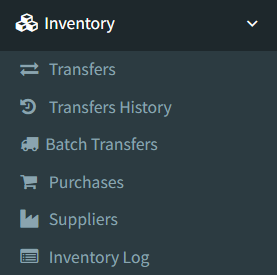
Open Inventory -> Batch Transfers.
Access depends on user permissions. If the page is not visible, ask an administrator to check the Inventory Batch Transfers permission.
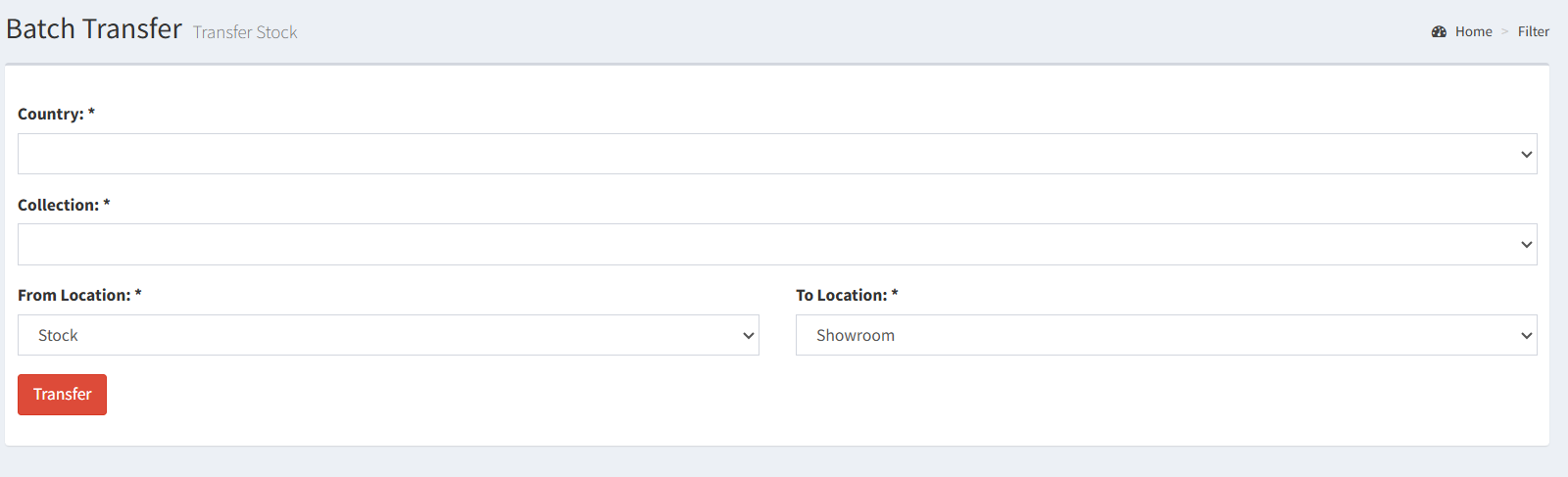
Batch Transfer Screen
The Batch Transfer page is a single form. It is not a transfer list.
Use this screen to choose the products to move and the stores to move stock between.
Selecting Source and Destination Stores
Select the stores in the location fields:
- From Location: the store where stock will be taken from.
- To Location: the store where stock will be added.
The source and destination cannot be the same. If both locations match, the page disables the transfer button and shows a warning. The system also rejects the transfer if matching locations are submitted.
Selecting Products for Transfer
Products are selected indirectly using filters:
- Country: selects products with the chosen country.
- Collection: selects products in the chosen collection.
The system automatically finds products that match both selected values.
Executing a Batch Transfer
After you submit the form, the system finds matching products and moves stock immediately.
For each matching product:
- The source store stock is reduced to zero.
- The quantity removed from the source store is added to the destination store.
- Products with no stock in the source store are skipped.
After the transfer finishes, the page returns with a success message showing the total quantity transferred.
Difference Between Batch Transfers and Normal Transfers
Batch Transfers are instant bulk stock movement. They are used when many products need to be moved by country and collection in one operation.
Normal Transfers are tracked item-by-item workflows. They create transfer records, support item editing, use transfer statuses, and can be dispatched, received, approved, printed, and reviewed in Transfers History.
Key differences:
- Batch Transfers move matching product stock immediately.
- Normal Transfers create transfer records before stock is completed.
- Batch Transfers use country and collection filters.
- Normal Transfers use individual transfer lines.
- Batch Transfers do not have draft, dispatch, receive, or approval steps.
- Normal Transfers have statuses and history records.
- Batch Transfers do not have draft mode.
- Batch Transfers do not have an approval step.
- Batch Transfers cannot be edited after submission from the active UI.
- Batch Transfers do not have print or export actions.
- Batch Transfers do not create a Transfers History entry.
- No Inventory Log entry was confirmed for Batch Transfers.
Review the selected country, collection, source store, and destination store carefully before submitting.
- Selecting the same store as both source and destination.
- Expecting a batch transfer to appear in Transfers History.
- Expecting a draft or approval step before stock moves.
- Expecting to choose individual products on the Batch Transfer page.
- Using Batch Transfers when an item-by-item tracked transfer is needed.
Troubleshooting
- The Transfer button is disabled: check that From Location and To Location are different.
- No stock moved: matching products may have no stock in the selected source store.
- The wrong products moved: check the selected Country and Collection filters before submitting.
- The transfer is not in Transfers History: Batch Transfers do not create normal transfer history records.
- There is no print or export button: print and export actions are not available on the active Batch Transfer screen.