Transfers
Overview
Transfers move stock between stores or branches. Use Transfers when items need to leave one location and be received into another location.
A transfer starts as pending, can be dispatched, and is completed when it is received or approved. Completed transfers update inventory and move to Transfers History.
Accessing Transfers
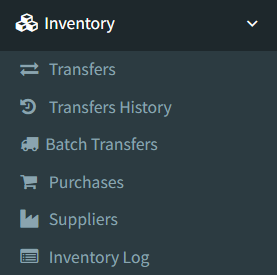
Open Inventory → Transfers.
Access depends on user permissions. If the Transfers page is not visible, ask an administrator to check your Inventory permissions.
Transfers List
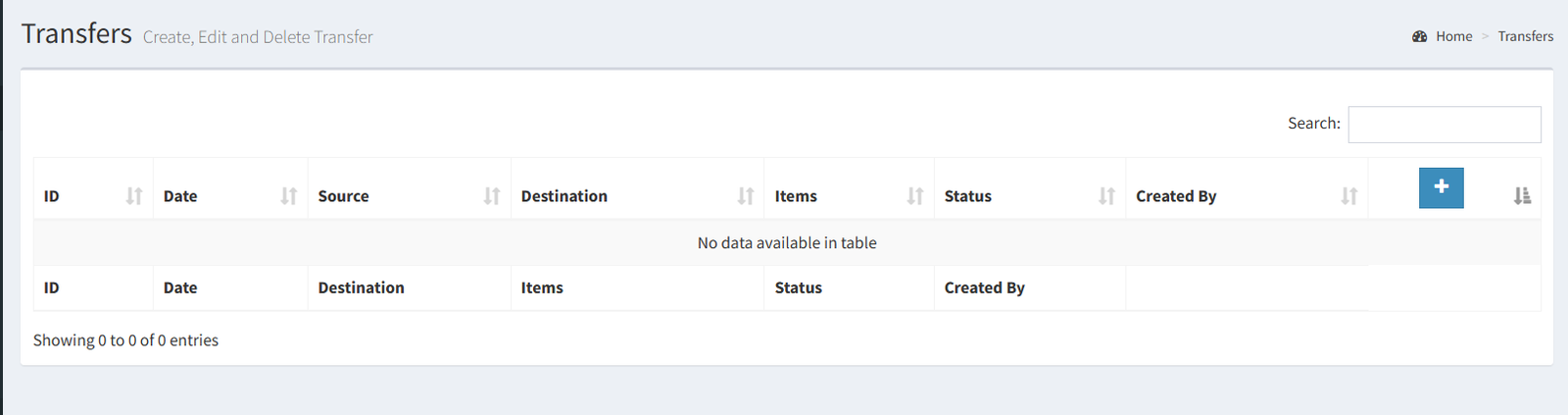
The Transfers page opens to a list of active transfers.
The table shows:
- ID: the transfer record number.
- Date: the transfer date.
- Source Store: the store where stock is taken from.
- Destination Store: the store where stock is sent.
- Items: the total item quantity on the transfer.
- Status: the transfer state.
- Created By: the user who created the transfer.
- Actions: opens the transfer edit page.
Use the table search to find transfers by visible transfer information.
Creating a Transfer
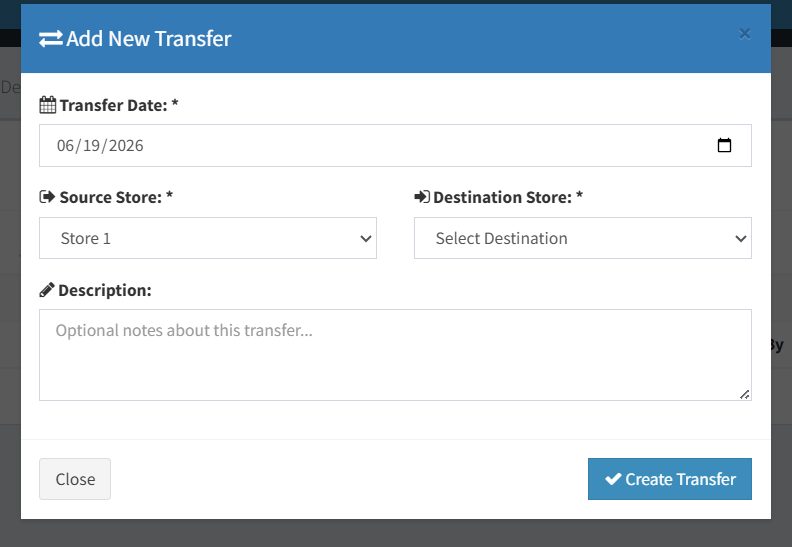
Click the plus button on the Transfers List to open the Add New Transfer modal.
Complete the visible fields:
- Date: the date of the transfer.
- Source Store: the store that currently has the stock.
- Destination Store: the store that should receive the stock.
- Description: optional notes shown in the modal.
The source store and destination store cannot be the same. If they match, the modal disables the create action and shows a warning.
Adding Transfer Items
After creating the transfer, the system opens the transfer edit page.
Use the item area to add products to the transfer:
- Barcode input: scan a product barcode into the barcode field.
- Product search: use the product/code field to select a product from the available item list.
- Plus Product buttons: add a new item row to the transfer table.
- Quantity editing: enter or update the quantity for each item line.
The item table can show product code, name, color, category, size, quantity, source stock, and line actions. Some columns appear only when those product features are enabled.
Use Save to save item and quantity changes.
Transfer Status
Transfers use these statuses:
- Pending: the transfer is being prepared. Items and quantities can still be edited.
- Dispatched: the transfer has been marked as sent. It can be received or approved.
- Received / Approved: the transfer is completed. Stock has been moved from the source store to the destination store.
Completed transfers move out of the active Transfers list and into Transfers History.
Dispatching a Transfer
Use the grey cart icon to dispatch a pending transfer.
Dispatching confirms that the transfer is ready to leave the source store. The system does not allow an empty transfer to be dispatched.
After dispatching, the transfer can be received or approved.
Receiving / Approving a Transfer
Use the green check icon to receive or approve a dispatched transfer.
When the transfer is approved, the system moves stock from the source store to the destination store and records the stock movement. The completed transfer then appears in Transfers History.
If a transfer line quantity is greater than the available stock in the source store, the row is highlighted in orange. Review orange rows before dispatching or approving the transfer. The warning means the requested quantity may be higher than the stock currently available at the source location.
Editing a Transfer
Pending and dispatched transfers can be edited before completion. You can add item rows, remove item rows, and update quantities while the transfer is not completed.
Completed transfers become read-only for normal editing. They are shown as approved and include approval details.
Deleting Transfers
Transfers can be deleted while they are not completed.
Use the red trash icon on the transfer edit page to delete a pending or dispatched transfer. Completed transfers are not deleted from the active UI because they have already affected inventory.
Deleting Transfer Lines
Use the minus button on a transfer item line to remove that item from the transfer.
For existing lines, the row is marked for removal and the change is applied when the transfer is saved. For newly added unsaved rows, the row is removed from the table.
Printing Transfers
The transfer edit page includes two print actions:
- 80mm print: opens the compact transfer print view.
- PDF print: downloads a PDF transfer document.
Use these print actions when you need a paper copy for packing, delivery, or receiving.
Voiding Transfers
Administrators can void a completed transfer from the transfer edit page.
Voiding reverses the stock movement and returns the transfer to a draft state. Use this only when a completed transfer needs to be corrected.
- Completed transfers move to Transfers History.
- The Inventory Log records transfer stock movements.
- The Add Transfer modal shows a Description field, but verified code indicates the description may not be saved by the current transfer creation service.
- Source and destination stores must be different.
- Orange quantity warnings should be reviewed before stock is moved.
- Selecting the same store as both source and destination.
- Dispatching before all products and quantities are correct.
- Ignoring orange quantity warnings.
- Expecting a completed transfer to remain in the active Transfers list.
- Trying to edit a completed transfer like a pending transfer.
Troubleshooting
- The create button is disabled: check that source and destination stores are different.
- The transfer will not dispatch: make sure the transfer has at least one item line.
- A row is orange: the quantity is greater than the available source-store stock.
- The transfer disappeared from the active list: check Transfers History. Completed transfers move there.
- Stock did not move: confirm the transfer was received or approved, not only saved or dispatched.
Related Pages
- Transfers History
- Batch Transfers
- Inventory Log
- Products