Suppliers
Overview
Suppliers are used to manage the companies or people that provide stock to the business.
Use the Suppliers page to create supplier records, keep contact information updated, review supplier balances, and open supplier account activity.
Suppliers are also used when creating purchases, because each purchase must be linked to a supplier.
Accessing Suppliers
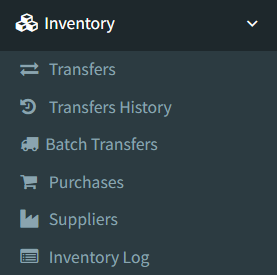
Open Inventory → Suppliers.
Access depends on user permissions. If Suppliers is not visible, ask an administrator to check your Inventory permissions.
Suppliers List
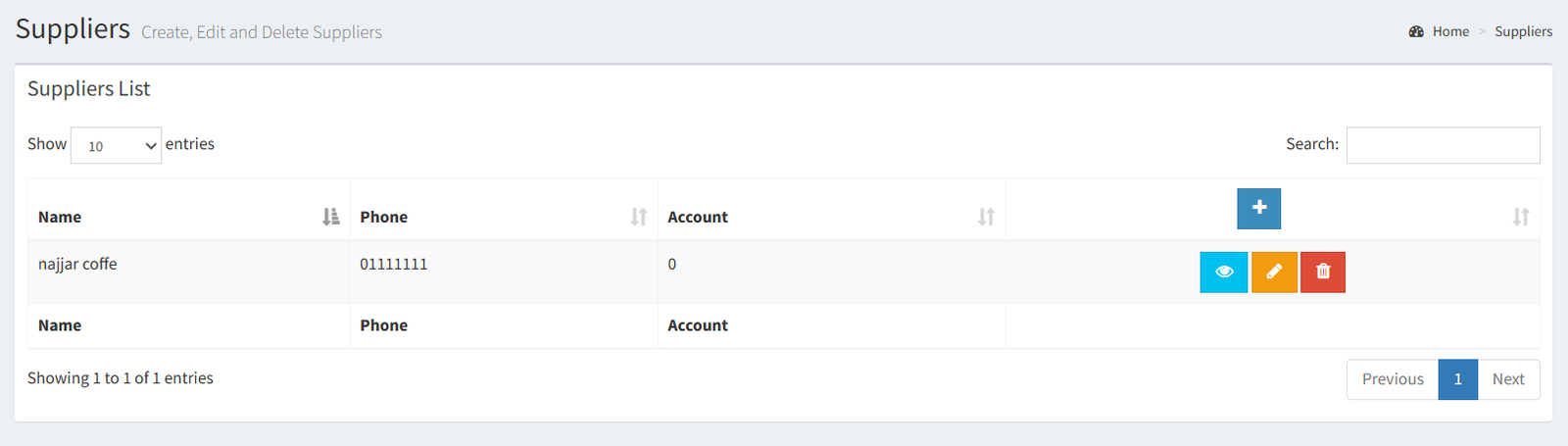
The Suppliers page opens to the suppliers list.
The table shows:
- Name: the supplier name.
- Phone: the main supplier phone number.
- Account: the current supplier account balance.
- Actions: buttons to view, edit, or delete the supplier.
Use the table search box to find suppliers by visible information such as supplier name, phone, or account balance. The table also supports sorting and paging.
Adding a Supplier
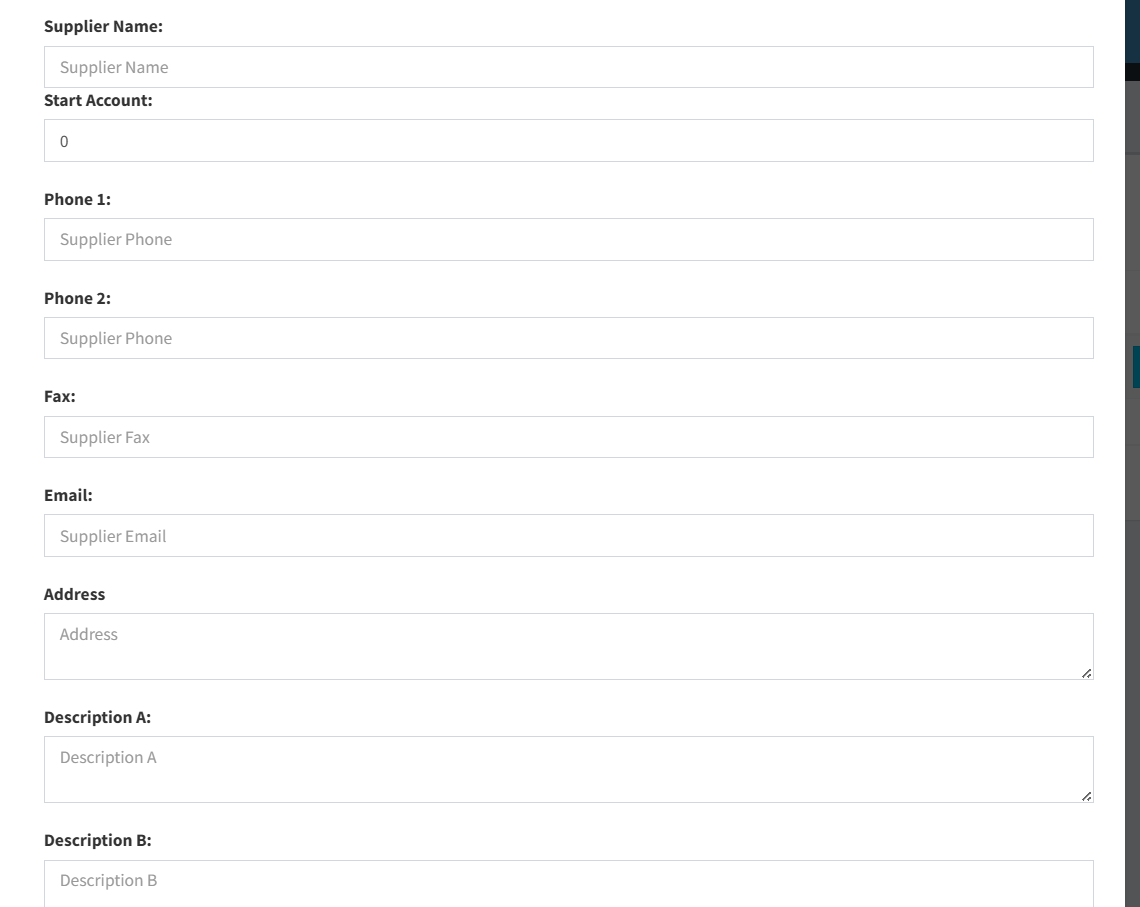
Click the plus button on the Suppliers List to open the Add New Supplier modal.
Complete the visible fields:
- Supplier Name: the supplier name. This is required.
- Start Account: the opening supplier balance. This is required and defaults to 0.
- Phone 1: the main phone number. This is required.
- Phone 2: an optional second phone number.
- Fax: optional fax number.
- Email: optional email address.
- Address: optional supplier address.
- Description A: optional note field.
- Description B: optional note field.
Click Add to create the supplier.
Supplier names must be unique. If the same supplier name already exists, the system shows an error.
Editing a Supplier
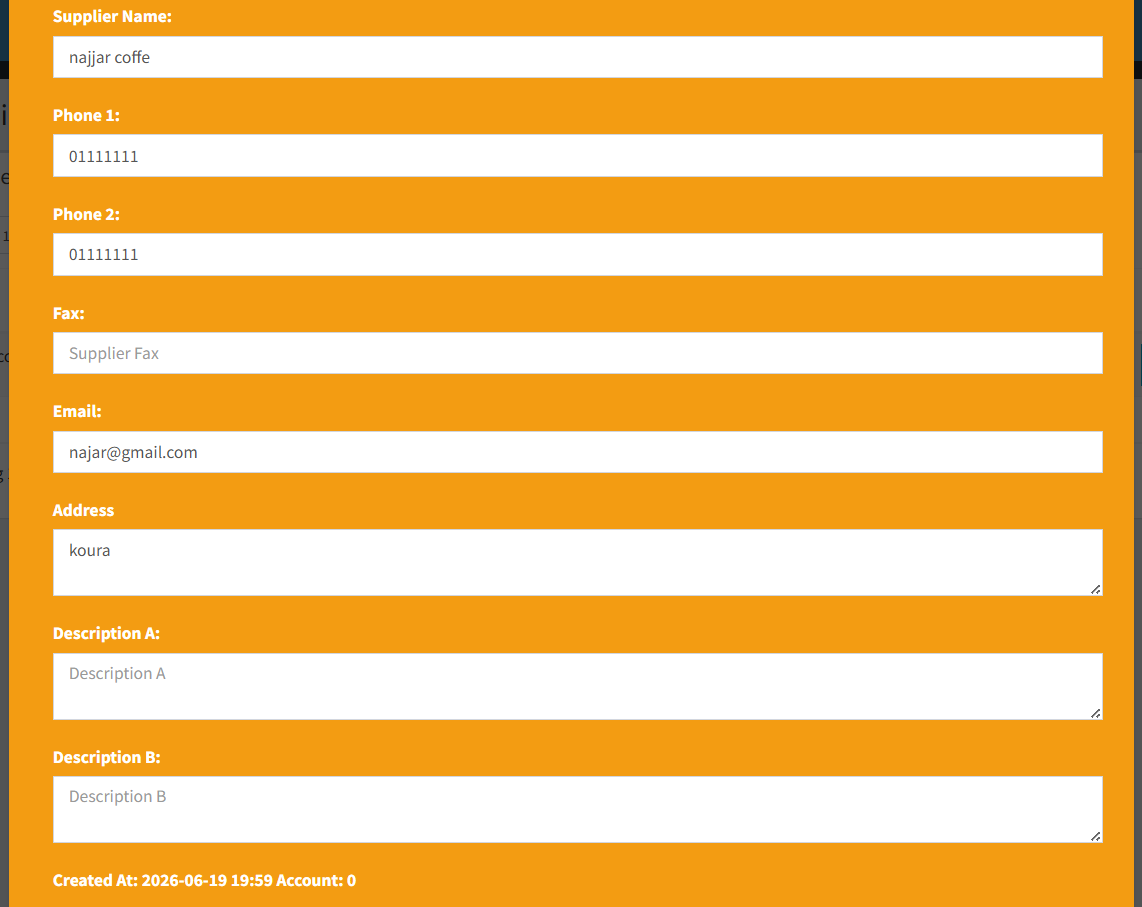
Suppliers can be edited from the Suppliers List using the edit button.
The edit modal includes:
- Supplier Name
- Phone 1
- Phone 2
- Fax
- Address
- Description A
- Description B
- Created At
- Account
Click Update to save changes.
The supplier name must remain unique. If another supplier already uses the same name, the system shows an error.
Deleting a Supplier
Use the delete button on the Suppliers List to open the delete confirmation modal.
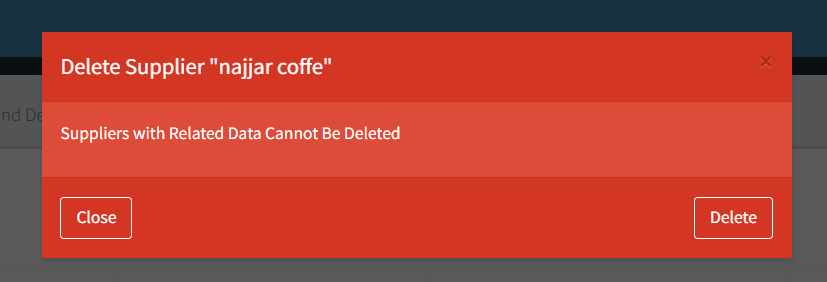
Suppliers can only be deleted when they do not have related purchase records. If the supplier is already used on purchases, the system blocks deletion and shows an error.
Do not delete suppliers that are part of purchase history. Keep them for accurate inventory and account records.
Supplier Information
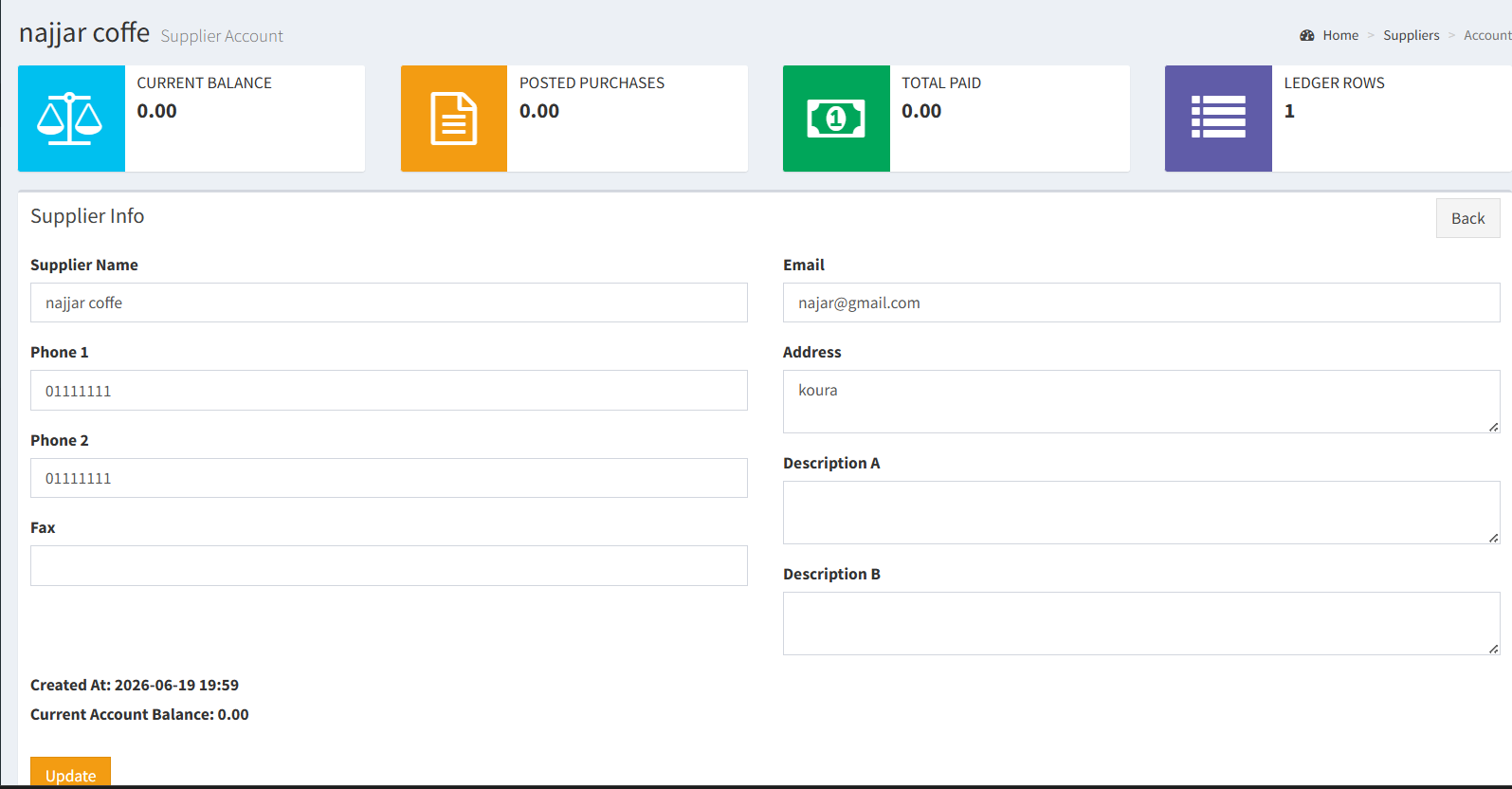
Use the view button on the Suppliers List to open the supplier account page.
The supplier account page shows:
- Current Balance: the current supplier account balance.
- Posted Purchases: the total value of posted purchases for the supplier.
- Total Paid: total supplier payments recorded.
- Ledger Rows: number of account statement rows.
- Supplier Info: editable contact and description fields.
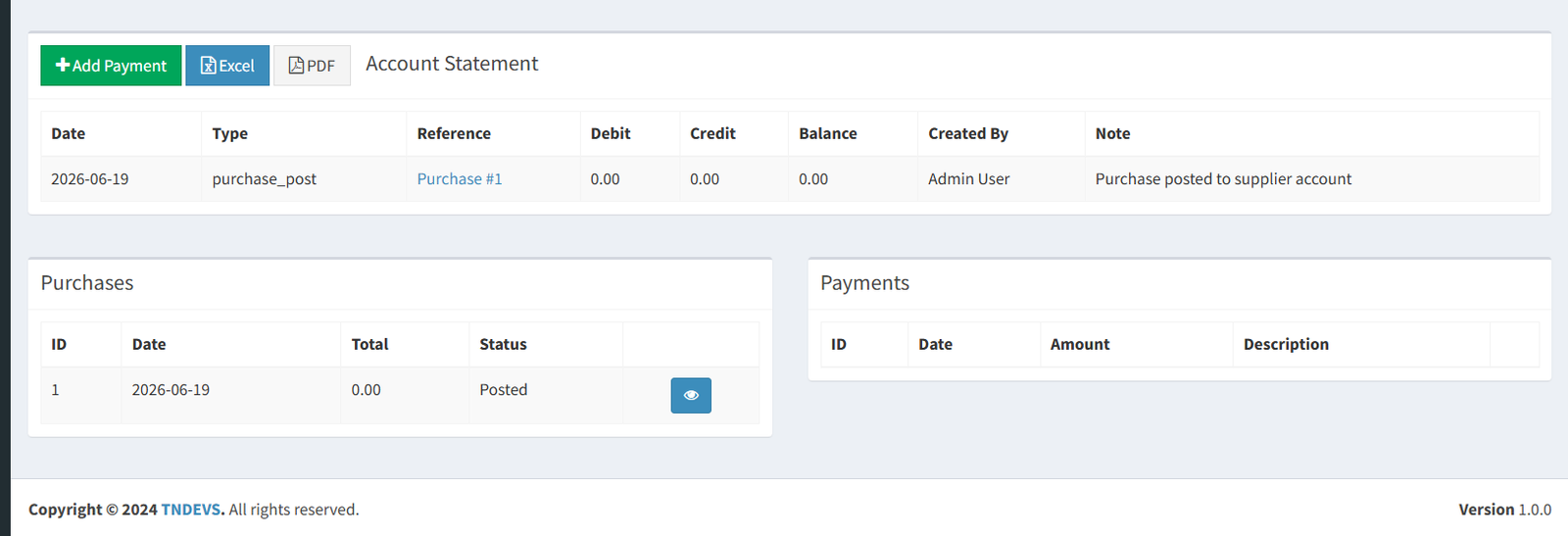
- Account Statement: debit, credit, balance, and reference history.
- Purchases: purchase records linked to the supplier.
- Payments: payments recorded for the supplier.
The account statement can include references such as purchase records and supplier payments. Purchase references can be opened from the statement.
The supplier account page also includes:
- Add Payment: records a supplier payment with date, amount, and description.
- Excel: downloads the supplier statement as an Excel file.
- PDF: downloads the supplier statement as a PDF file.
Where Suppliers Are Used
Suppliers are used in these areas:
- Purchases: a supplier is selected when creating a purchase. Purchases are shown with the supplier name.
- Supplier payments: payments are recorded from the supplier account page and update the supplier balance.
- Supplier statement: purchases and payments appear in the supplier account statement.
- Reports: supplier names appear in inventory and purchase reports such as Inventory Worksheet, Purchase Details, Stock Valuation, and Purchase Margin Opportunity exports.
- Products: products can be linked to suppliers through purchase and item history.
- Creating the same supplier more than once instead of searching the list first.
- Entering the wrong opening balance in Start Account when creating a supplier.
- Expecting to delete a supplier that already has purchases. Suppliers with purchase history are blocked from deletion.
- Editing supplier contact information from a purchase page. Supplier contact details are managed from the Suppliers page.
- Looking for supplier list export buttons. The active export buttons are on the supplier account statement page, not on the main Suppliers List.
Troubleshooting
- Supplier is not visible in the menu: ask an administrator to check your Inventory Suppliers permission.
- Supplier cannot be added: check whether another supplier already uses the same name.
- Supplier cannot be deleted: the supplier may have related purchase records. Keep the supplier for purchase history.
- Supplier balance looks wrong: open the supplier account page and review the account statement, purchases, and payments.
- Payment was entered incorrectly: use the payment delete action on the supplier account page, then add the correct payment.
- Need a supplier statement: open the supplier account page and use the Excel or PDF button.