Inventory Log
Overview
Inventory Log is a read-only audit trail that shows stock movements in the system.
Use Inventory Log to understand when stock changed, why it changed, and which operation caused the change. It helps administrators review inventory activity without changing the original transaction records.
Accessing Inventory Log
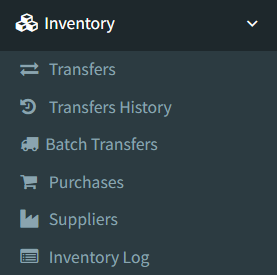
Open Inventory → Inventory Log.
Access depends on user permissions. If Inventory Log is not visible, ask an administrator to check your Inventory permissions.
Stock Log Table
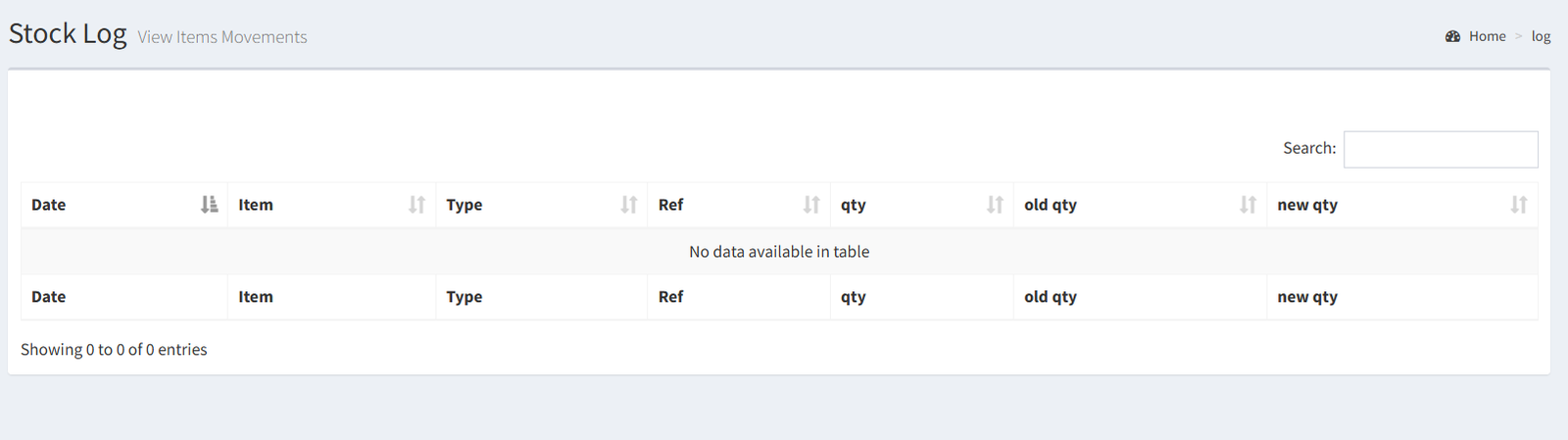
The Inventory Log page opens to the stock movement table.
The table shows:
- Date: when the stock movement was recorded.
- Item: the product affected by the stock movement.
- Type: the operation that created the log entry.
- Ref: the related transaction reference number.
- Qty: the quantity involved in the movement.
- Old Qty: the stock quantity before the movement.
- New Qty: the stock quantity after the movement.
Searching Inventory Logs
Use the table search box to find visible stock log rows by information shown in the table, such as item name, movement type, reference number, or quantity.
The table also supports column sorting. Click a column heading to sort the visible rows by that column.
The page loads the latest 100 records per page. Use the page controls below the table to move through older log entries.
Important: the current Inventory Log UI does not include dedicated date filters or store filters.
Understanding Stock Movements
Each row shows how one stock action changed inventory for one item.
- Qty is the amount involved in the action.
- Old Qty is the stock before the action.
- New Qty is the stock after the action.
Examples:
- If a sale reduces stock from 8 to 6, the row shows Qty 2, Old Qty 8, and New Qty 6.
- If a purchase increases stock from 5 to 15, the row shows Qty 10, Old Qty 5, and New Qty 15.
- If an adjustment changes stock from 4 to 7, the row shows the adjusted quantity and the before-and-after stock values.
Actions That Create Inventory Logs
Inventory Log entries are generated automatically when inventory-changing actions are completed in the system.
Common actions that create logs include:
- Purchases: receiving purchased stock or updating posted purchase quantities.
- Transfers: moving stock between stores or reversing a completed transfer.
- Sales: reducing stock when a sale is completed.
- Refunds / Returns: adding stock back after a sales refund or reversing stock from a purchase refund.
- Stock Adjustments: changing stock from product stock update screens.
- Product creation / beginning stock: creating a product with an opening stock quantity.
Reading Reference Numbers
The Ref column connects the stock movement to the related transaction record.
For example, a purchase movement may show the purchase number, a transfer movement may show the transfer number, and a sale movement may show the sale or invoice number.
The reference number is shown for audit review. In the current Inventory Log table, the reference is displayed as text and is not a clickable link.
- Inventory Log is read-only.
- Logs cannot be edited from the Inventory Log page.
- Logs cannot be deleted from the Inventory Log page.
- The current Inventory Log UI does not include export functionality.
- The current Inventory Log UI does not include print functionality.
- The current Inventory Log UI does not include dedicated date, store, or product filter fields.
- Expecting Inventory Log to update stock manually. Stock is changed from the original workflow, such as Purchases, Transfers, Sales, Refunds, or Product stock adjustment.
- Looking for an edit button on the Inventory Log page. The page is for review only.
- Expecting the Ref value to open the related transaction. The current table shows the reference number as text only.
- Using table search as a full database search. The table search applies to the records loaded on the current page.
- Expecting a store filter. Store information is recorded in the system, but it is not shown or filtered on the current Inventory Log page.
Troubleshooting
- Inventory Log is not visible: ask an administrator to check your Inventory Log permission.
- A recent transaction is not easy to find: sort by Date or search by the item name, type, or reference number shown in the table.
- You need to find older logs: use the pagination controls below the table.
- You need logs for a specific date or store: the current UI does not provide dedicated date or store filters.
- A log looks incorrect: review the related transaction using the reference number and check the workflow that created the movement.