Products Variance
Overview
Products Variance is used to manage variable products for the online store. A variance group connects several local POS items, such as different sizes or colors, into one e-commerce product.
Use this page when a website product needs multiple options and those options must stay connected to local inventory items.
This page is part of the e-commerce integration workflow. It appears in the Products Setup menu, but the page is loaded through the WooCommerce variance route and is available only when the e-shop integration is enabled.
Accessing Products Variance
Open Products Setup -> Products Variance.
The menu item appears when:
- E-shop integration is enabled.
- The user has access to products variance pages.
- WooCommerce configuration is available for the WooCommerce variance route.
Variance List
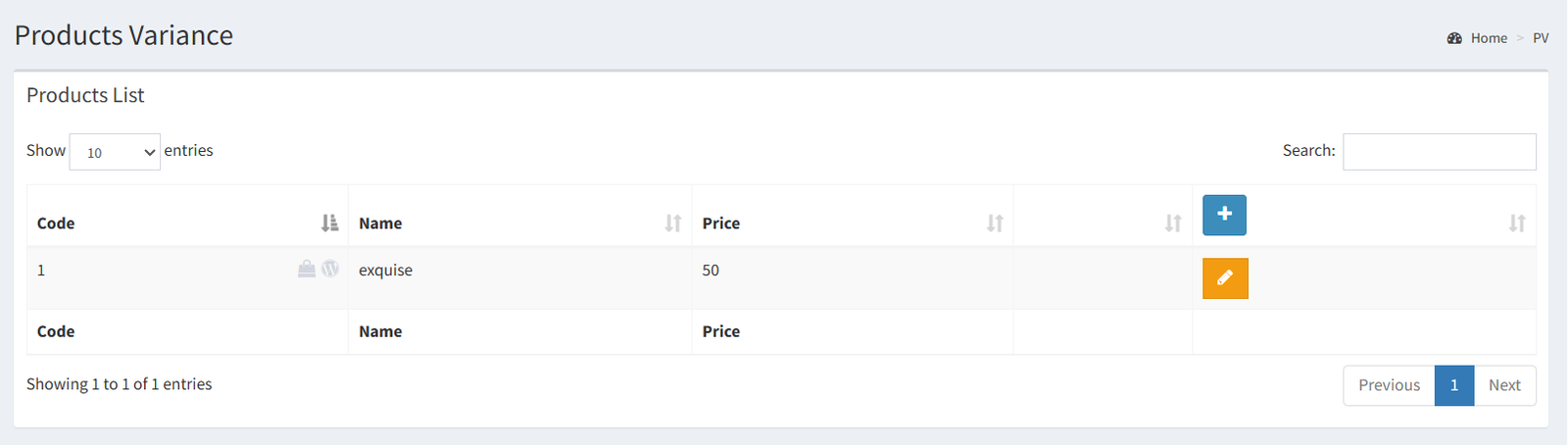
The Products Variance list shows existing variance groups.
Visible columns include:
- Code: the variance group ID.
- Name: the variance group name.
- Price: the main variance price.
- Website status icons.
- Edit action.
The list shows a WordPress icon for WooCommerce status and a shopping bag icon for Shopify status. A blue icon means the variance is linked to that website channel. A gray icon means it is not linked.
Use the plus button to add a new variable product group. Use the pencil button to open and edit an existing group.
Adding or Editing a Variance
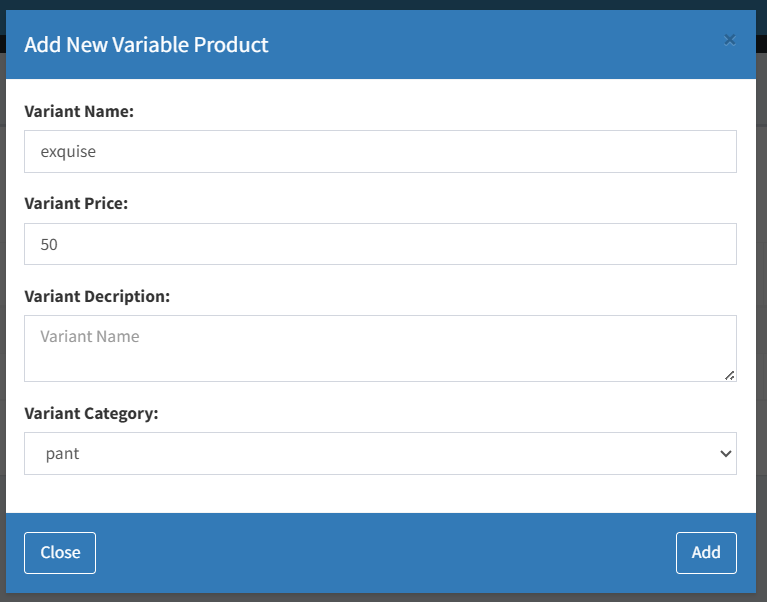
Click the plus button on the list to add a variance group.
The add form includes:
- Variant name.
- Variant price.
- Variant description.
- Variant category.
After the group is created, the edit page is used to complete the setup.
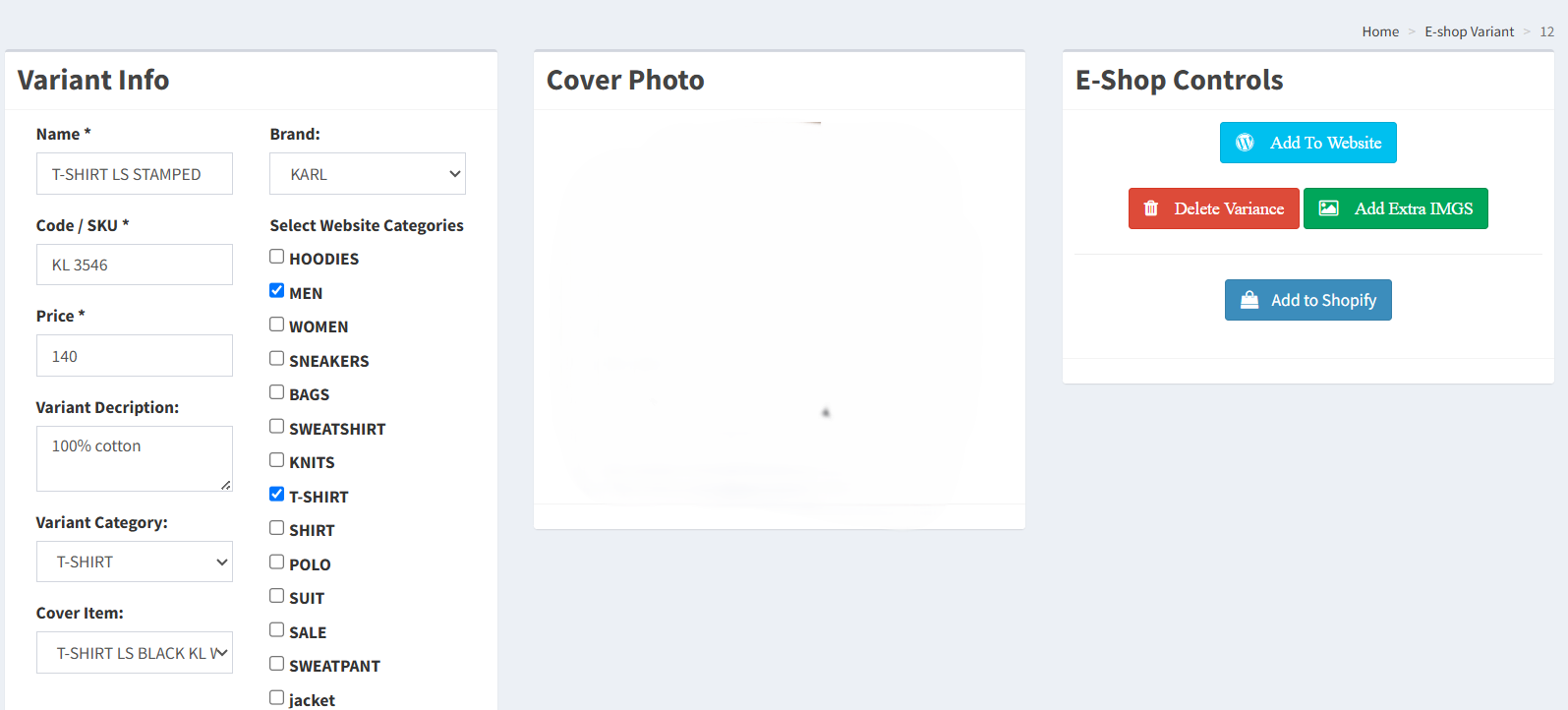
The edit page includes:
- Name.
- Code / SKU.
- Price.
- Description.
- Local product category.
- Cover item.
- Brand.
- Website category mapping.
Click Update to save the variance information and mappings.
Mapping Website Categories
Website categories are selected on the variance edit page under Select Website Categories.
The page only lists WooCommerce categories that already have a WooCommerce category ID. Selected categories are saved as website category mappings for the variance group.
Use this mapping before adding or updating the product on the website so the online product is placed in the correct website categories.
Mapping Brands
The Brand field lists brands that already have a WooCommerce brand ID.
When a brand is saved on the variance group, the system also updates the local items in that variance with the selected brand name.
Use this field when the website product should be published or updated with a mapped website brand.
Managing Images
Products Variance uses a cover item image and optional extra variance images.
The edit page includes:
- Cover Photo: shown from the selected cover item.
- Add Extra IMGS: uploads an extra image for the variance group and assigns it to a color.
- Item image action: updates one item image, all items with the same color, or all items in the variance group.
- Extra image delete action.
- Extra image color change action.
Allowed upload formats in the controller are PNG, JPG, and JPEG.
Discount and Sync Actions
Products Variance includes e-commerce actions from the edit page.
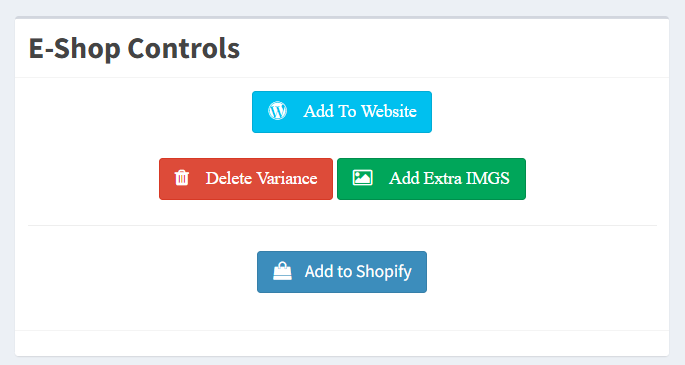
For WooCommerce:
- Add To Website creates the WooCommerce variable product and its variations.
- Delete From Website removes the WooCommerce product and clears WooCommerce IDs from the linked local items.
- Update Product Info can update product information, product variances, or run a full product update.
- Set Discount Price can apply a sale price to all linked variations.
- The item-level discount button can apply a sale price to one linked variation.
For Shopify:
- Add to Shopify is shown when the variance is not linked to Shopify.
- Sync to Shopify is shown when the variance already has a Shopify ID.
Stock status is sent to WooCommerce when the product is added to the website and when product variances are updated. The controller calculates stock status from local item stock fields and sends each variation as in stock or out of stock. Do not treat this page as proof that every local stock change automatically updates the website. Use the visible update or sync actions when synchronization is needed.
Difference Between Product By Size and Products Variance
Product By Size and Products Variance both support variable e-commerce products, but they are not the same page.
Product By Size groups products by existing product size and original code. It is accessed from Products Setup -> Product By Size.
Products Variance creates a separate variance group in the local variance table, then lets the admin assign local items to that group. It also provides website category mapping, WooCommerce brand mapping, extra variance images, WooCommerce create/update/delete actions, discounts, and Shopify add/sync actions where supported.
Use Products Variance when the website product needs a managed variance group with explicit local item assignment and e-commerce mappings.
Actions Reference
| Icon | Button / Action Name | Where It Appears | Function | Notes |
|---|---|---|---|---|
| ➕ | Add variance | Products Variance list | Opens the Add New Variable Product form. | Creates a new record in the variance group table. |
| ✏️ | Edit variance | Products Variance list | Opens the selected variance edit page. | Used to manage mappings, items, images, and sync actions. |
| 🌐 | WooCommerce status / Add To Website | List status and edit page controls | Shows WooCommerce link status on the list and opens the add-to-website confirmation on the edit page. | The add action is available when the variance is not already linked to WooCommerce. |
| 🗑️ | Delete | Edit page controls, item rows, and image rows | Deletes from website, deletes an unlinked variance group, removes an item from the variance, or deletes an extra image depending on where it appears. | Read the confirmation modal before submitting because the same icon is used for different delete actions. |
| 🌐 | Update Product Info | E-Shop Controls | Opens the WooCommerce update modal. | The modal offers Update Product Info, Update Product Variances, and Full Product Update. |
| 💲 | Set Discount Price | E-Shop Controls and item rows | Applies a sale price to all linked WooCommerce variations or to one item variation. | Available after the variance is linked to WooCommerce. |
| 🖼️ | Image actions | E-Shop Controls, Variant Items, and Other Variance Images | Adds extra variance images or changes item images. | Item image updates can target one item, same-color items, or all items in the variance. |
| 🛍️ | Shopify status / Add or Sync to Shopify | List status and edit page controls | Shows Shopify link status and opens Shopify add or sync confirmation. | Shopify actions use the Shopify variance route where supported. |
| ✏️ | Open local product | Variant Items table | Opens the linked local product record in a new tab. | This edits the local product, not the variance group itself. |
| 🖌️ | Change image color | Other Variance Images | Opens the color selector for an extra variance image. | Used to associate an extra image with a variance color. |
- Adding a variance group but not assigning any local items to it.
- Forgetting to select website categories before adding or updating the product on the website.
- Selecting a brand that is not mapped to WooCommerce.
- Expecting stock status to update on the website without using a confirmed sync or update action.
- Deleting a variance group when the intended action was only to remove one item from the group.
Troubleshooting
If Products Variance is not visible, confirm that e-shop integration is enabled and that the user has permission to access products variance pages.
If website categories are missing, confirm that the WooCommerce categories have been synchronized and have WooCommerce IDs.
If brands are missing, confirm that the brands have WooCommerce brand IDs.
If a product cannot be added to the website, check that the variance has assigned items, a cover item, website category mapping, and valid product images where required.
If stock does not look correct online, use the WooCommerce update actions for the variance and confirm that the linked local items have correct stock values.