WooCommerce Categories
Overview
WooCommerce Categories manages website category records used for WooCommerce product and variant workflows.
Use this page to create and edit website categories, upload category images, add categories to the WooCommerce store, update linked WooCommerce categories, remove linked categories from the store, and publish or draft related website items.
Accessing WooCommerce Categories
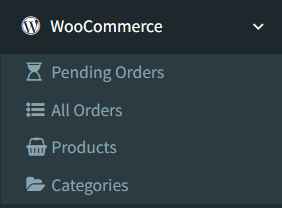
Open WooCommerce -> Categories.
The WooCommerce menu appears only when WooCommerce is enabled and the user has access to WooCommerce pages.
Categories List
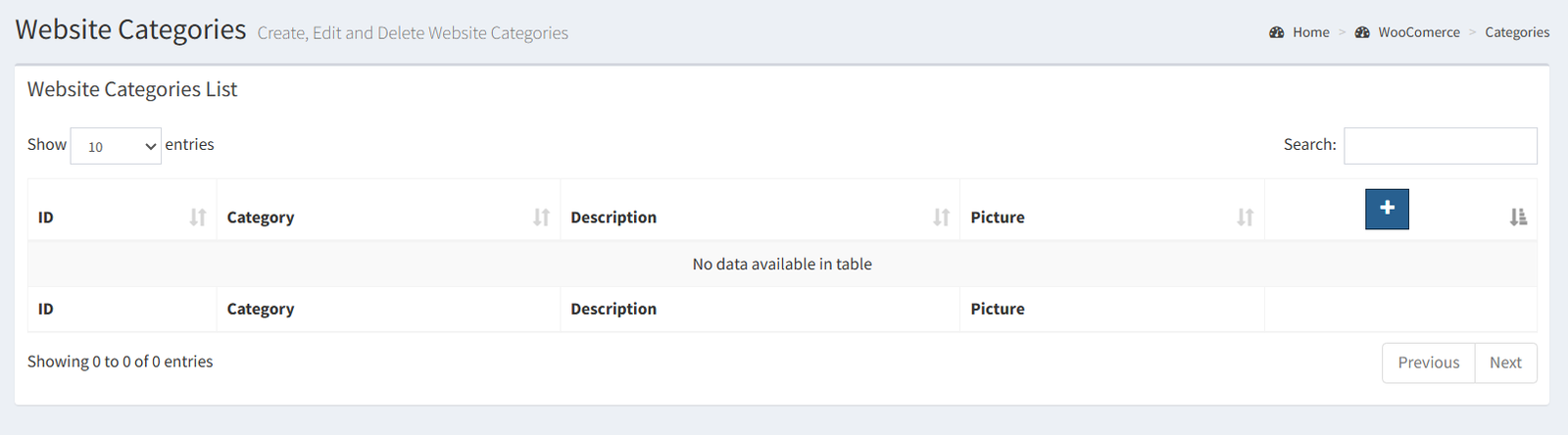
The Categories list shows local website category records and their WooCommerce link status.
Visible columns include:
- ID
- Category
- Description
- Picture
- Actions
The Category column shows a WordPress icon. A highlighted WordPress icon means the category has a WooCommerce ID. A gray WordPress icon means the category has not been added to WooCommerce.
Searching or Filtering Categories
The categories table uses the standard table controls. Administrators can use the table search box, sorting, and pagination provided by the list.
Use search or sorting to find categories by visible table values such as ID, category name, or description.
Category Sync Actions
The active Categories page supports local category maintenance and WooCommerce sync actions.
Confirmed local actions:
- Add a new website category.
- Edit category name, description, and image.
- Delete a local website category when it has no related items.
Confirmed WooCommerce actions:
- Add a local website category to WooCommerce.
- Update an existing WooCommerce category.
- Optionally include the category picture when updating WooCommerce.
- Delete the WooCommerce category link from the e-shop.
- Enable all related items on WooCommerce.
- Disable all related items on WooCommerce.
When a category is added to WooCommerce, the system stores the WooCommerce category ID on the local website category record. If related variant products are already linked to WooCommerce, their website category assignments can be updated after the category is added.

Difference Between Local Categories and WooCommerce Categories
Local product categories are managed in Products Setup and are used for local POS product organization.
WooCommerce Categories are website category records used by the e-commerce integration. They can be linked to WooCommerce categories and assigned to WooCommerce product or variant workflows.
Use Products Setup for local POS category maintenance. Use WooCommerce Categories when managing website categories and category synchronization with WooCommerce.
Actions Reference
| Icon | Button / Action Name | Function | When To Use It | Notes |
|---|---|---|---|---|
| ➕ | Add website category | Opens the Add New Website Category modal. | Use it to create a local website category record. | The add form includes category name, description, and image upload. |
| ✏️ | Edit category | Opens the edit modal for the local website category. | Use it to update the local category name, description, or image. | This updates the local website category record. |
| 🌐 | Add to WooCommerce | Opens the modal to add an unlinked category to WooCommerce. | Use it when the WordPress status icon is gray and the category should exist online. | After adding, the local category stores the WooCommerce category ID. |
| 🌐 | Update WooCommerce category | Opens the modal to update a linked WooCommerce category. | Use it when the category is already linked and online details need to be refreshed. | The modal includes an Update With Picture checkbox. |
| 🗑️ | Delete local category | Opens the local delete confirmation modal. | Use it for an unlinked category that should be removed locally. | Categories with related items cannot be deleted. |
| 🗑️ | Delete from e-shop | Opens the delete-from-WooCommerce confirmation modal. | Use it when a linked category should be removed from WooCommerce. | This clears the WooCommerce category link and removes related website category mappings. |
| 🏷️ | Enable or disable related items | Opens the modal for related item status actions. | Use it to publish or draft products related to the category on WooCommerce. | The modal includes Enable and Disable buttons for related items. |
| × | Close modal | Closes the current modal without saving. | Use it when no change should be made. | Closing a modal does not update local records or WooCommerce. |
- Confusing local Product Categories with WooCommerce Categories.
- Creating duplicate website category names.
- Expecting a gray WordPress icon category to already exist in WooCommerce.
- Deleting a category before checking whether related items exist.
- Updating a WooCommerce category without checking whether the category image should also be sent.
- Using Enable or Disable related items without confirming which products are assigned to the category.
Troubleshooting
The WooCommerce menu is missing.
Check that WooCommerce is enabled in Company Info and that the user has WooCommerce access.
WooCommerce Categories does not open.
Check the WooCommerce Store URL, Consumer Key, and Consumer Secret. The page is protected by the WooCommerce integration configuration check.
A category cannot be created.
Check whether another website category already uses the same name.
A local category cannot be deleted.
The category may have related items. Remove or change the related item mappings before deleting the category.
A category image did not update online.
When updating a linked WooCommerce category, check Update With Picture before submitting the update.
Related items did not change online.
Confirm that the related items are linked to WooCommerce before using Enable or Disable related items.