WooCommerce All Orders
Overview
WooCommerce All Orders shows orders returned from the WooCommerce store, across all statuses.
Use this page to review website orders, open order details, update a WooCommerce order status, and take eligible processing orders into the local POS system.
Accessing All Orders
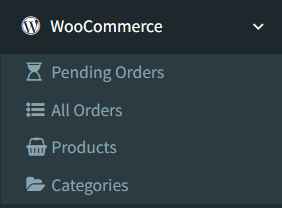
Open WooCommerce -> All Orders.
The WooCommerce menu appears only when WooCommerce is enabled and the user has access to WooCommerce pages.
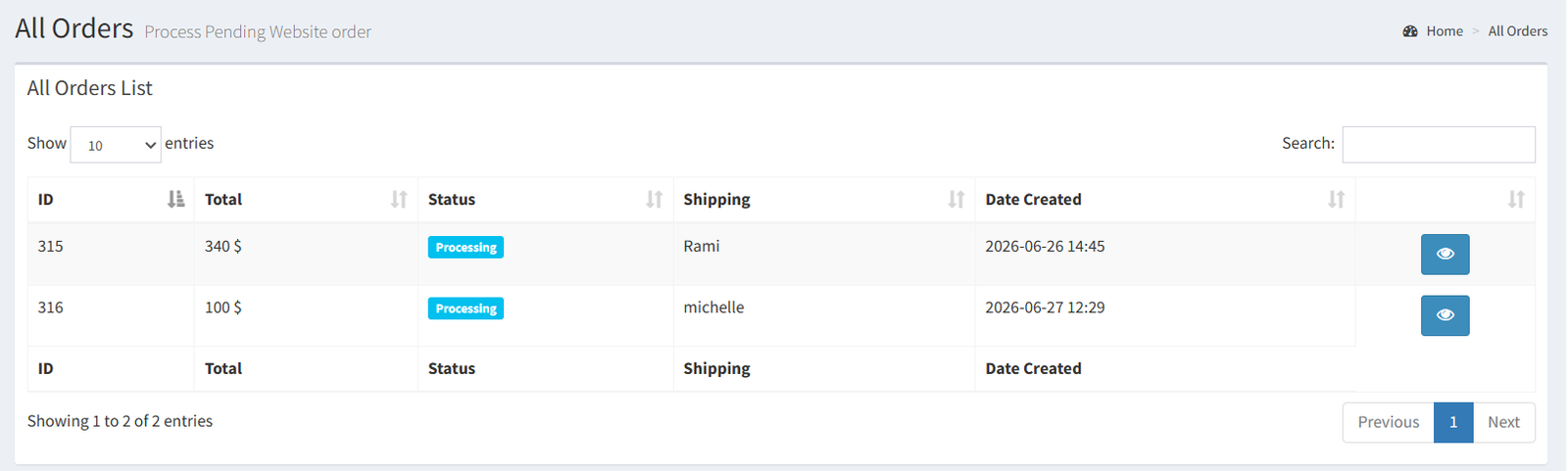
All Orders List
The All Orders list uses the same order table layout as Pending Orders, but it loads all WooCommerce orders instead of only processing orders.
Visible columns include:
- ID
- Total
- Status
- Shipping
- Date Created
- View action
Click the eye button to open the order details page.
Searching or Filtering Orders
The order table uses the standard table controls. Administrators can use the table search box, sorting, and pagination provided by the list.
Use search or sorting to find orders by visible table values such as order ID, total, status, customer name in the shipping column, or date created.
Reviewing Order Details
The order details page shows:
- Order ID
- Status
- Currency
- Date
- Shipping total
- Order total
- Billing details
- Shipping address
- Payment details
- Ordered items with ID, name, SKU, quantity, and total
The details page includes an Order Status selector and Update Status button. An administrator can update the WooCommerce order status to:
- Pending Payment
- Processing
- On Hold
- Completed
- Cancelled
- Refunded
- Failed
When the order status is processing, the page also shows Take Order. This opens the customer matching modal and can convert the WooCommerce order into a local POS invoice.
Difference Between Pending Orders and All Orders
Pending Orders lists only WooCommerce orders with the processing status. It is the main page for orders waiting to be reviewed and taken into POS.
All Orders lists all WooCommerce orders returned by the WooCommerce API. Use it to review orders across statuses, including completed, pending payment, on hold, cancelled, refunded, failed, and processing orders.
Both pages use the same order details screen. The Take Order action is available on the details screen only when the order status is processing.
Stock Synchronization Note
WooCommerce and Shopify can synchronize local stock with website stock when integration is enabled.
For WooCommerce, the system has a scheduled stock sync that checks linked local items and updates WooCommerce product or variation stock when the calculated local stock differs from the last synced stock. Company Info also includes Force Full WooCommerce Sync.
Do not treat stock sync as always immediate after every local stock change. Use Force Full WooCommerce Sync when an administrator needs to push a full WooCommerce stock refresh.
- Expecting All Orders to show only orders waiting for POS review.
- Taking an order without checking whether the customer should be matched to an existing local customer.
- Expecting the Take Order button on orders that are not processing.
- Updating the WooCommerce order status without confirming the order has been reviewed.
- Expecting every website item to convert if it is not linked by WooCommerce ID or SKU.
Troubleshooting
The WooCommerce menu is missing.
Check that WooCommerce is enabled in Company Info and that the user has WooCommerce access.
All Orders does not open.
Check the WooCommerce Store URL, Consumer Key, and Consumer Secret. The page is protected by the WooCommerce integration configuration check.
An order is missing from Pending Orders but appears in All Orders.
Pending Orders only shows processing orders. Check the order status.
The Take Order button is missing.
The button appears on the order detail page when the order status is processing.
A taken order did not include an item.
Check that the website item is linked to a local item by WooCommerce product ID, WooCommerce variation ID, or SKU.