WooCommerce Pending Orders
Overview
WooCommerce Pending Orders shows website orders that are waiting to be reviewed or taken into the local POS system.
The page lists WooCommerce orders with the processing status. From the list, an administrator can open an order, review the customer and item details, update the WooCommerce order status, or take the order into the local POS system.
Accessing Pending Orders
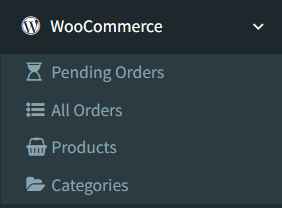
Open WooCommerce -> Pending Orders.
The WooCommerce menu appears only when WooCommerce is enabled and the user has access to WooCommerce pages. A WooCommerce shortcut can also appear in the top bar when pending orders exist.
Requirements
Before using Pending Orders:
- WooCommerce must be enabled and configured from Company Info → Integrations. For setup details, see Company Info.
- WooCommerce Store URL, Consumer Key, and Consumer Secret must be configured.
- The user must have access to the WooCommerce menu and Pending Orders page.
- The WooCommerce connection must be available. If the API cannot be reached, the page redirects back with a WooCommerce API error.
Pending Orders List
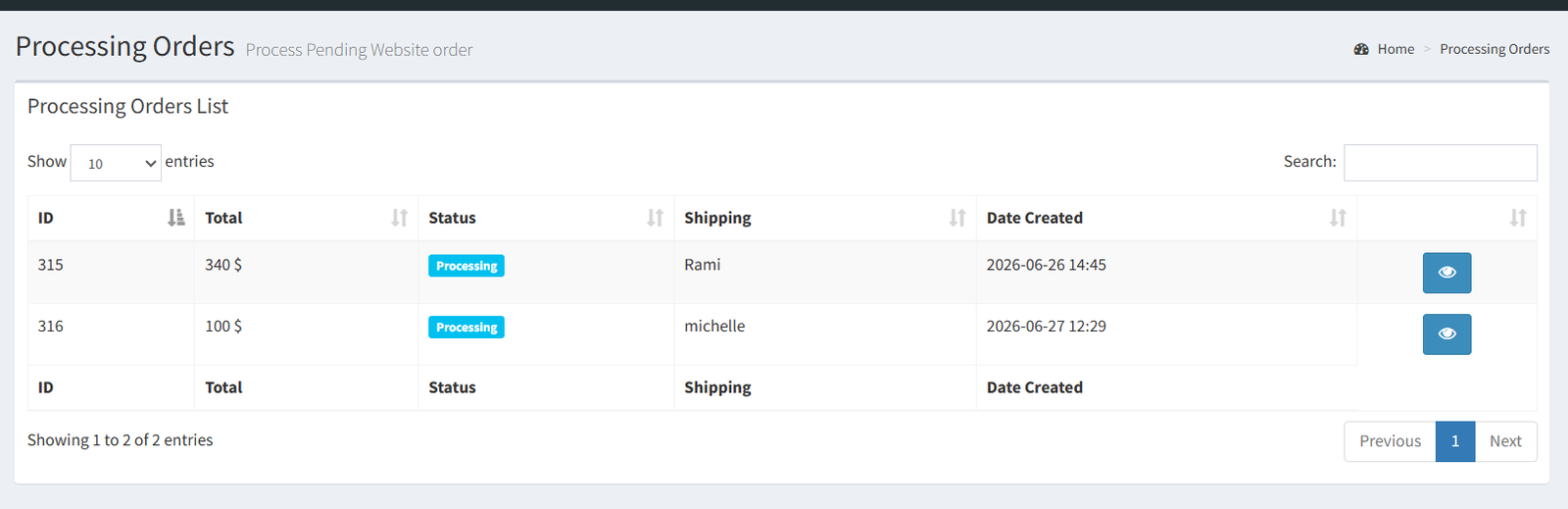
The Pending Orders list shows WooCommerce orders currently returned with the processing status.
Visible columns include:
- ID
- Total
- Status
- Shipping
- Date Created
- View action
Click the eye button to open the order details page.
Reviewing an Order
The order details page shows:
- Order ID
- Status
- Currency
- Date
- Shipping total
- Order total
- Billing details
- Shipping address
- Payment details
- Ordered items with ID, name, SKU, quantity, and total
The page also includes an Order Status selector. An administrator can update the WooCommerce order status to:
- Pending Payment
- Processing
- On Hold
- Completed
- Cancelled
- Refunded
- Failed

Importing or Taking an Order
When the WooCommerce order status is processing, the order details page shows Take Order.
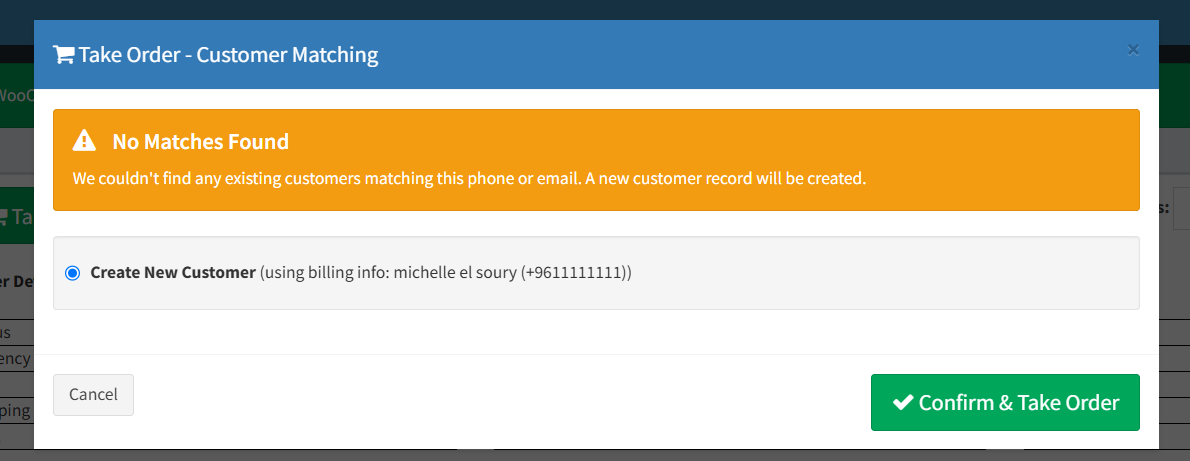
Clicking Take Order opens a customer matching modal. The modal searches existing local customers by email, phone, and name. The administrator can select an existing customer or create a new customer from the WooCommerce billing information.
After confirmation, the system converts the WooCommerce order into a local POS invoice and opens the created invoice.
During conversion:
- The system checks whether the WooCommerce order was already converted.
- WooCommerce line items are matched to local items by WooCommerce variation ID, WooCommerce product ID, or SKU.
- Matching items are added to the invoice.
- Local held stock is increased for matching items in the current user's store.
- Shipping is added as an invoice line when the order includes a shipping total.
Pending Orders Actions Reference
[INSERT SCREENSHOT: Pending Orders action icons]
| Icon | Button / Action Name | Function | When To Use It | Notes |
|---|---|---|---|---|
| 👁️ | View order details | Opens the WooCommerce order details page in a new tab. | Use it to review the order before changing status or taking the order into POS. | This is the only action button shown on each row of the Pending Orders list. |
| 🛒 | Take Order | Opens the customer matching modal for the WooCommerce order. | Use it when the order is ready to be converted into a local POS invoice. | This button appears only when the WooCommerce order status is processing. |
| 🔄 | Update Status | Saves the selected WooCommerce order status. | Use it to update the order status in WooCommerce after selecting a status from the dropdown. | The available statuses are Pending Payment, Processing, On Hold, Completed, Cancelled, Refunded, and Failed. |
| ◉ | Customer selection | Selects whether to create a new customer or use a matching existing customer. | Use it before confirming the order import. | Existing customer choices appear when matching customers are found by email, phone, or name. |
| ✅ | Confirm & Take Order | Converts the WooCommerce order into a local POS invoice using the selected customer choice. | Use it after confirming the customer match is correct. | The system opens the created POS invoice after conversion. |
| × | Cancel or close modal | Closes the modal without taking the order. | Use it when the order or customer match needs more review. | Closing the modal does not change the WooCommerce order or create a POS invoice. |
Stock Synchronization Note
WooCommerce and Shopify can synchronize local stock with website stock when integration is enabled.
For WooCommerce, the system has a scheduled stock sync that checks linked local items and updates WooCommerce product or variation stock when the calculated local stock differs from the last synced stock. Company Info also includes Force Full WooCommerce Sync.
For Shopify, the same stock synchronization concept exists where Shopify is enabled. Company Info includes Force Full Shopify Sync, and the scheduled Shopify sync checks linked Shopify items.
Do not treat stock sync as always immediate after every local stock change. Use Force Full WooCommerce Sync or Force Full Shopify Sync when an administrator needs to push a full stock refresh.
- Opening Pending Orders before WooCommerce is enabled.
- Saving the WooCommerce URL without valid Consumer Key and Consumer Secret values.
- Expecting non-processing WooCommerce orders to appear in Pending Orders.
- Taking an order without checking whether the customer should be matched to an existing local customer.
- Expecting every website item to convert if it is not linked by WooCommerce ID or SKU.
- Expecting stock to sync immediately without scheduled sync or a force sync.
Troubleshooting
The WooCommerce menu is missing.
Check that WooCommerce is enabled in Company Info and that the user has WooCommerce access.
Pending Orders does not open.
Check the WooCommerce Store URL, Consumer Key, and Consumer Secret. The page is protected by the WooCommerce integration configuration check.
No orders appear.
Pending Orders lists WooCommerce orders with the processing status. Check the order status in WooCommerce.
The Take Order button is missing.
The button appears on the order detail page when the order status is processing.
A taken order did not include an item.
Check that the website item is linked to a local item by WooCommerce product ID, WooCommerce variation ID, or SKU.
Website stock looks outdated.
Use Force Full WooCommerce Sync from Company Info, and confirm that the queue or scheduled sync is running.