Products
Overview
Products are the items you sell, purchase, stock, and print labels for. Each product stores its name, barcode, internal product code, price, cost, category, optional attributes, stock quantities, and images.
Products are used across the system in:
- Sales: products are selected or scanned by barcode when creating invoices.
- Purchases: purchased quantities update product inventory.
- Inventory: product stock is tracked per active location, including held quantities.
- Labels: product barcodes and details can be printed for one product or for a filtered group of products.
Accessing Products
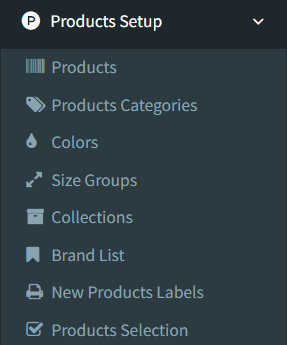
Open Products Setup → Products.
Access may depend on user permissions. If the Products menu or Products page is not visible, ask an administrator to check your user level.
Products List
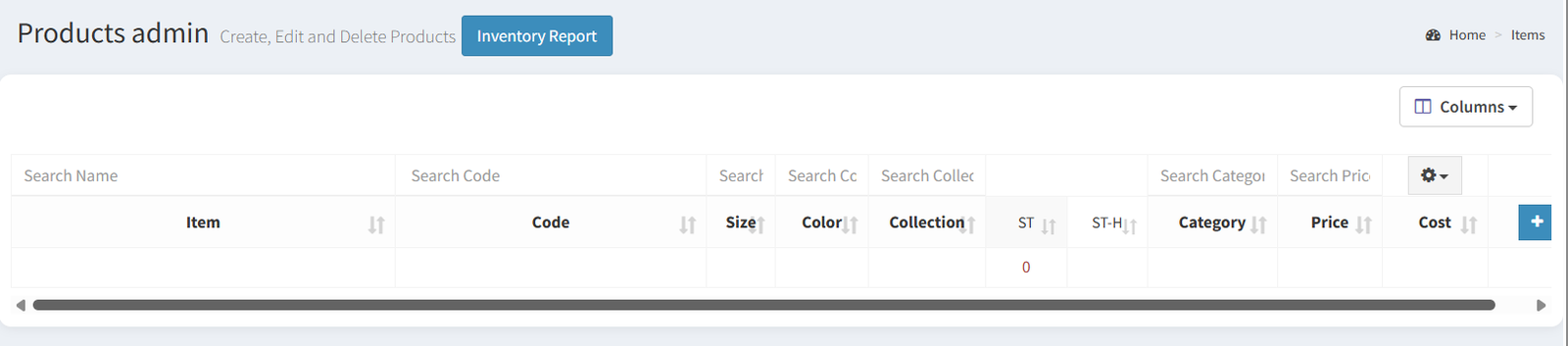
The Products page opens to a searchable product table. The list shows the product catalog and the current stock position for each active location.
Search and Filter
Use the search boxes at the top of the table to filter products.
Available filters can include:
- Product name
- Barcode or user code
- Size
- Color
- Collection
- Category
- Price
The visible filters depend on which product features are enabled in company settings. For example, if color or collection tracking is disabled, those columns and filters may not appear.
Columns
The product list can show:
- Item name
- Barcode or user code
- Size
- Color
- Collection
- Available stock by location
- Held stock by location
- Category
- Price
- Cost, if the user has permission
- Action buttons
Use the Columns menu to hide or show supported columns.
Available Actions
From the product list, users can:
- Add a new product with the plus button.
- Edit a product with the pencil button.
- View product details with the eye button.
- Open the Inventory Report.
- Filter products and apply bulk actions, such as changing price, category, color, size, collection, or printing labels.
Bulk actions apply to the filtered product set. Review the active filters before confirming a bulk update.
Adding a Product
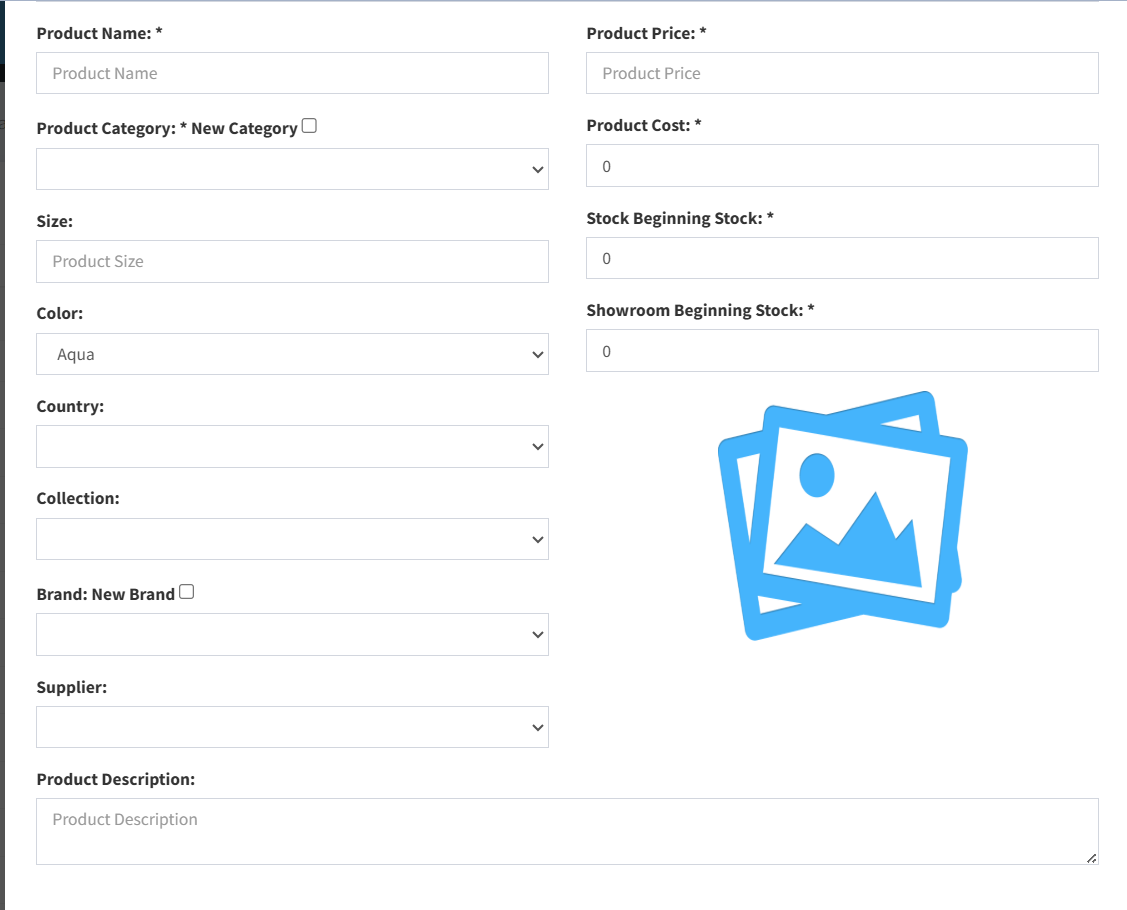
Click the plus button in the product list to open the Add New Product form.
Required Fields
The required fields are:
- Product Name
- Product Category
- Product Code, when user codes are enabled
- Product Price
- Product Cost
- Beginning stock fields for each active location
Barcode
The barcode can be created automatically or entered manually.
- Leave Auto Generate checked to let the system create a barcode.
- Clear Auto Generate to type or scan a barcode manually.
Manual barcodes must be unique.
Product Details
The add form can include:
- Category
- Size
- Color
- Country
- Collection
- Brand
- Supplier
- Description
Some fields appear only when the matching feature is enabled.
Category and Brand Creation
When adding a product, you can create a new category or brand directly from the form:
- Check New Category to type a new category name.
- Check New Brand to type a new brand name.
If the entered category or brand already exists, the existing value is reused.
Stock
Enter beginning stock for each active location. These quantities create the starting stock values for the new product.
Image
Click the image placeholder to upload the main product image.
Product Attributes
Product attributes help organize products and make searching, reporting, e-commerce syncing, and labels more useful.
Categories
Every product must belong to a product category. Categories are managed from Products Setup → Products Categories.
Colors
Colors are optional and appear only when color tracking is enabled. Colors are managed from Products Setup → Colors.
Size Groups
Size groups are available from Products Setup → Size Groups. Products can also be grouped by size for variant-style workflows when size and e-commerce features are enabled.
Collections
Collections are managed from Products Setup → Collections. In the application, collections are stored in the collections list and can be assigned to products when collection tracking is enabled.
Brands
Brands are optional and appear only when brand tracking is enabled. Brands are managed from Products Setup → Brand List.
Product Codes
Products can have more than one code depending on system settings.
- Barcode: stored as the product barcode and used for scanning.
- User Code / Product Code: an internal product code shown when user codes are enabled.
- SKU: there is no separate SKU field on the Products form. When products are sent to e-commerce integrations, the system uses the product code as the SKU value.
If user codes are disabled, the barcode is also used as the product code.
Product Images
Products support a main image.
On the add form, click the image placeholder to choose an image. On the edit page, click the current product image to replace it.
If extra product images are enabled, the edit page also includes an Other Item Images section where users can add multiple extra images and delete existing extra images.
Editing a Product
Click the pencil button on the Products list to open the product edit page.
Editable fields can include:
- Barcode
- Product name
- Product code
- Category
- Size
- Color
- Season
- Collection
- Brand
- Supplier
- Enabled or disabled status
- Price
- Discount percentage or amount
- Cost, if the user has permission
- Main product image
- Description
Click Update to save changes.
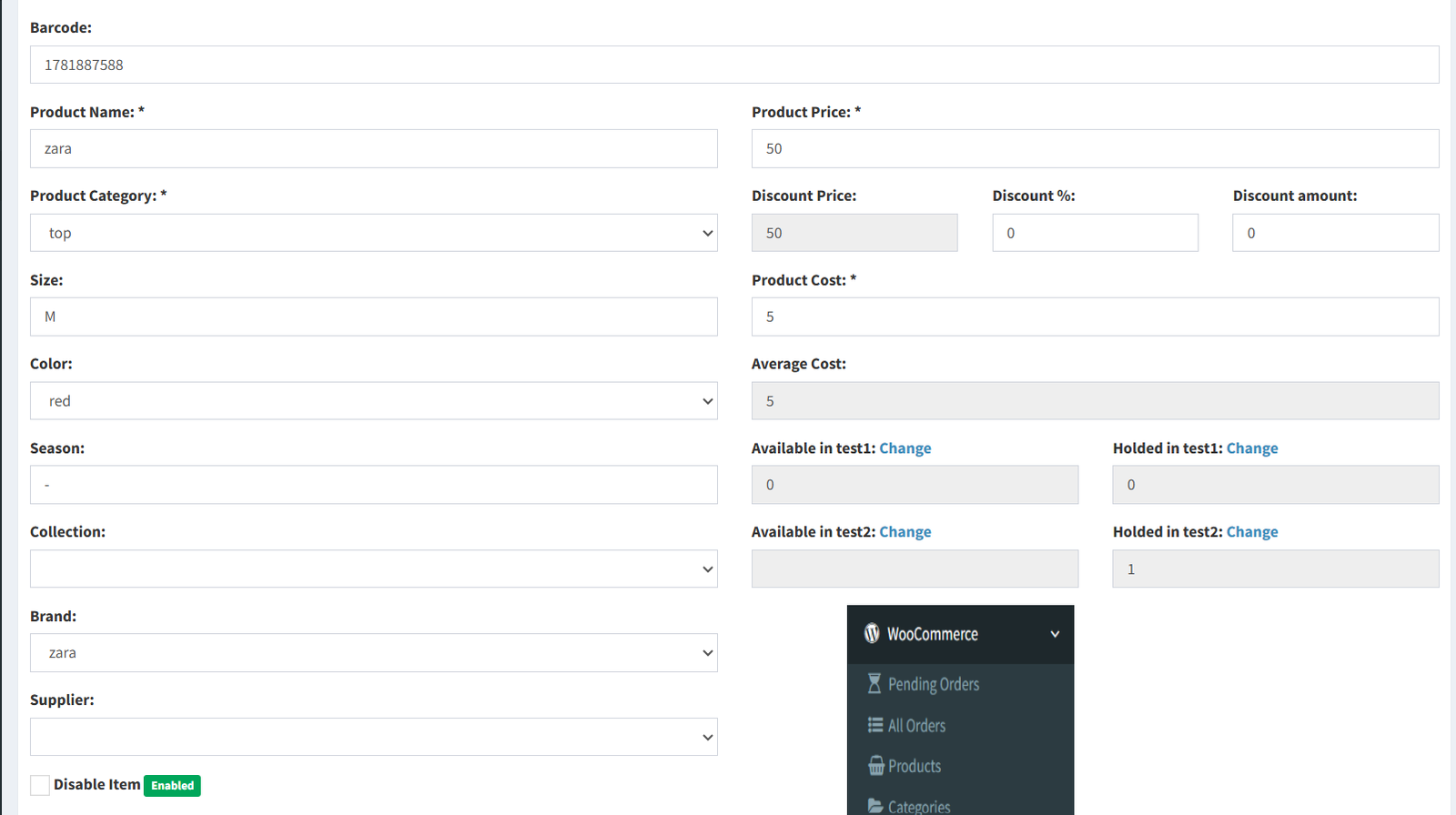
The edit page also shows stock by active location. Users with the required access can open stock adjustment dialogs to replace available or held quantities for a location.
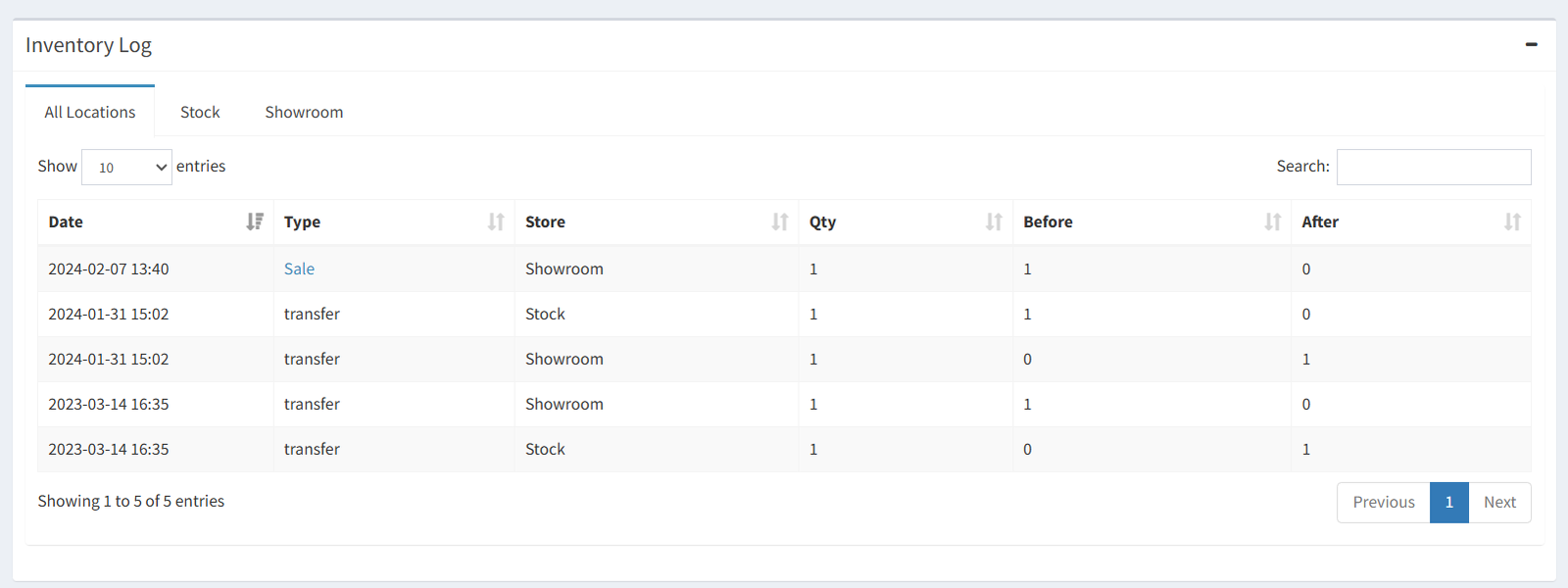
The edit page includes an inventory log section showing product stock movement history.
Deleting a Product
Product deletion is available from the product edit page.
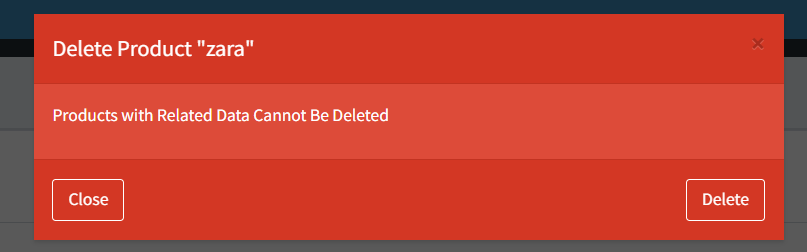
Click the trash icon, review the confirmation dialog, and confirm deletion.
Products with related sales data cannot be deleted. Products with related purchase data cannot be deleted. If a product has no related sales or purchase records, the product and its stock log records are removed.
- Products with related sales data cannot be deleted.
- Products with related purchase data cannot be deleted
- If a product has no related sales or purchase records, the product and its stock log records are removed.
Product Variants
Product variant workflows are available when the related product and e-commerce features are enabled.
Confirmed variant-related workflows include:
- Grouping filtered products into a size group from the Products list.
- Creating a variable product group from filtered products.
- Viewing grouped products from Products Setup → Product By Size.
- Opening a grouped product to review its sizes, stock by location, images, and website status.
Variant workflows depend on product size, product grouping codes, and e-commerce configuration. Some variant controls are only visible when the relevant features are enabled.
Buttons Reference
| Button/Icon | Label/Action | Description |
|---|---|---|
 | Add Item | Opens the creation modal for a new product. |
 | Edit | Opens the detailed edit page for the item. |
 | View | Opens the quick-view product details modal. |
 | Inventory Report | Redirects to the detailed Stock Valuation report. |
- Entering a barcode that already exists.
- Entering a user code that already exists.
- Forgetting to clear Auto Generate before typing a manual barcode.
- Applying a bulk action while the wrong filters are active.
- Trying to delete a product that already has sales or purchase history.
- Expecting color, size, collection, or brand fields to appear when those features are disabled.
- Confusing barcode with user code. Barcode is used for scanning; user code is the internal product code when enabled.
Troubleshooting
The Products page is not visible.
Check that the user has access to Products Setup and Products.
A barcode cannot be saved.
The barcode may already exist. Use a unique barcode or enable auto generation.
A product code cannot be saved.
The user code may already exist. Use a unique product code.
A product cannot be deleted.
The product may have related sales or purchase records. Products with related data are protected from deletion.
A column or field is missing.
The related feature may be disabled in company settings, or the user may not have permission to view that field.
Bulk updates changed more products than expected.
Bulk updates use the current filters. Before confirming, check the search fields and filtered result set.
Labels do not use the expected layout.
Check the label template settings in Label Setup.