Currencies Setup
Overview
Use Currencies Setup to manage the currency names, symbols, exchange rates, and conversion operations used by the system.
Currencies are used throughout purchases, payments, invoices, sales screens, and reports. Currency changes can also affect purchase cost calculations, so review exchange rates carefully before updating them.
The default/base currency is seeded as USD.
Accessing Currencies Setup
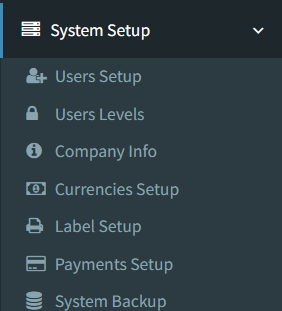
Open the page from the main sidebar:
- Go to System Setup.
- Select Currencies Setup.
The menu link is shown only to users who have access to Currencies Setup.
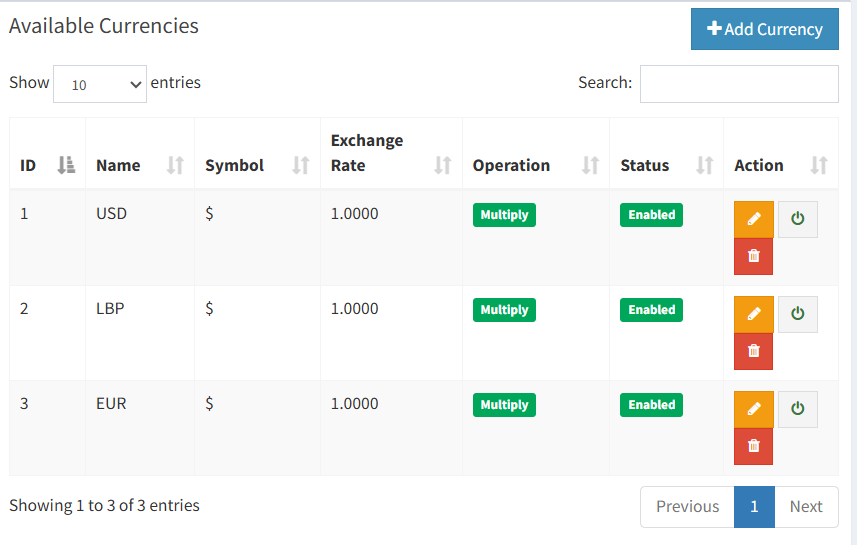
Available Currencies List
The Available Currencies table shows all currencies configured in the system.
The list includes these columns:
- ID: The internal currency record number.
- Name: The currency name or code, such as USD or LBP.
- Symbol: The symbol shown with currency amounts.
- Exchange Rate: The rate used to convert the currency to the base USD value.
- Operation: The conversion method, either Multiply or Divide.
- Status: Shows whether the currency is enabled or disabled.
- Action: Contains buttons to edit, enable or disable, and delete eligible currencies.
The base currency is marked with a Base Currency label.
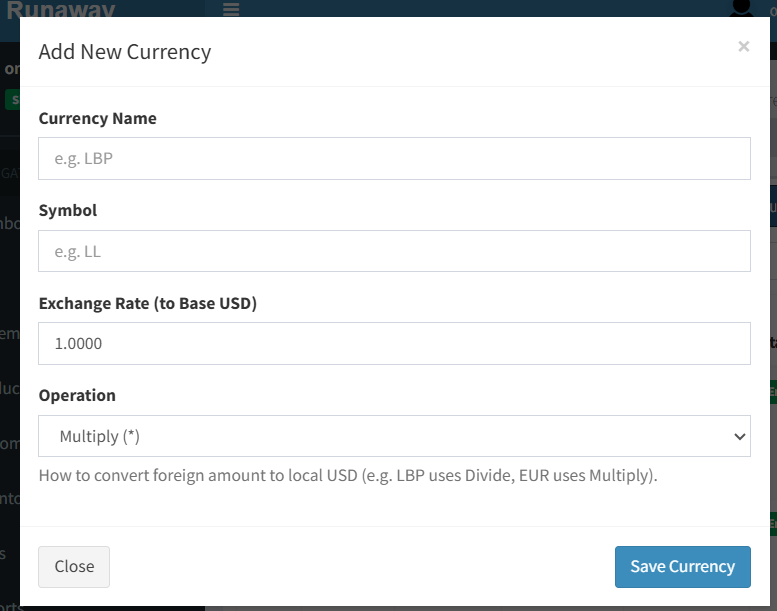
Adding a Currency
Click Add Currency to open the add currency modal.
Complete these fields:
- Currency Name: Enter the currency name or code.
- Symbol: Enter the symbol that should appear with amounts.
- Exchange Rate (to Base USD): Enter the conversion rate used against the base USD currency.
- Operation: Select Multiply or Divide.
Click Save Currency to create the currency. New currencies are enabled by default.
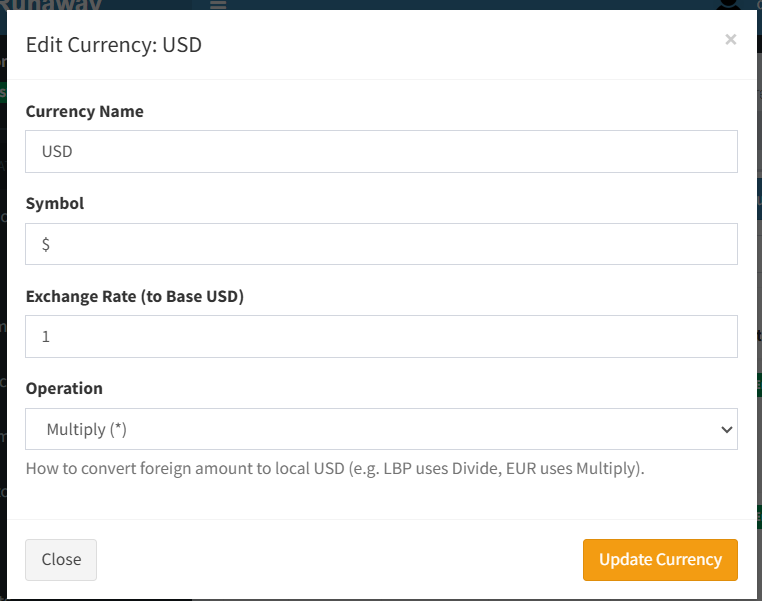
Editing a Currency
Click the edit button in the currency row to open the edit currency modal.
You can update these fields:
- Currency Name
- Symbol
- Exchange Rate (to Base USD)
- Operation
Click Update Currency to save the changes.
Changing the exchange rate or operation can affect purchase cost calculations that use this currency.
Enable or Disable Currency
Use the power/status button in the Action column to enable or disable a currency.
When a currency is disabled, it is not available in screens that only show enabled currencies, such as Payments Setup and purchase currency selection. Existing records that already used the currency are not automatically changed.

Deleting a Currency
Use the delete button in the Action column to remove a currency.
Deletion is restricted:
- The default/base currency cannot be deleted.
- A currency used in purchases cannot be deleted.
If a currency cannot be deleted, disable it instead when you no longer want users to select it for new records.

Understanding Exchange Operations
The operation controls how the system converts a currency amount to the base USD value.
- Multiply (
*): Multiplies the amount by the exchange rate. - Divide (
/): Divides the amount by the exchange rate.
Examples:
- If a currency amount should become larger in USD after conversion, use Multiply. For example, an amount of
100with a rate of1.2becomes120. - If a currency amount should be divided down to USD, use Divide. For example, an amount of
9,000,000with a rate of90,000becomes100.
Use the operation that matches how your business records the exchange rate.
Where Currencies Are Used
Currencies appear in several parts of the system:
- Company Info: Displays the company currency and code, but does not manage currencies.
- Payments Setup: Uses enabled currencies when creating or editing payment types.
- Purchases: Uses enabled currencies when creating or editing purchases.
- Purchase cost calculations: Uses the selected purchase currency, exchange rate, and operation to calculate local costs.
- Sales: Displays currency symbols or codes with sales totals.
- Reports: Shows currency values in sales, payment, profit, tax, and inventory reports.
- Invoices: Prints currency values on invoice and payment documents.
- Entering the wrong exchange rate direction for the selected operation.
- Using Multiply when the rate should be applied with Divide, or the reverse.
- Editing a currency that is already used in purchases without checking the effect on cost calculations.
- Expecting disabled currencies to disappear from old records.
- Trying to delete the base currency or a currency already used in purchases.
Troubleshooting
The currency does not appear in Payments Setup or Purchases.
Check that the currency status is Enabled.
The delete button is not available.
The currency may be the default/base currency. The base currency cannot be deleted.
The system will not delete a currency.
The currency may already be used in purchases. Disable it instead if it should no longer be used.
Converted purchase costs look incorrect.
Review the exchange rate and operation. The operation determines whether the system multiplies or divides by the rate.
Company Info shows a currency but does not let me change it.
Company Info displays the currency information. Currency records are managed from System Setup -> Currencies Setup.