System Backup
Overview
Use System Backup to generate and download a full SQL backup of the system database.
Backups help protect the business from data loss. Download backup files and store them outside the application server.
Accessing System Backup
Open the backup action from the main sidebar:
- Go to System Setup.
- Select System Backup.
The menu link is shown only to users who have access to System Backup.
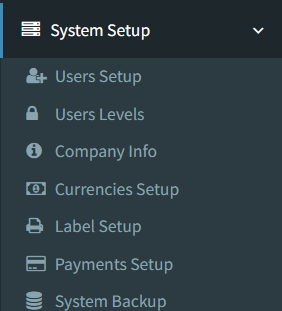
Backup Screen
System Backup does not open a separate backup list page. Selecting System Backup opens a confirmation message.
The confirmation message explains that the system is about to generate and download a full SQL backup of the database. It also warns that the process may take time and that the browser should stay open until the download begins.
Available actions:
- Cancel: Closes the confirmation message.
- Generate & Download: Starts the backup download.
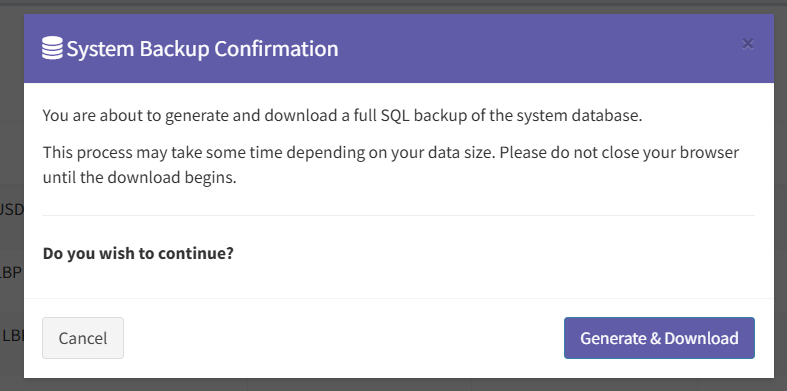
Creating or Downloading a Backup
Click Generate & Download in the confirmation message to start the backup.
After confirmation, the system shows a Generating System Backup loader while the database export is prepared. When the backup is ready, the browser downloads a .sql file.
The backup file name includes the database name and the date/time when the backup was generated.
- Only admin-level users can perform the backup action.
- The active UI creates a SQL database backup only.
- No backup history or backup list is shown in the active UI.
- No restore action is shown in the active UI.
- No delete backup action is shown in the active UI.
- Do not close the browser until the download begins.
- Store downloaded backups outside the application server.
- Expecting a backup list to appear after clicking System Backup.
- Closing the browser before the download starts.
- Keeping the only backup copy on the same server as the application.
- Assuming product images or uploaded files are included in the SQL backup.
- Assuming the system has a visible restore button in the active UI.
Troubleshooting
The backup does not start.
Confirm that you are signed in as an admin-level user.
The system shows a backup failed message.
The server may not have mysqldump configured correctly. Contact the system administrator or support team.
The backup file was not created.
Try again. If the problem continues, contact the system administrator or support team.
I cannot find old backups in the system.
The active UI does not show a backup history or backup list. Check the location where downloaded backup files are stored.
I need to restore a backup.
The active UI does not include a restore action. Contact the system administrator or support team before restoring database data.