Label Setup
Overview
Use Label Setup to configure product label layout, barcode size, and the product details printed on labels.
Label settings are used when printing labels for individual products and for new or unprinted products.
Accessing Label Setup
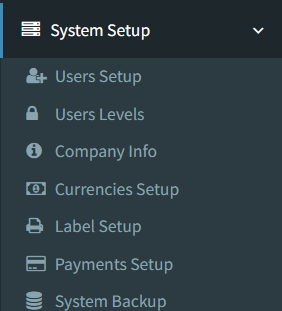
Open the page from the main sidebar:
- Go to System Setup.
- Select Label Setup.
The menu link is shown only to users who have access to Label Setup.
Label settings are also available inside Company Info on the Label Printing tab.
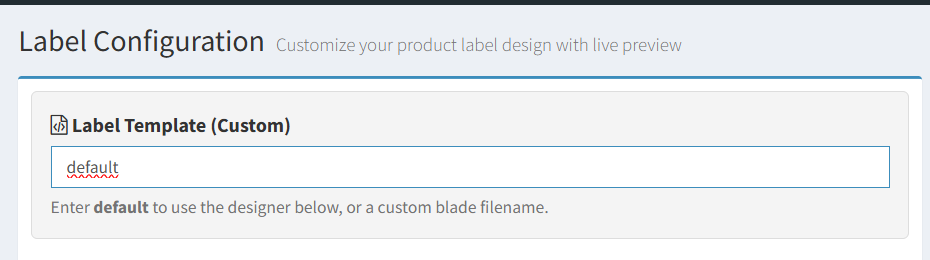
Label Template Selection
Use Label Template (Custom) to choose how labels are rendered.
- Enter default to use the built-in label designer.
- Enter a custom Blade view name only when your system has a custom label template available.
When a custom template name is entered, the standard label configuration fields are disabled because the custom template controls the label design.
Label Dimensions
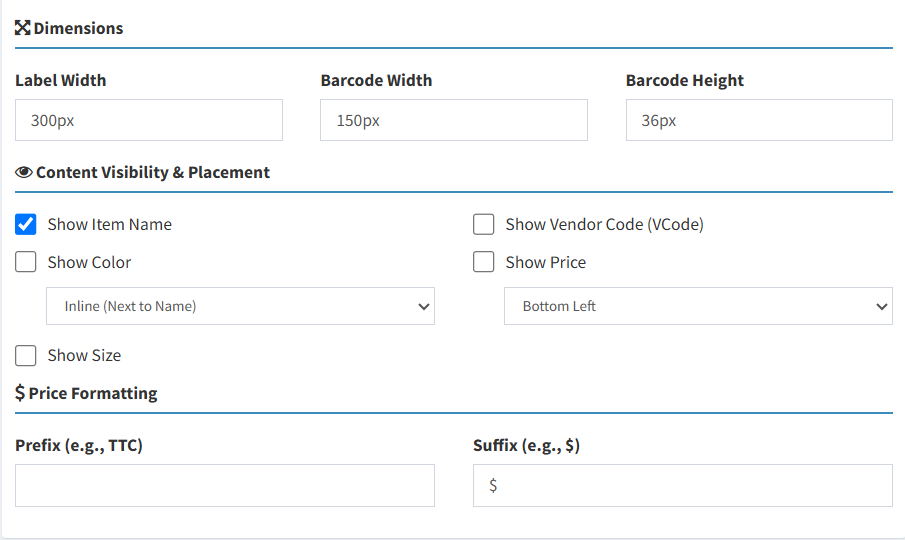
Use the Dimensions section to control the label and barcode size.
Available fields:
- Label Width: Sets the overall label width.
- Barcode Width: Sets the printed barcode width.
- Barcode Height: Sets the printed barcode height.
The fields accept values such as 300px, 150px, 36px, mm, cm, or %. If a number is entered without a unit, the preview treats it as pixels.
-
By default, the system uses the label dimensions and design configured below.
-
If a customer requires special dimensions or a custom label design, a Custom Label Template can be created by the system administrator or development team.
-
When a template other than Default is selected, the system uses the custom template instead of the standard label configuration.
Barcode Settings
Label Setup controls the barcode width and height.
The barcode type is not selected from this page. The active print views generate product barcodes using the system barcode print template.
The live preview shows a sample barcode area. It is a layout preview, not a real product barcode.
Product Information Display
Use Content Visibility & Placement to choose which product details appear on the label.
Available options:
- Show Item Name
- Show Color
- Color Placement: Inline next to the name, or float right.
- Show Size
- Show Vendor Code (VCode)
- Show Price
- Price Placement: Inline next to the name, or bottom left.
Use Price Formatting to control price text:
- Prefix: Text shown before the price, such as
TTC. - Suffix: Text shown after the price, such as
$.
Live Preview
The Live Preview panel updates when label settings change.
The preview uses sample data such as:
- Item name
- Color
- Size
- Price
- Vendor code
- Sample barcode text
Use the preview to check the label layout before saving. The preview is an approximation and does not replace a real test print.
Saving Label Settings
Click Save Configuration on the standalone Label Setup page to save the current settings.
If you are editing label settings from Company Info -> Label Printing, click Save Label Settings.
Printing Labels
Label printing is available from product and label printing workflows.
Common print paths:
- Use the print icon on an individual product to print that product label.
- Use the new products label workflow to print labels for new or unprinted products.
- From the standalone Label Setup page, click Print Test Label to open the new products label workflow in a new tab.
The label print page includes a Print button. Clicking it opens the browser print dialog.

- Entering a custom template name when no custom template exists.
- Expecting the live preview barcode to be a real product barcode.
- Setting barcode width or height too small for the scanner to read.
- Forgetting to save changes before printing labels.
- Using a custom template and expecting the standard designer fields to remain active.
Troubleshooting
The standard label fields are disabled.
Check the Label Template (Custom) field. Enter default to use the built-in designer.
The preview does not match the printed label exactly.
The preview is an approximation. Print a test label after changing dimensions or barcode size.
The barcode is hard to scan.
Increase the barcode width or height, then print a test label.
The Print Test Label button does not print immediately.
It opens the new products label workflow. Use the Print button on the print page to open the browser print dialog.
A product does not appear in the new products label list.
The new products label workflow is for products that are still marked as not printed. Print the product directly from its product page if needed.