Users Setup
Overview
Use Users Setup to manage system users who can sign in to the application.
From this page, an administrator can view users, add a new user, edit an existing user, assign the user's default store, configure branch switching, and delete a user when allowed.
Accessing Users Setup
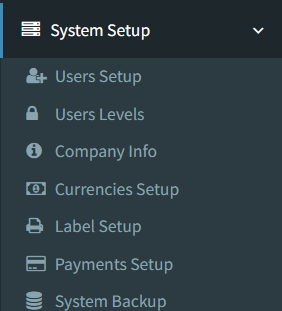
Open the page from the main sidebar:
- Go to System Setup.
- Select Users Setup.
The menu link is shown only to users who have access to Users Setup.
Users list
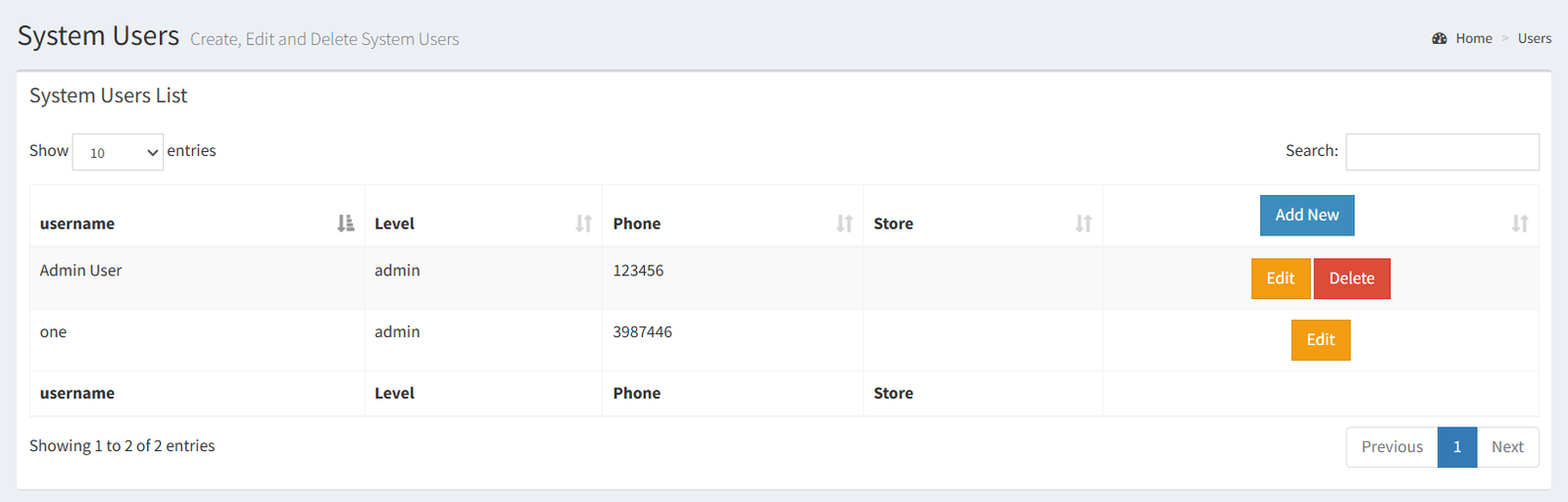
The Users Setup page shows a table of system users.
The list includes:
- Username
- Level
- Phone
- Store
- Action buttons
The action buttons depend on your access. You may see Add New, Edit, and Delete.
Adding a user
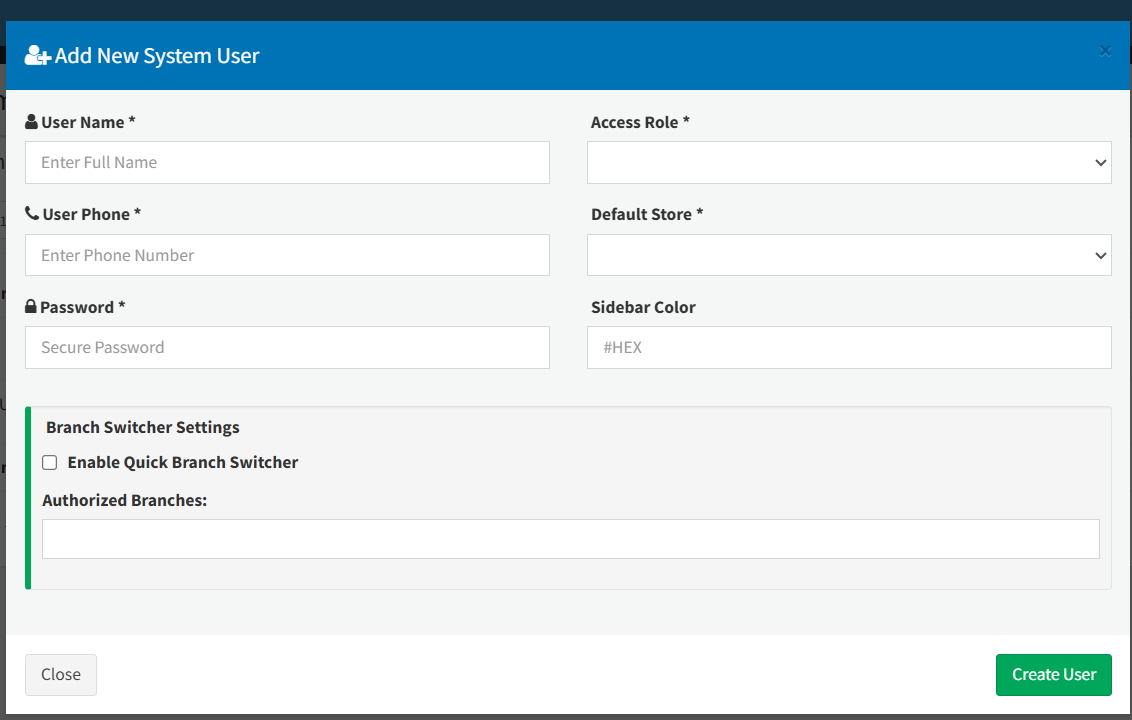
Click Add New to open the Add New System User form.
Required fields:
- User Name
- User Phone
- Password
- Default Store
Optional fields:
- Sidebar Color
- Enable Quick Branch Switcher
- Authorized Branches
Click Create User to save the new user.
Editing a user
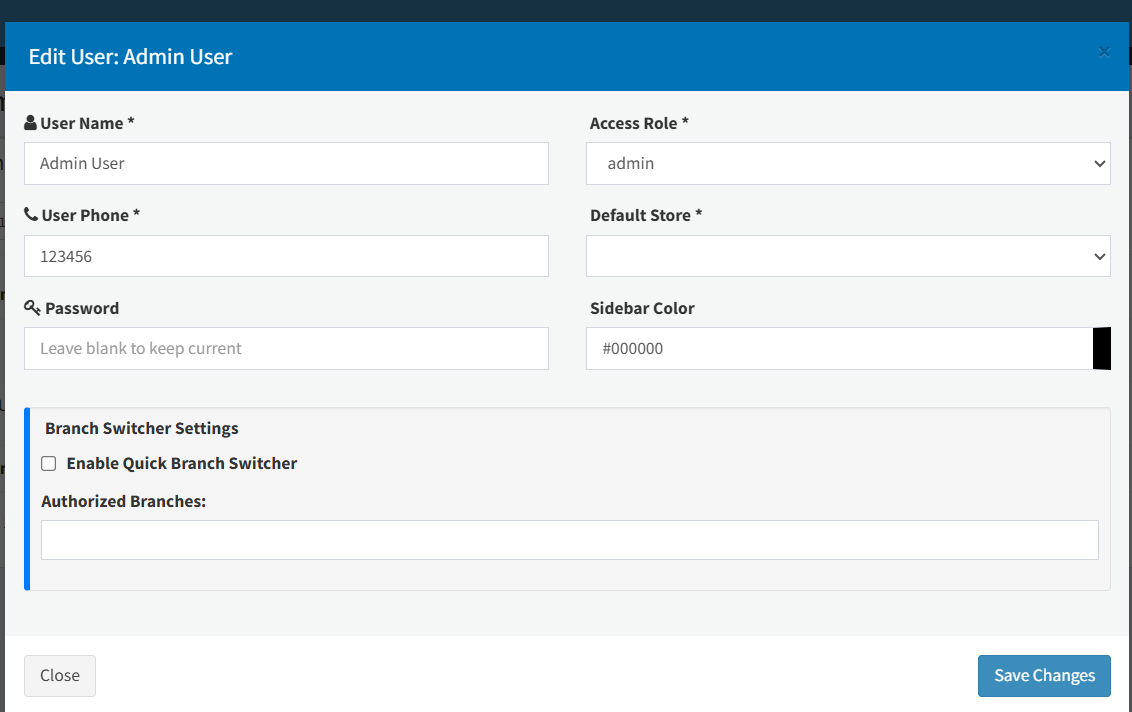
Click Edit beside a user to open the edit form.
You can update:
- User name
- Phone
- Password
- Default store
- Sidebar color
- Quick branch switcher setting
- Authorized branches
If you leave the password field blank, the current password is kept.
The first system user can be edited, but the delete button is not shown for that user.
Branch assignment
Each user has a Default Store. This is selected when adding or editing the user.
Users can also be allowed to switch between branches:
- Open the user add or edit form.
- Enable Quick Branch Switcher.
- Select the user's Authorized Branches.
- Save the user.
When branch switching is enabled, the user can use the branch switcher in the top bar to change the active branch to one of the authorized branches.
When a user signs in, the system resets the active branch back to the user's default store.
Deleting a user
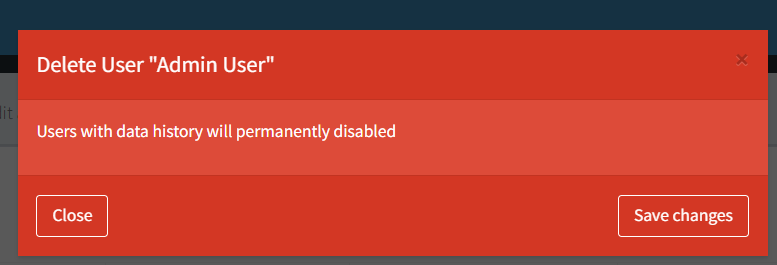
Click Delete beside a user to open the delete confirmation window.
Confirming the action removes the user record.
The delete button is not shown for the first system user.
Only delete a user when you are sure the account is no longer needed. Deleted users are removed from the users list.
- Assigning the wrong default store.
- Enabling the branch switcher but not selecting any authorized branches.
- Editing a user and entering a password unintentionally.
- Expecting the first system user to have a delete button.
Troubleshooting
I cannot see Users Setup.
Your account may not have access to Users Setup.
I cannot add, edit, or delete users.
Those actions depend on your access. Ask an administrator to check your account setup.
The branch switcher is not visible for a user.
Open the user record and check whether Enable Quick Branch Switcher is enabled.
A branch is missing from the branch switcher.
Check whether the branch is enabled in company setup and selected under the user's Authorized Branches.
A user returns to the original store after signing in again.
This is expected. The active branch resets to the user's default store at sign-in.