Payments Setup
Overview
Use Payments Setup to manage the payment methods used when closing sales and POS invoices.
Each payment method has a name, currency, rate, and enabled status. Enabled payment methods are used in sales and POS payment screens.
Accessing Payments Setup
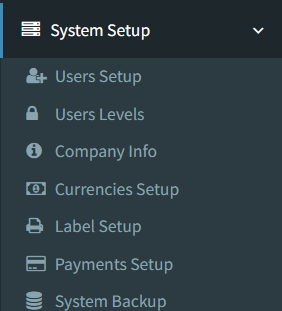
Open the page from the main sidebar:
- Go to System Setup.
- Select Payments Setup.
The menu link is shown only to users who have access to Payments Setup.
Payment Methods List
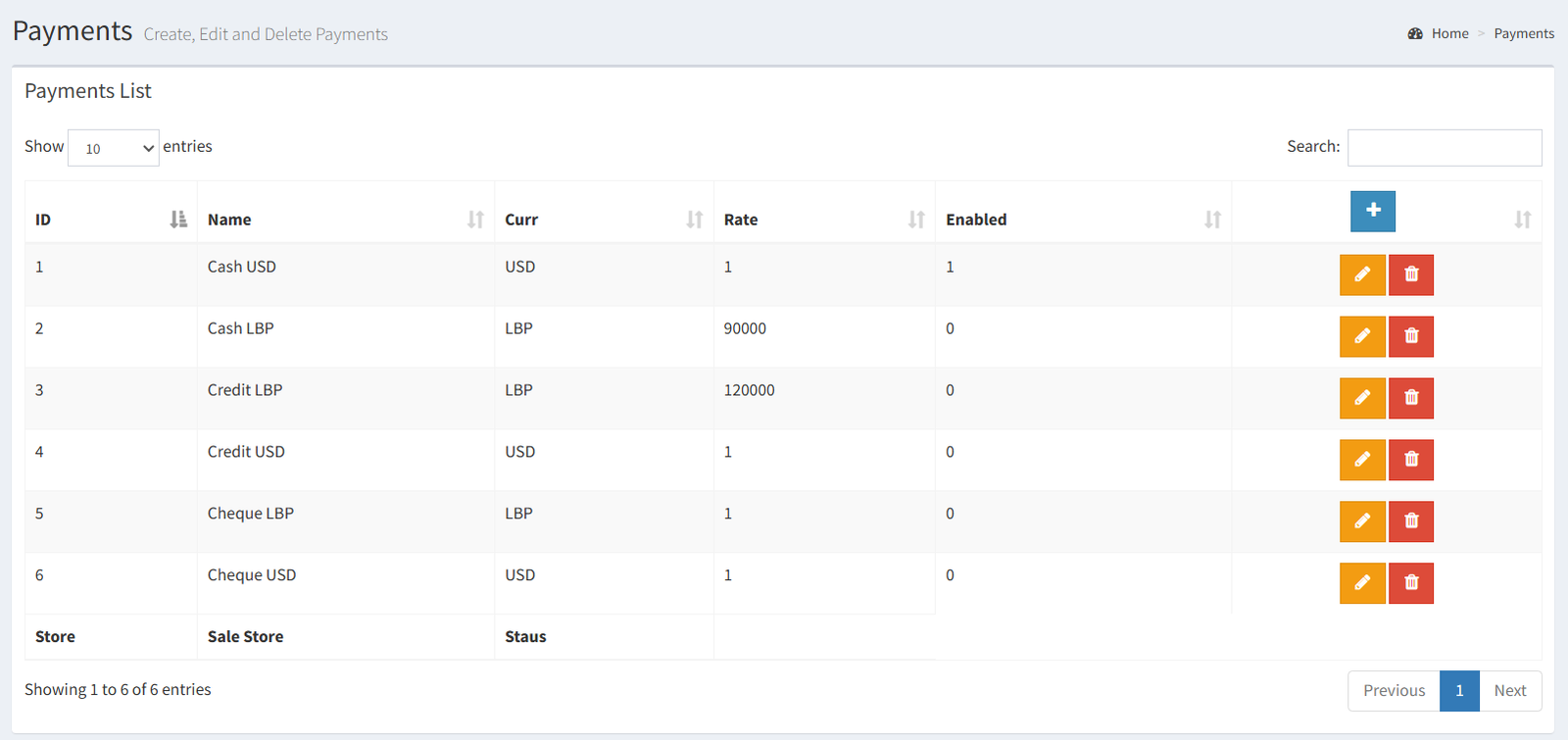
The Payments List table shows the payment methods configured in the system.
The list includes these columns:
- ID: The internal payment method record number.
- Name: The payment method name.
- Curr: The currency assigned to the payment method.
- Rate: The rate used for the payment method.
- Enabled: Shows the current enabled value.
- Actions: Shows edit and delete buttons when the user has permission.
Adding a Payment Method
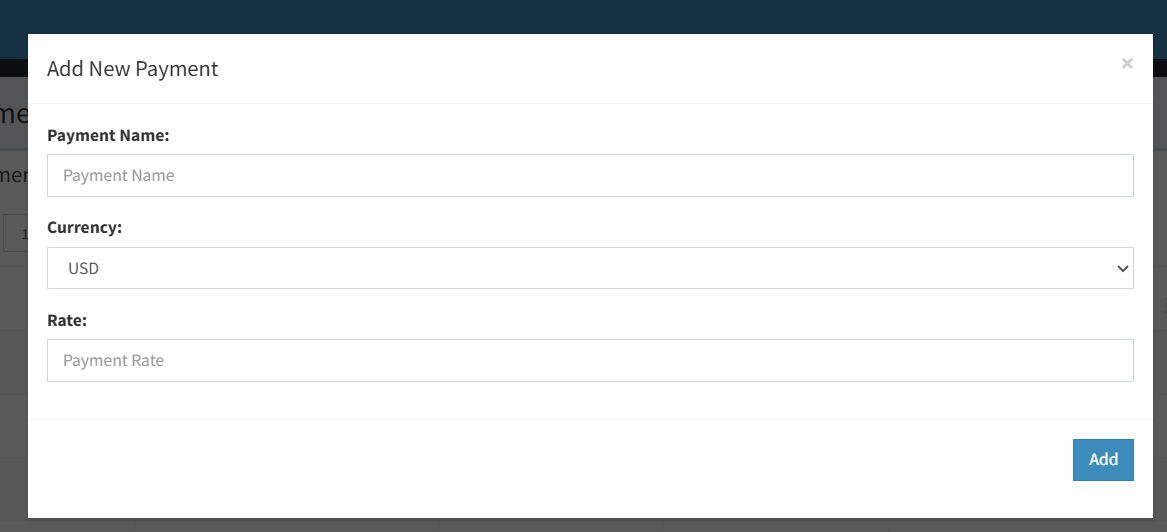
Click the plus (+) button in the payment methods list to open the Add New Payment modal.
Complete these fields:
- Payment Name: Enter the name shown to users during payment.
- Currency: Select the payment currency.
- Rate: Enter the payment rate.
Click Add to create the payment method.
Editing a Payment Method
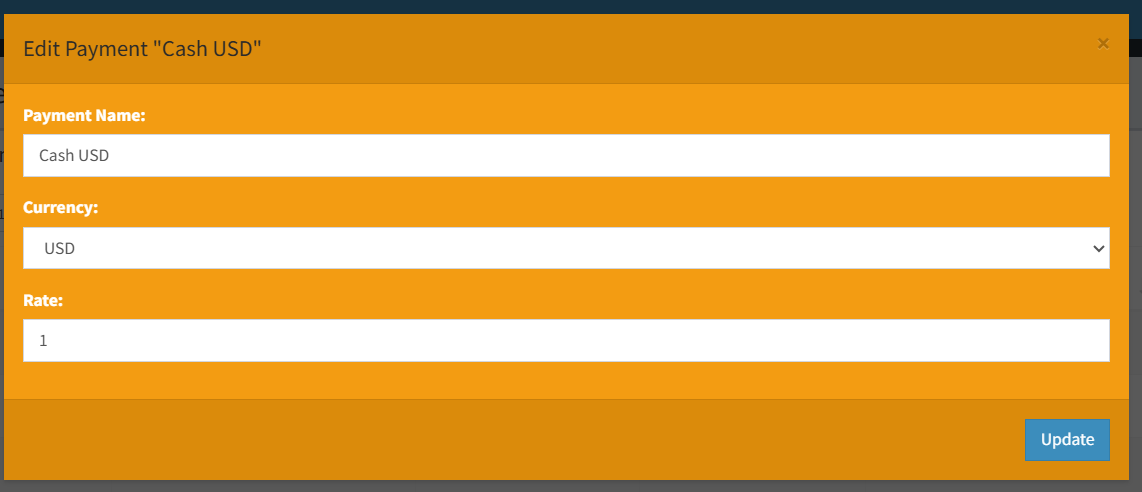
Click the edit button in a payment method row to open the edit modal.
You can update these fields:
- Payment Name
- Currency
- Rate
Click Update to save the changes.
Enable / Disable Payment Method
The payment methods list shows an Enabled column.
Payments Setup displays the enabled value, but the verified setup page does not show an enable or disable button. Sales and POS screens only load payment methods where the enabled value is active.
If a payment method does not appear in Sales or POS, check whether it is enabled in the system data.
Deleting a Payment Method
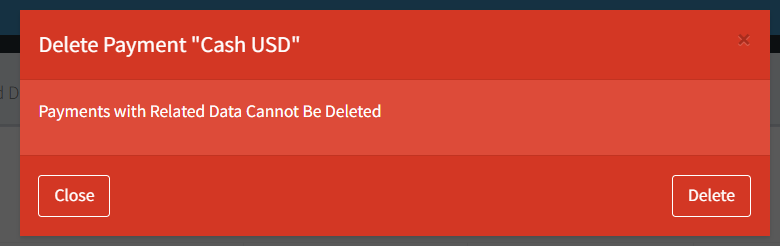
Click the delete button in a payment method row to open the delete confirmation modal.
The modal warns that payments with related data cannot be deleted. Review the payment method carefully before deleting it, especially if it has already been used on invoices or reports.
Currency Assignment
Each payment method must be assigned a currency.
The currency dropdown uses enabled currencies from Currencies Setup. If the expected currency is not available, check that the currency exists and is enabled.
The Rate field is also used by Sales and POS payment screens. Payment methods with a rate greater than 1 can show additional amount fields for converted payment entry.
Where Payment Methods Are Used
Payment methods are used in these areas:
- POS: Enabled payment methods appear as payment buttons and amount fields when closing an invoice.
- Sales: Enabled payment methods appear when collecting payment on a sale.
- Invoices: Printed invoice views show the payment methods used on the invoice.
- Reports: Payment reports group totals by payment method name.
- Cashier / register flows: The cashier dashboard summarizes collected payments by payment method for the current cashier, store, and day.
- Adding a payment method but expecting it to appear in POS before it is enabled.
- Assigning the wrong currency to a payment method.
- Entering the wrong rate for a payment method.
- Renaming a payment method without considering reports that already show older payment names.
- Deleting a payment method that has already been used for invoices or reporting.
Troubleshooting
The payment method does not appear in POS or Sales.
POS and Sales use enabled payment methods. Check the Enabled value for the payment method.
The currency is missing from the dropdown.
Go to System Setup -> Currencies Setup and confirm that the currency is enabled.
The system says the payment type already exists.
Payment method names must be unique. Use a different name or edit the existing payment method.
The payment amount fields look different for one payment method.
Payment methods with rates greater than 1 can show extra amount fields for converted payment entry.
Reports still show an old payment method name.
Existing invoice payment records keep the payment method name recorded at the time of sale.