Company Info
Overview
Use Company Info to manage company details, store settings, invoice display options, integrations, and label-printing settings.
The page is organized into tabs. Most tabs are saved with Save System Settings. Logo changes, full e-commerce syncs, image optimization, and label settings have their own actions.

Accessing Company Info
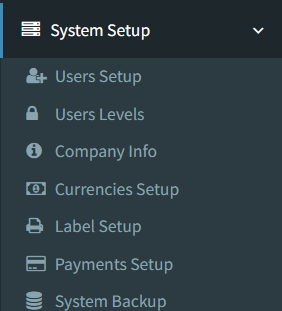
Open the page from the main sidebar:
- Go to System Setup.
- Select Company Info.
The menu link is shown only to users who have access to Company Info.
General Tab
The General tab contains company identity, tax, currency display, date format, and logo settings.
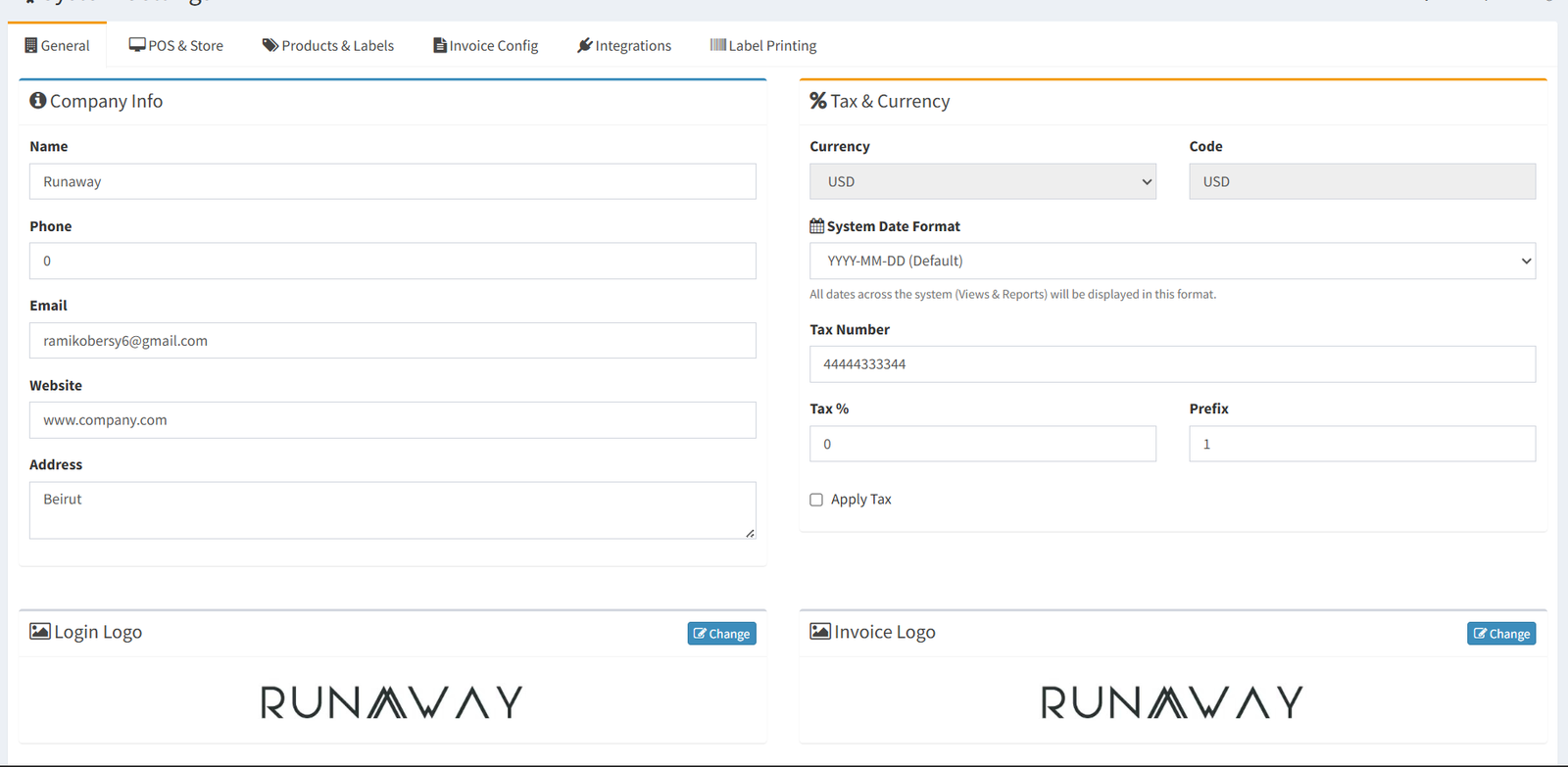
Company fields:
- Name
- Phone
- Website
- Address
Tax and display fields:
- Currency: shown for reference.
- Code: shown for reference.
- System Date Format: controls how dates display across views and reports.
- Tax Number
- Tax %
- Prefix
- Apply Tax
Logo actions:
- Login Logo: click Change to upload a new login logo.
- Invoice Logo: click Change to upload a new invoice logo.
Logo changes use separate update actions and are not saved by the main Save System Settings button.
POS & Store Tab
The POS & Store tab controls branch names, branch availability, sales workflow, return behavior, barcode behavior, manager approval, and global layout style.
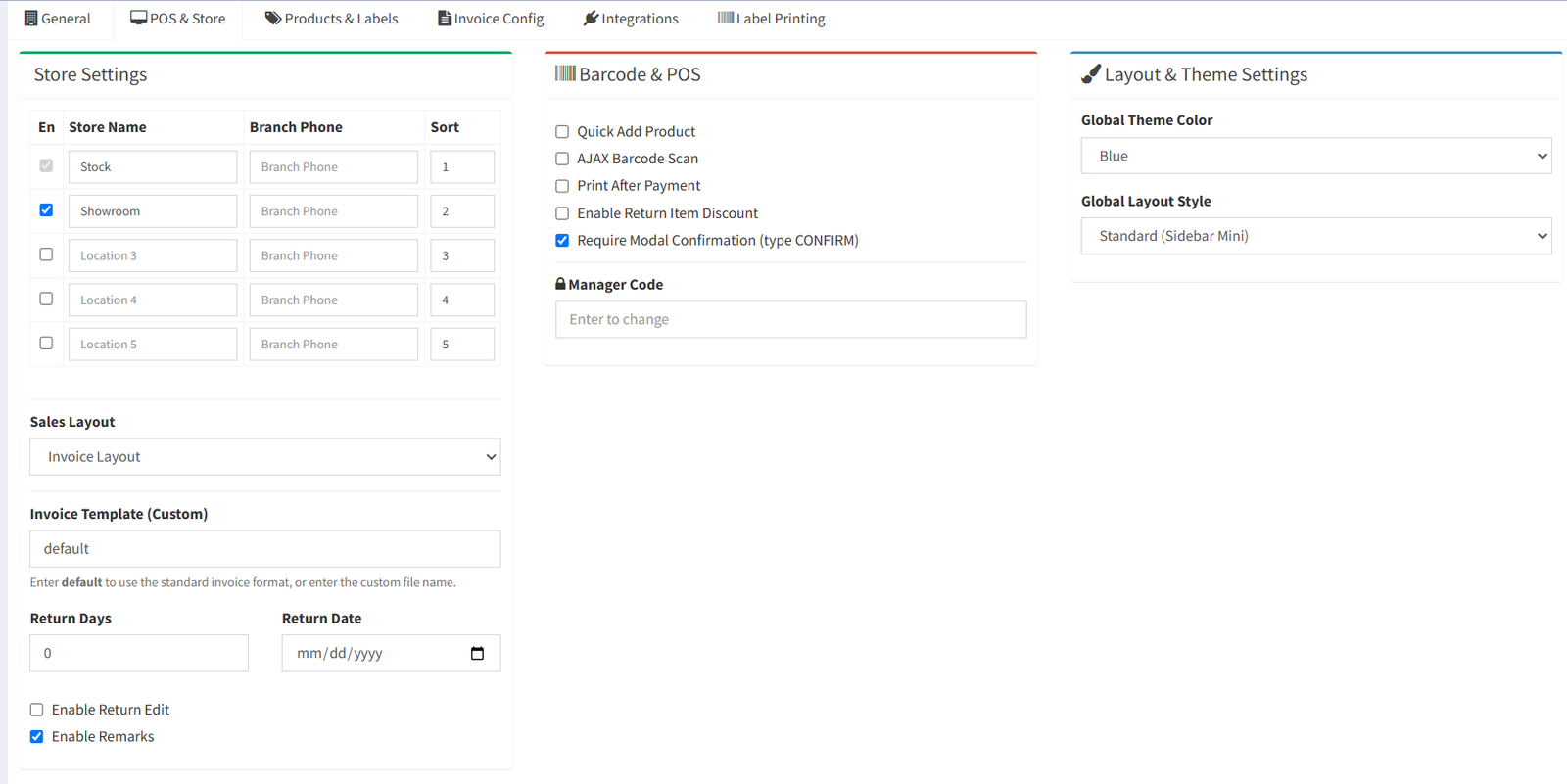
Store settings:
- Enable or disable stores 2 through 5.
- Set store names for stores 1 through 5.
- Set branch phone numbers.
- Set branch sort order.
Sales and invoice settings:
- Sales Layout: choose whether users work with POS Layout or Invoice Layout.
- Invoice Template (Custom): enter
defaultfor the standard invoice format or a custom template file name. - Return Days
- Return Date
- Enable Return Edit
- Enable Remarks
Barcode and POS settings:
- Quick Add Product
- AJAX Barcode Scan
- Print After Payment
- Enable Return Item Discount
- Require Modal Confirmation
- Manager Code
Layout settings:
- Global Theme Color
- Global Layout Style
The Manager Code only updates when a new value is entered. Leaving it blank keeps the current manager code.
Products & Labels Tab
The Products & Labels tab controls which product attributes are available in product, inventory, purchase, transfer, and label workflows.
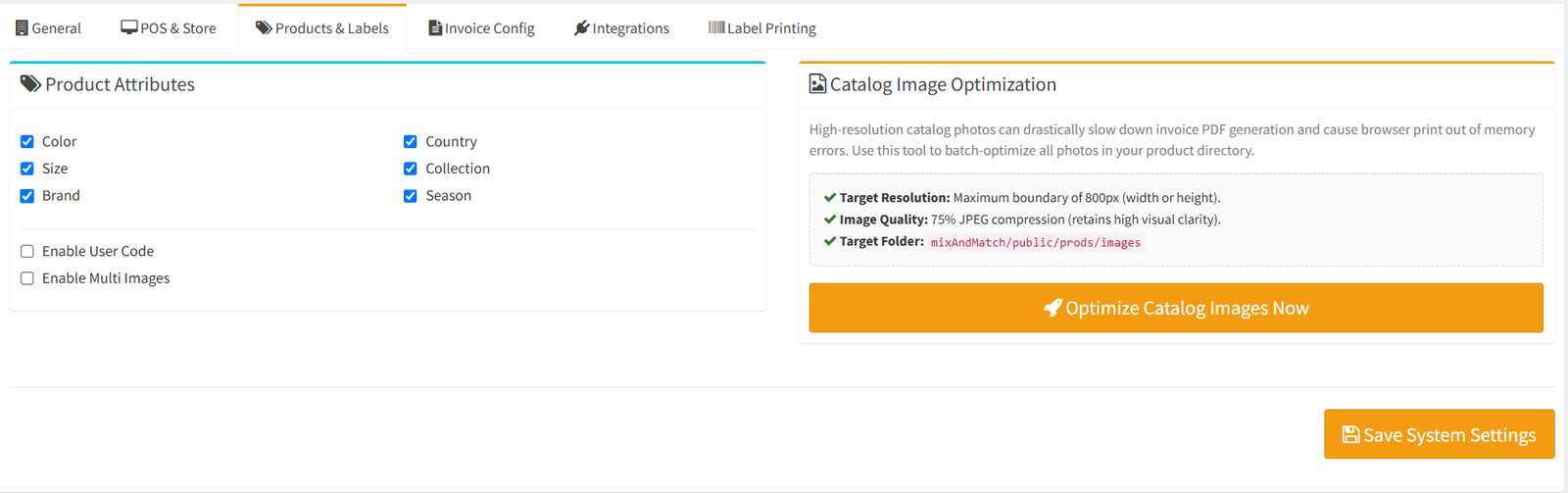
Product attribute settings:
- Color
- Size
- Brand
- Country
- Collection
- Season
- Enable User Code
- Enable Multi Images
Catalog image optimization:
- Optimize Catalog Images Now scans product images in the catalog image folder.
- The tool resizes large images to a maximum boundary of 800px.
- JPEG images are compressed at 75% quality.
- Images already below 200KB are skipped.
Use image optimization carefully and keep a backup of product images before running it.
Invoice Config Tab
The Invoice Config tab controls what appears on printed invoices and receipts.
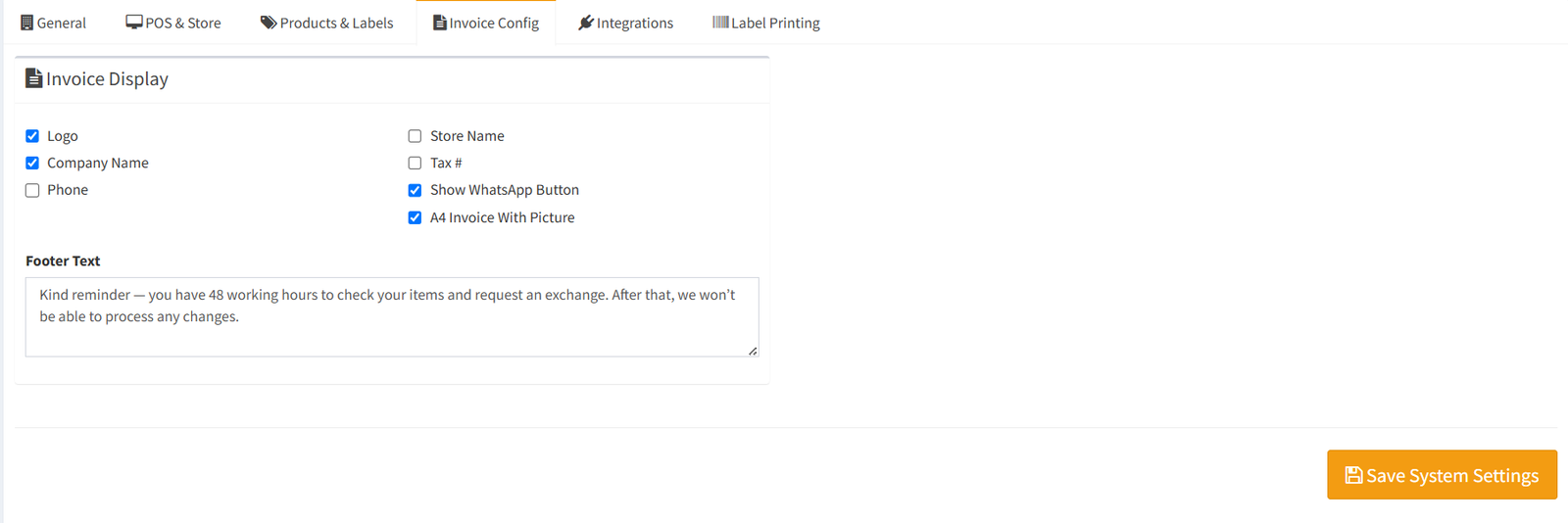
Invoice display settings:
- Logo
- Company Name
- Phone
- Store Name
- Tax #
- Show WhatsApp Button
- A4 Invoice With Picture
- Footer Text
These settings affect invoice print views, invoice PDFs, and receipt display.
Integrations Tab
The Integrations tab contains WooCommerce, Shopify, and WhatsApp settings.
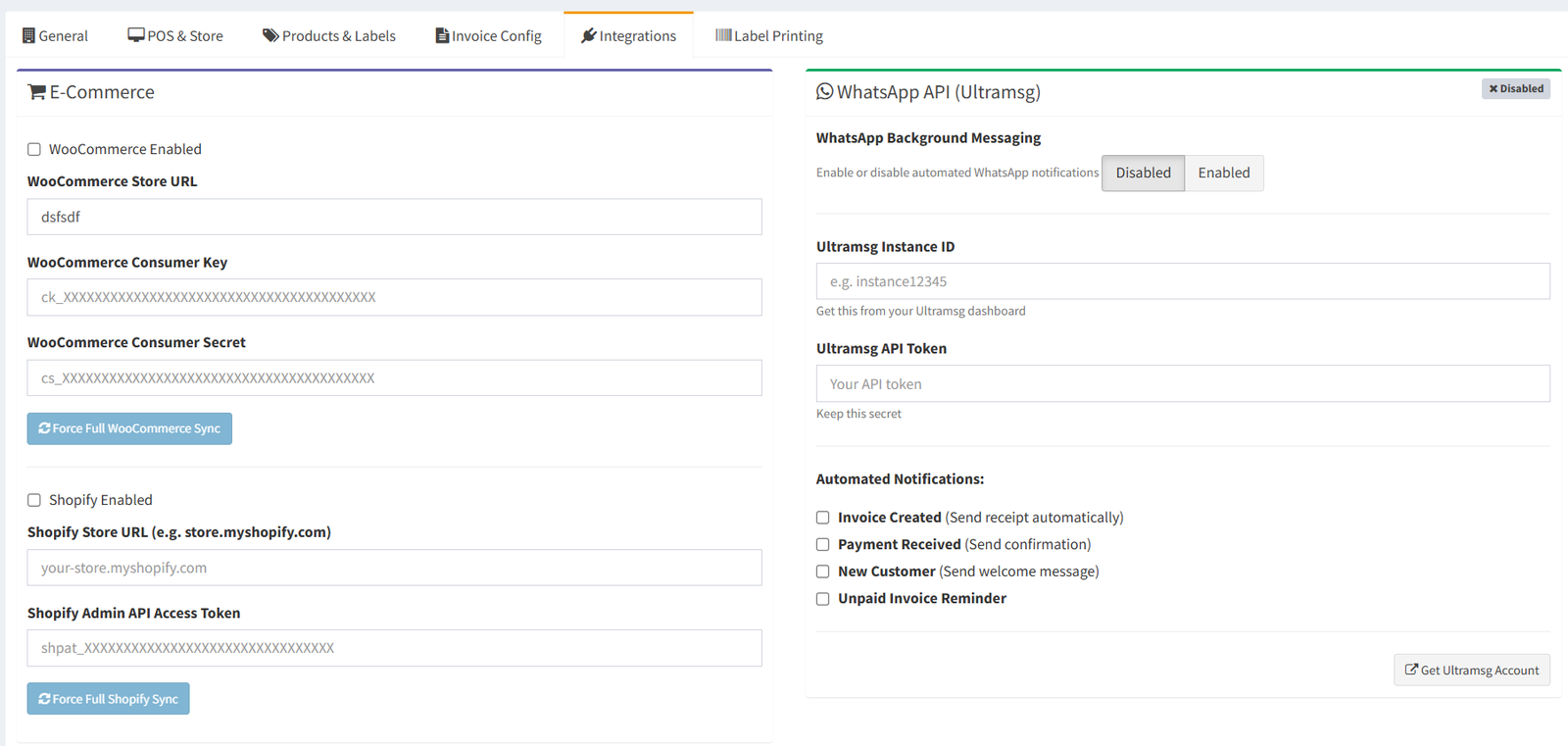
WooCommerce settings:
- WooCommerce Enabled
- WooCommerce Store URL
- WooCommerce Consumer Key
- WooCommerce Consumer Secret
- Force Full WooCommerce Sync
Shopify settings:
- Shopify Enabled
- Shopify Store URL
- Shopify Admin API Access Token
- Force Full Shopify Sync
WhatsApp settings:
- WhatsApp Background Messaging
- Ultramsg Instance ID
- Ultramsg API Token
- Invoice Created notification
- Payment Received notification
- New Customer notification
- Unpaid Invoice Reminder
- Hours before due to send reminder
The force sync buttons run a full WooCommerce or Shopify stock sync. They are separate actions from saving the form.
- Ask your website administrator for integration key for activation.
Label Printing Tab
The Label Printing tab controls barcode label layout and preview.
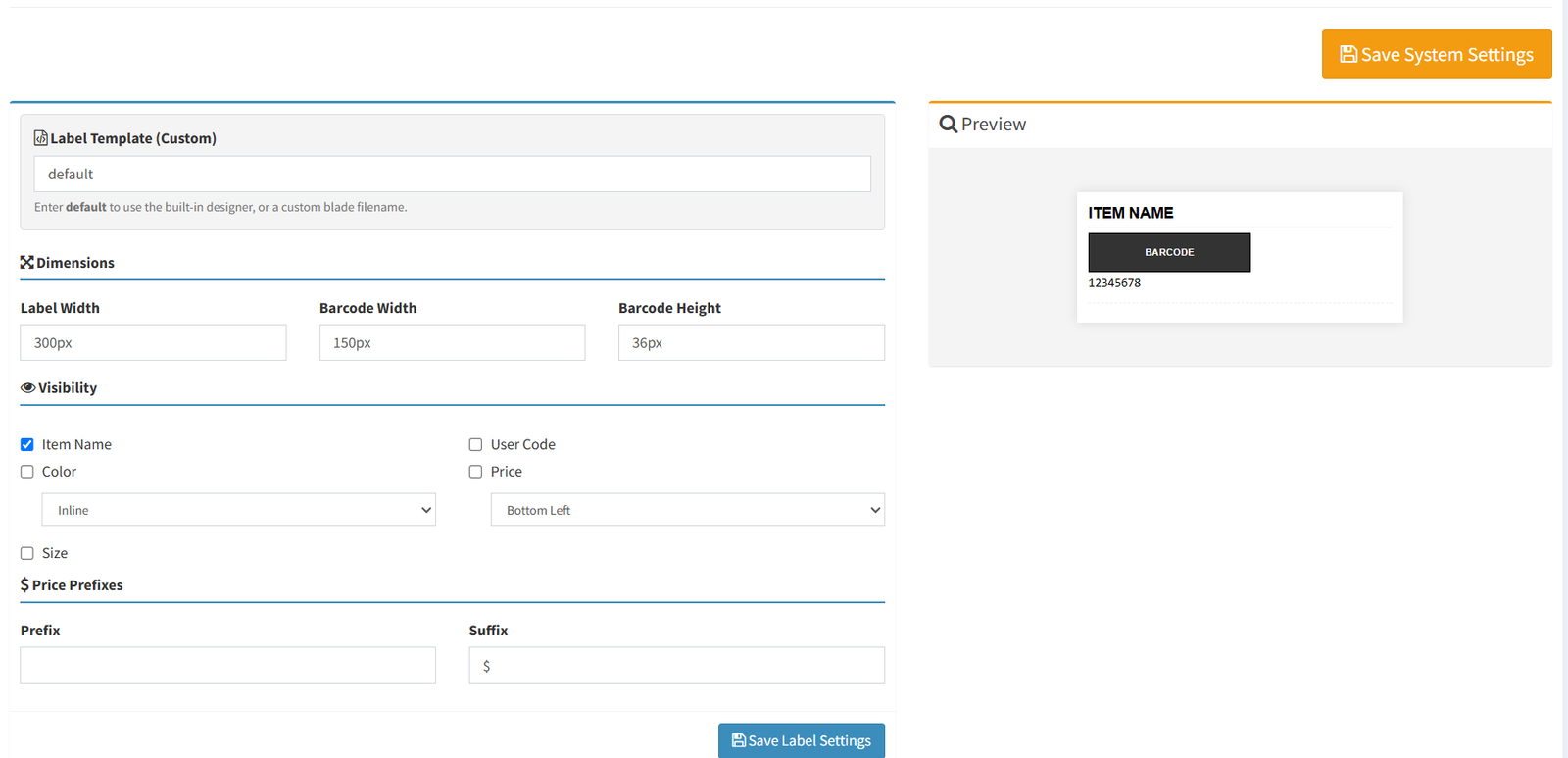
Label template settings:
- Label Template (Custom): enter
defaultto use the built-in designer or a custom Blade template name.
Dimensions:
- Label Width
- Barcode Width
- Barcode Height
Visibility:
- Item Name
- Color
- Color Placement
- Size
- User Code
- Price
- Price Placement
Price text:
- Prefix
- Suffix
The preview updates as settings change. Click Save Label Settings to save label-printing changes.
Saving Changes
Use the correct save action for the section you are changing:
- Click Save System Settings for General, POS & Store, Products & Labels, Invoice Config, and Integrations settings.
- Use the Change action in the logo panels to update login or invoice logos.
- Use Force Full WooCommerce Sync or Force Full Shopify Sync to start a full e-commerce stock sync.
- Use Optimize Catalog Images Now to run catalog image optimization.
- Click Save Label Settings for the Label Printing tab.
- Currency is displayed in Company Info but managed in Currencies Setup.
- Label Printing exists inside Company Info but also has a separate Label Setup page.
- Changing Sales Layout affects whether users work with POS Layout or Invoice Layout.
- Manager Code only updates when a new value is entered.
- Force sync buttons are for WooCommerce and Shopify full sync.
- Logo changes use separate logo update actions.
- Expecting currency to be editable from Company Info.
- Changing Sales Layout without checking cashier workflow.
- Entering a Manager Code unintentionally.
- Updating logo files but forgetting that logos use separate update actions.
- Changing label settings from Company Info and forgetting that Label Setup is also available as a separate page.
- Running catalog image optimization without first backing up product images.
Troubleshooting
I cannot see Company Info.
Your user level may not have access to Company Info.
Currency is disabled or read-only.
This is expected. Manage currencies from Currencies Setup.
My logo did not change after clicking Save System Settings.
Use the logo panel Change action. Logos are updated separately.
My Manager Code did not change.
Enter a new Manager Code before saving. A blank value keeps the existing code.
The WooCommerce or Shopify sync button is disabled.
Enable the related integration first and save the settings.
Label designer fields are disabled.
A custom label template may be active. Use default as the label template to use the built-in designer.