Users Levels
Overview
User Levels define groups of permissions and access rights for system users.
Use this page to create a level, edit a level, and choose what that level can access. A user assigned to a level receives the access settings saved on that level.
Accessing User Levels
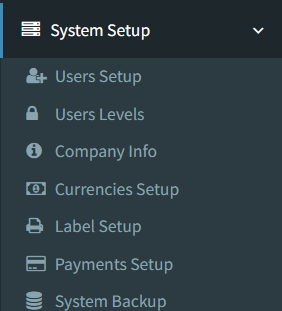
Open the page from the main sidebar:
- Go to System Setup.
- Select Users Levels.
The menu link is shown only when the current user has access to User Levels.
User Levels List
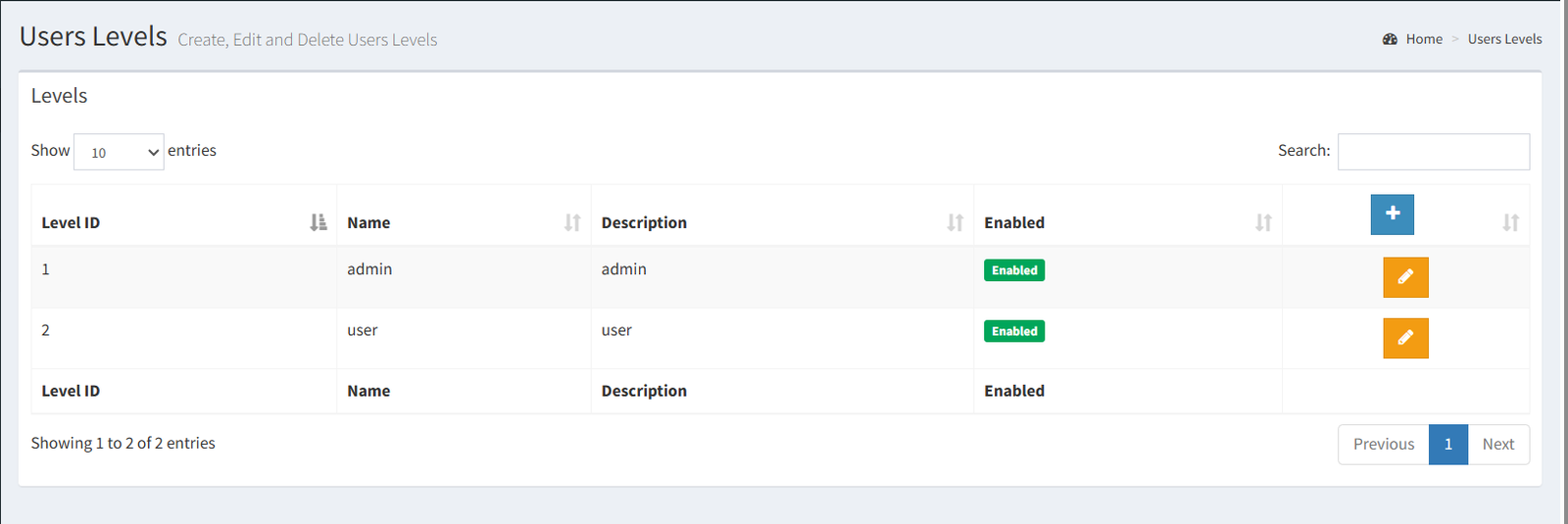
The User Levels page shows a table of levels.
The table includes:
- Level ID
- Name
- Description
- Enabled
- Edit action
The page can show:
- A plus (+) button to add a new level
- A pencil button to edit an existing level
No delete button is shown on the active User Levels list.
Adding a User Level
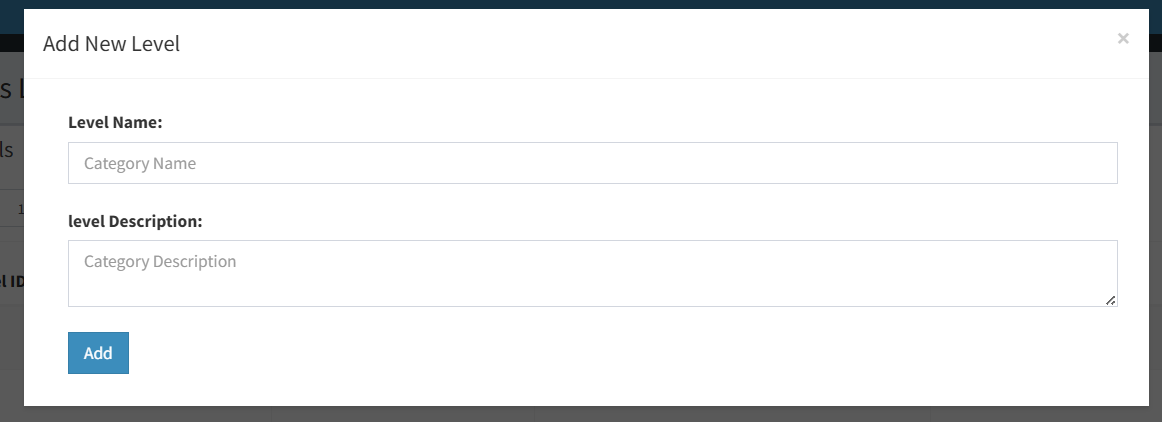
Click the plus (+) button to open the Add New Level modal.
Required fields:
- Level Name
Optional fields:
- Level Description
Click Add to create the level.
Permissions are not selected in the Add modal. After creating the level, use the pencil button to edit the level and adjust its permissions.
- Creating a level with the wrong name.
- Expecting permissions to be selected during Add. Permissions are changed from the Edit page.
- Creating a duplicate level name. Duplicate level names are not accepted.
Editing a User Level
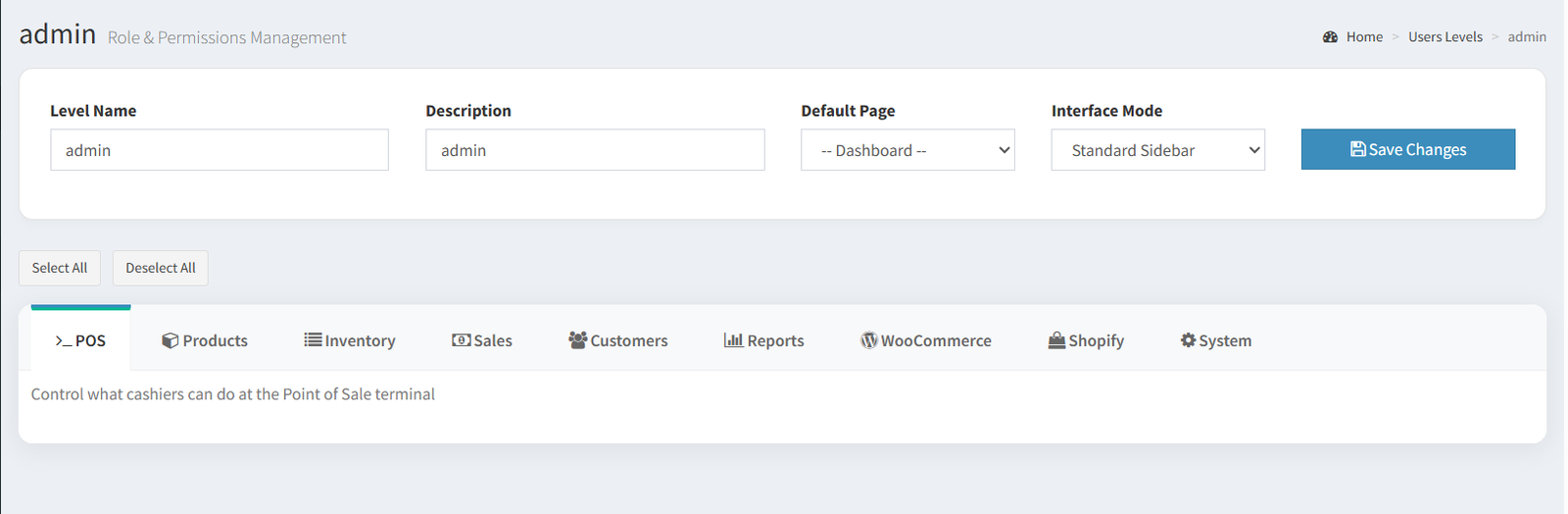
Click the pencil button beside a level to open the edit page.
You can change:
- Level Name
- Description
- Default Page
- Interface Mode
- Permission checkboxes
The edit page includes:
- Save Changes button near the top
- Select All button
- Deselect All button
- Bottom Cancel link
- Bottom SAVE CHANGES button
Changing permissions updates what users assigned to that level can access. Click Save Changes to keep the updates.
Changing a user level may affect every user assigned to that level.
Permissions / Access Options
Permissions are selected with checkboxes on the edit page.
The active UI groups permissions into these tabs:
- POS
- Products
- Inventory
- Sales
- Customers
- Reports
- WooCommerce
- Shopify
- System
The page controls both:
- Menu access: whether users can see and open a menu or page.
- Action access: whether users can perform specific actions under a page.
Some permissions are shown as parent checkboxes. Other permissions appear under them as child or action checkboxes.
Selecting a parent permission can select related child permissions. Selecting a child permission can also select its related parent. Use Select All or Deselect All carefully because those buttons affect all permission checkboxes on the page.
- Changes apply to the user level, not just one user.
- Any user assigned to the edited level may gain or lose access after the level is saved.
- The User Levels list shows an Enabled status, but the active UI does not show a control for changing that status.
- No level delete action is visible in the active User Levels UI.
- Permission changes must be saved with Save Changes or SAVE CHANGES.
Troubleshooting
A user cannot see a menu item.
Open the user's level and check whether the related menu permission is selected.
A user can open a page but cannot perform an action.
Open the user's level and check whether the related action permission is selected.
The Add button is missing.
Your current user may not have access to add user levels.
The Edit button is missing.
Your current user may not have access to update user levels.
Permission changes did not save.
Return to the level edit page and confirm the checkboxes are still selected. If not, update them again and click Save Changes.