Brand List
Overview
Brand List is used to manage the brands that can be assigned to products. Brands help administrators organize products by manufacturer, supplier brand, product line, or any other brand name used by the business.
When brand tracking is enabled, brands can be selected on product records and used in e-commerce-related workflows.
Accessing Brand List
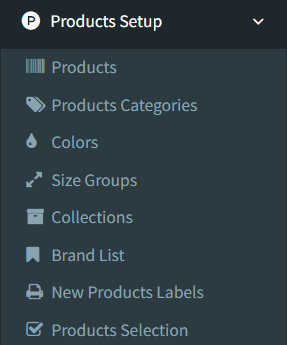
Open Products Setup -> Brand List.
The Brand List menu item appears only when brand tracking is enabled and the user has permission to access product brands.
Brands List
The Brands page shows configured brands in a table.
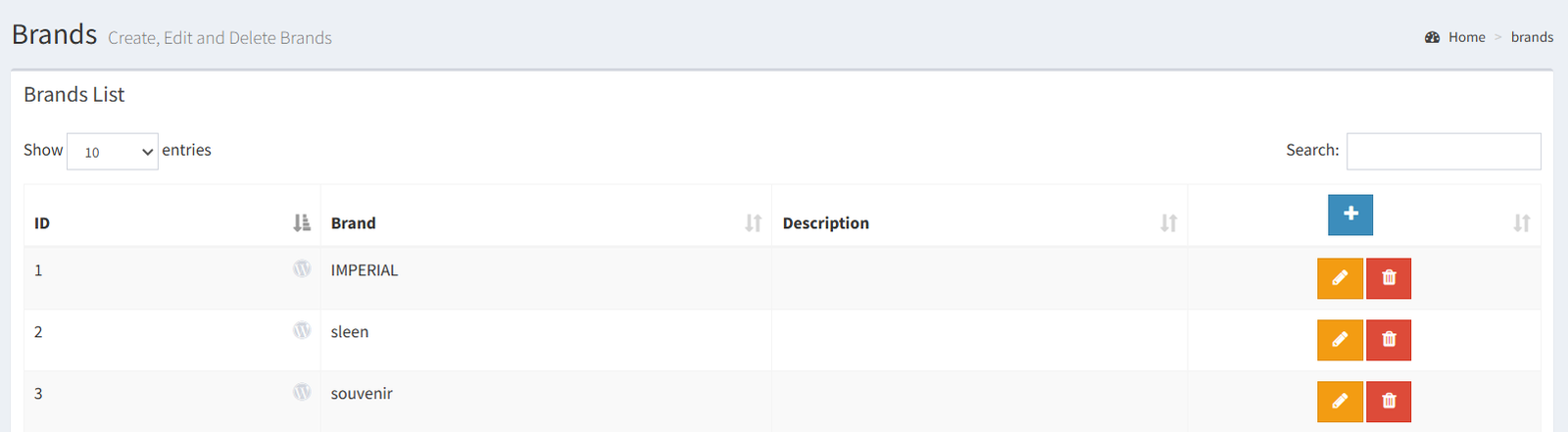
The list includes:
- Brand ID
- Brand name
- Description
- Action buttons
The Brand ID column can also show a WordPress icon when a Woo brand ID is saved for that brand.
The table supports the standard list tools, including sorting and search.
Action buttons depend on user permissions. Users may see buttons for adding, editing, deleting, or e-shop discount actions.
Adding a Brand
Click the plus button in the actions column to open the Add New Brand modal.
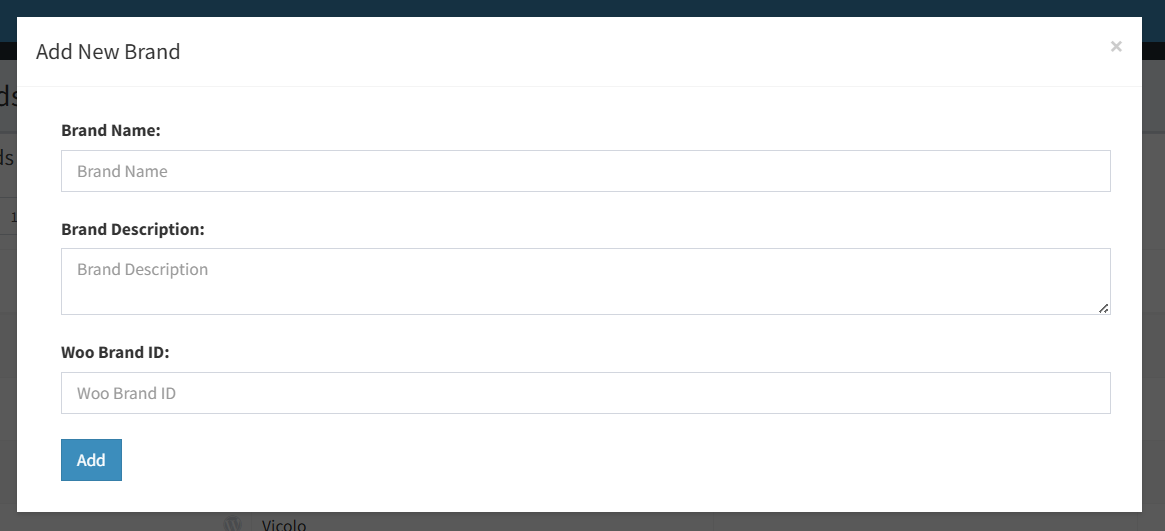
The add form includes:
- Brand Name: required.
- Brand Description: optional.
- Woo Brand ID: optional, used for e-shop brand-related workflows.
Click Add to create the brand.
Brand names must be unique. If the same brand name already exists, the system shows an error and does not create a duplicate.
Editing a Brand
Click the pencil button beside a brand to open the edit modal.
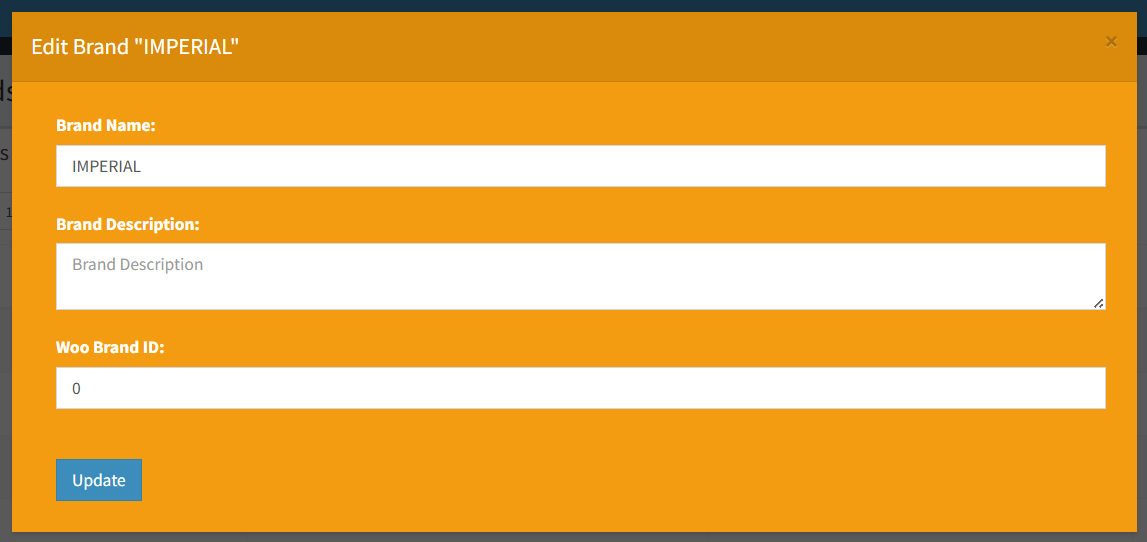
Editable fields include:
- Brand name
- Brand description
- Woo Brand ID
Click Update to save changes.
Brand names must remain unique.
If a Woo Brand ID is present, the list can show an additional discount action for e-shop brand pricing. That action is separate from editing the brand details.
Deleting a Brand
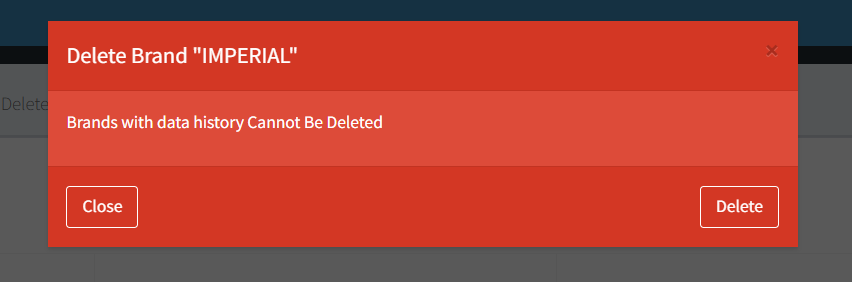
Click the trash button beside a brand to open the delete confirmation modal.
Confirm the modal to delete the brand.
Brands with related data cannot be deleted. If the brand is linked to related records, the system shows an error and keeps the brand.
No active enable or disable status control was found for brands.
Where Brands Are Used
Brands are used in Products when brand tracking is enabled.
Brands appear in:
- Product creation
- Product editing
- Product detail view
- E-commerce product workflows where brand or Woo brand information is used
When adding a product, users can select an existing brand or check New Brand to create a brand directly from the product form.
When editing a product, users can select from the existing Brand List.
- Creating a brand with a name that already exists.
- Deleting a brand before checking whether related data exists.
- Expecting the Brand List menu to appear when brand tracking is disabled.
- Expecting an enable or disable toggle; the active UI does not include one.
- Confusing Brand List with car brand usage elsewhere in the system. The Products Setup menu uses this page as the product Brand List.
- Entering a Woo Brand ID without confirming it matches the e-shop brand setup.
Troubleshooting
The Brand List menu is not visible.
Check that brand tracking is enabled and that the user has permission for product brands.
The plus button is missing.
The user may not have permission to add brands.
The edit button is missing.
The user may not have permission to update brands.
The delete button is missing.
The user may not have permission to delete brands.
A brand cannot be saved.
Check whether another brand already uses the same name.
A brand cannot be deleted.
The brand may have related data. Keep the brand or remove the related data first if appropriate.
A product brand field is missing.
Brand tracking may be disabled in company settings.