Size Groups
Overview
Size Groups let administrators define groups of size values, such as S, M, L, or numeric sizes.
Size tracking is optional. When it is enabled, products can store a size value, show size in the Products list, and use size in search, filtering, labels, and product grouping workflows.
Accessing Size Groups
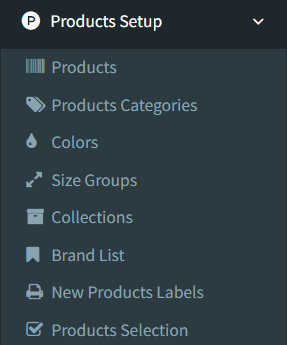
Open Products Setup -> Size Groups.
The Size Groups menu item appears only when product size tracking is enabled and the user has permission to access size groups.
Size Groups List
The Size Groups page shows configured size groups in a table.
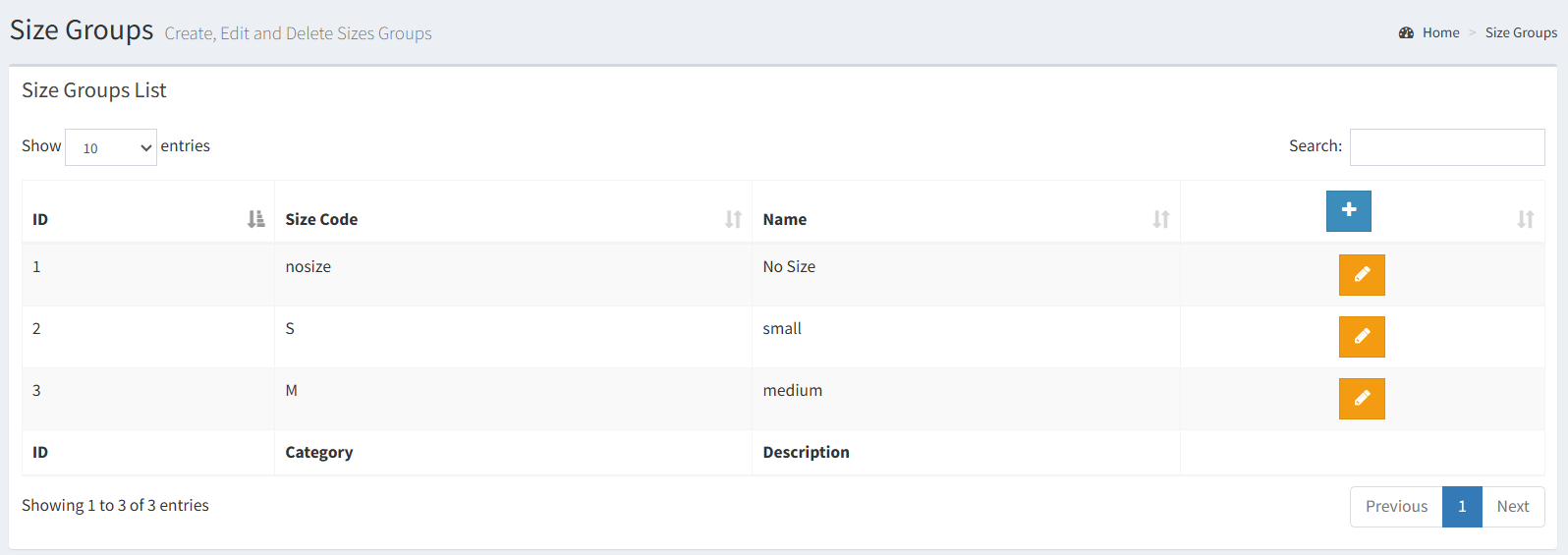
The list includes:
- Size group ID
- Size group code
- Description
- Action button
Click the pencil button to open the size group detail page.
The table supports the standard list tools, including sorting and search.
Adding a Size Group
Click the plus button in the Size Groups list to open the Add New Size Group modal.
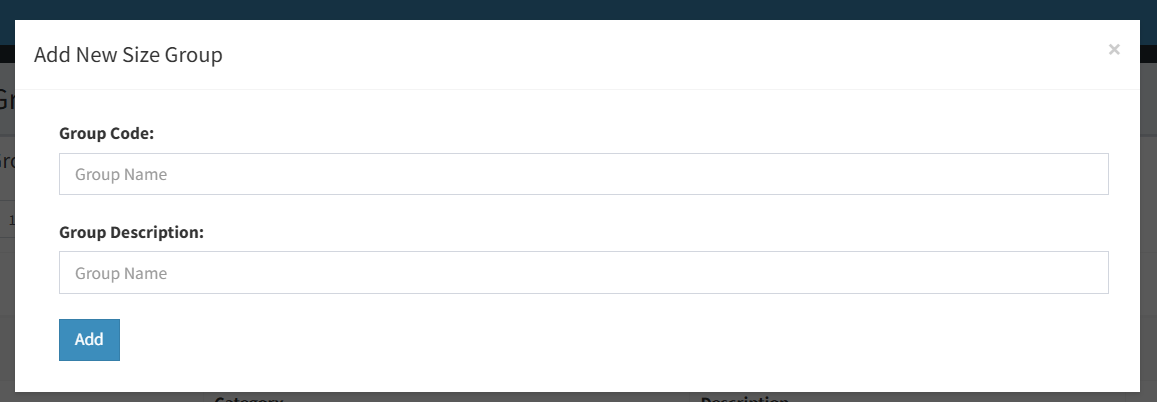
The add form includes:
- Group Code: required. This is the main code for the size group.
- Group Description: optional.
Click Add to create the size group.
Size group codes must be unique. After a size group is created, the system opens the group detail page where individual sizes can be added.
Editing a Size Group
Click the pencil button beside a size group to open its detail page.
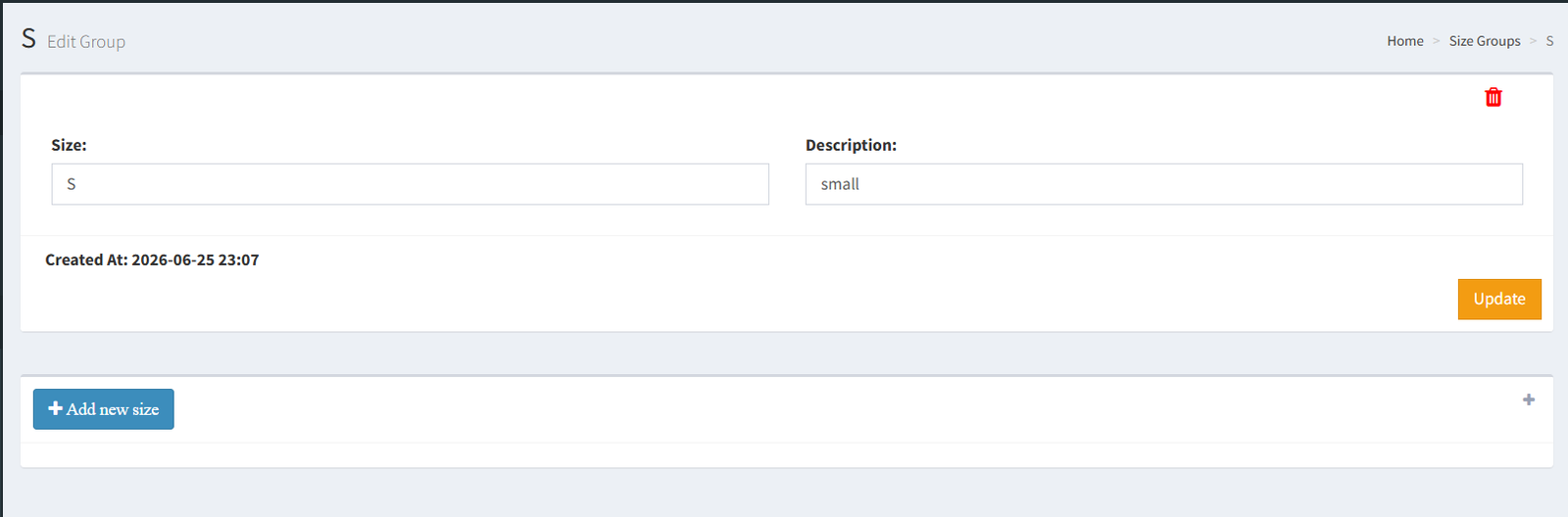
The detail page shows the group code, description, created date, delete action, and the sizes inside the group.
The active confirmed workflow on this page is managing the sizes inside the group. The page also displays group code and description fields with an Update button, but the verified controller does not include an active save handler for those group detail fields.
Managing Sizes Inside a Group
Open a size group from the Size Groups list to manage its sizes.
From the group detail page, users can:
- Add a new size with the Add new size button.
- Click an existing size button to open its edit modal.
- Update the size code.
- Delete an individual size from its delete confirmation modal.
Size codes inside the same group must be unique.
The default nosize group is protected. Its sizes cannot be added, edited, or deleted from this workflow.
Deleting a Size Group
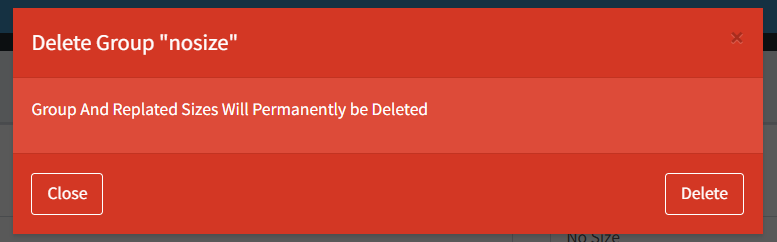
Open the size group detail page and click the trash icon.
The delete confirmation removes the size group and its related size records.
The default nosize group cannot be deleted.
Where Size Groups Are Used
Size Groups are part of the product size setup area. Product size values are used in:
- Product creation
- Product editing
- Products list columns
- Products list search and filtering
- Bulk size updates from the Products list
- Product labels and reports where product size is displayed
- Product-by-size grouping workflows when enabled
The Products add and edit forms use a product size field. The Products list can also group selected products for size-based workflows.
- Creating a size group code that already exists.
- Adding the same size code twice inside one group.
- Trying to change or delete the protected
nosizegroup. - Expecting Size Groups to appear when product size tracking is disabled.
- Expecting group code and description edits to save from the detail page; that save path was not confirmed in the active backend.
- Confusing size groups with the product size field. Products store a size value, while this page manages reusable size group records.
Troubleshooting
The Size Groups menu is not visible.
Check that product size tracking is enabled and that the user has permission for size groups.
The plus button is missing.
The user may not have permission to add size groups.
A size group cannot be created.
Check whether another group already uses the same group code.
A size cannot be added or edited.
Check whether the same size code already exists in that group.
A size or group cannot be changed.
The group may be the protected nosize group.
Product size fields are missing from Products.
Product size tracking may be disabled in company settings.