New Products Labels
Overview
New Products Labels is a quick label-printing queue for products that have not yet been marked as printed.
The page lists products where the system still considers labels pending. Administrators can review the pending products, generate labels for the full pending list, print the labels from the browser, and reset the list after labels are handled.
Accessing New Products Labels
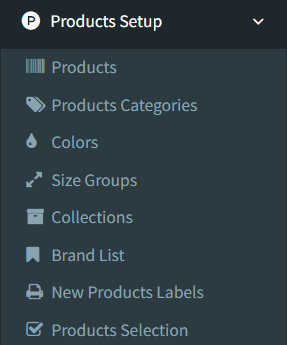
Open Products Setup -> New Products Labels.
Access depends on user permissions. If the menu item is not visible, ask an administrator to check access to product label tools.
Selecting Products
Products are selected automatically.
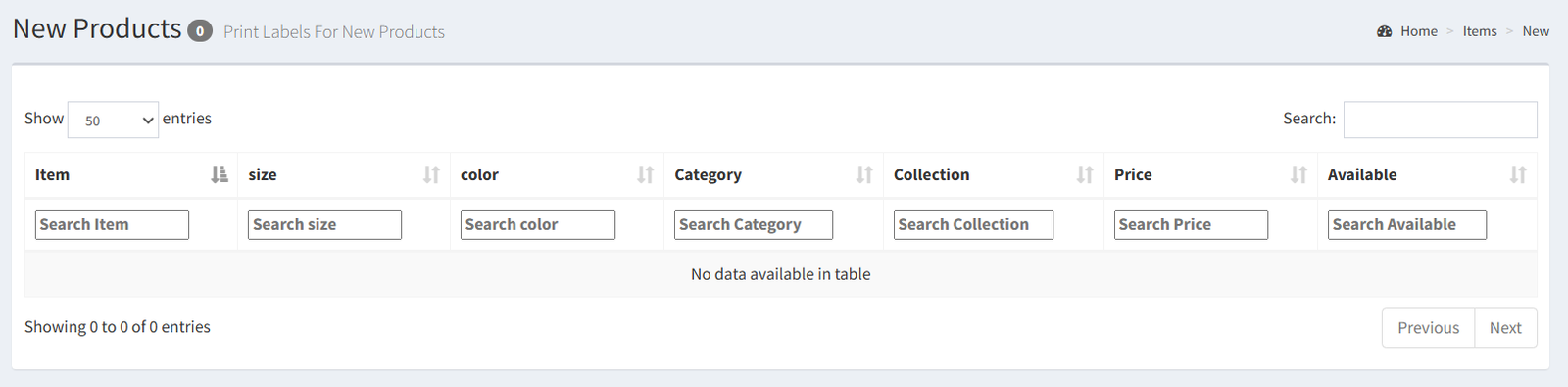
The page shows products where the new-label flag is still pending. There are no checkboxes for selecting individual products on this screen.
The list includes:
- Product name
- Size
- Color
- Category
- Collection
- Price
- Available quantity
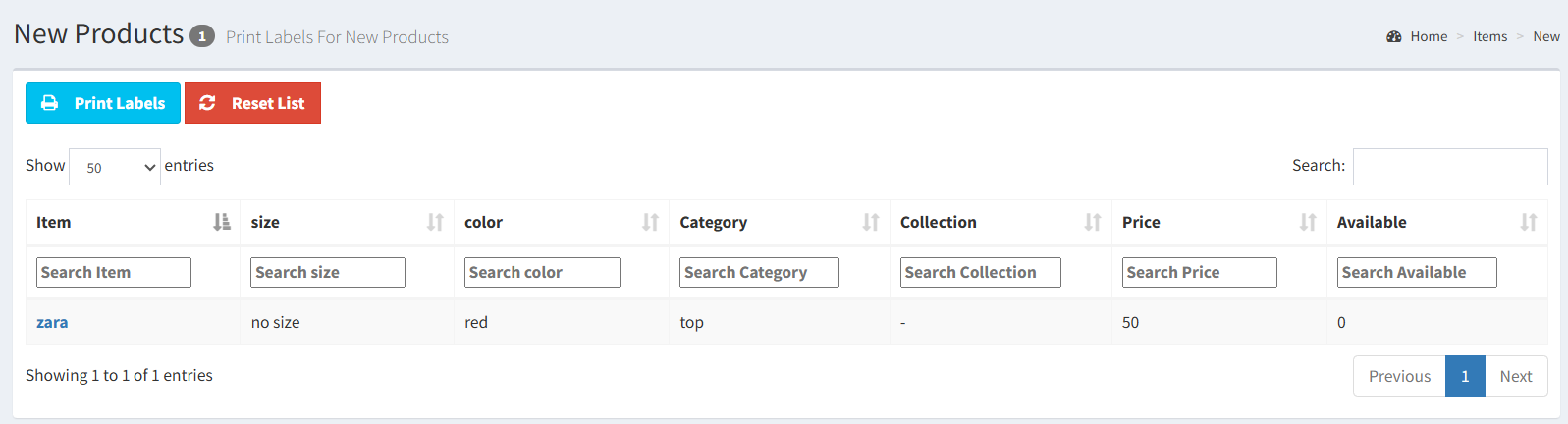
Click a product name to open a product detail preview in a modal.
The table includes column search boxes, which help review the list. These filters are for reviewing the table and do not create a separate saved product selection.
Generating Labels
Click Print Labels to generate labels for the pending new-products list.
The system loads all products still marked as not printed and renders them in the active label template.
The number of labels generated for each product is based on product stock quantities across active locations.
The label layout comes from the current label settings or custom label template, if one is configured.
Previewing Labels
After clicking Print Labels, the system opens a browser label page.
This page acts as the label preview. It shows the generated labels with barcode, product information, size, color, price, and user code according to the active label settings.
Review the preview before printing.
Printing Labels
Use the Print button on the label preview page.
The Print button opens the browser print dialog. After printing, the page returns to the previous screen.
There is no separate export button confirmed for this page.
After labels are printed or no longer needed, use Reset List on the New Products Labels screen. Reset List marks the current pending products as printed so they are removed from the new-products label queue.
Difference Between This Page and Advanced Label Printing
New Products Labels is a simple queue for products that have not yet been marked as printed.
Use New Products Labels when:
- You want labels for newly added or newly pending products.
- You want to print the full new-products queue.
- You want to reset the pending new-label list after handling it.
Advanced Label Printing is broader. It covers label layout settings and other label workflows, such as product-list label printing, purchase-related label printing, and template configuration.
Key differences:
- New Products Labels uses the pending new-products queue.
- Advanced Label Printing describes broader label tools and layout setup.
- New Products Labels does not provide manual checkbox selection on the page.
- New Products Labels does not show a confirmed export workflow.
- Expecting to manually select individual products from this page.
- Using table search and expecting it to change which products are generated for labels.
- Forgetting to review the label preview before printing.
- Clicking Reset List before labels are printed.
- Expecting the page to automatically mark labels as printed after using the browser print dialog.
- Expecting an export button; only browser printing was confirmed.
Troubleshooting
No products are listed.
There may be no products currently marked as pending for new label printing.
Print Labels is missing.
The button appears only when there are pending products in the list.
The wrong products were included.
This page prints the pending new-products queue. Table search is only for reviewing the visible table.
Labels do not look correct.
Check the active label settings or custom label template.
Labels print with browser headers, footers, or margins.
Adjust the browser print dialog settings before printing. Disable headers and footers and use the correct paper size for the label printer.
Products still appear after printing.
Printing does not automatically reset the queue. Use Reset List when the labels have been handled.