Products Selection
Overview
Products Selection is a bulk product tool. It lets an administrator filter products by the beginning of the product user code, review the matching products, and apply selected bulk actions to that matching group.
This page is useful when products share a common code prefix and need the same update, such as a price, size, category, color, collection, or label printing update.
Accessing Products Selection
Open Products Setup -> Products Selection.
Access depends on user permissions. If the menu item is not visible, ask an administrator to check access to Products Setup and Products Selection.
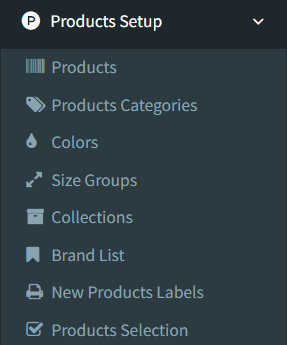
Products Selection Screen
The first screen is a filter form.

Enter a value in Filter (begins with) and click Filter.
The system searches products where the product user code begins with the value entered. After filtering, the page opens a product list for the matching items.
Searching and Filtering Products
The initial filter uses the beginning of the product user code.
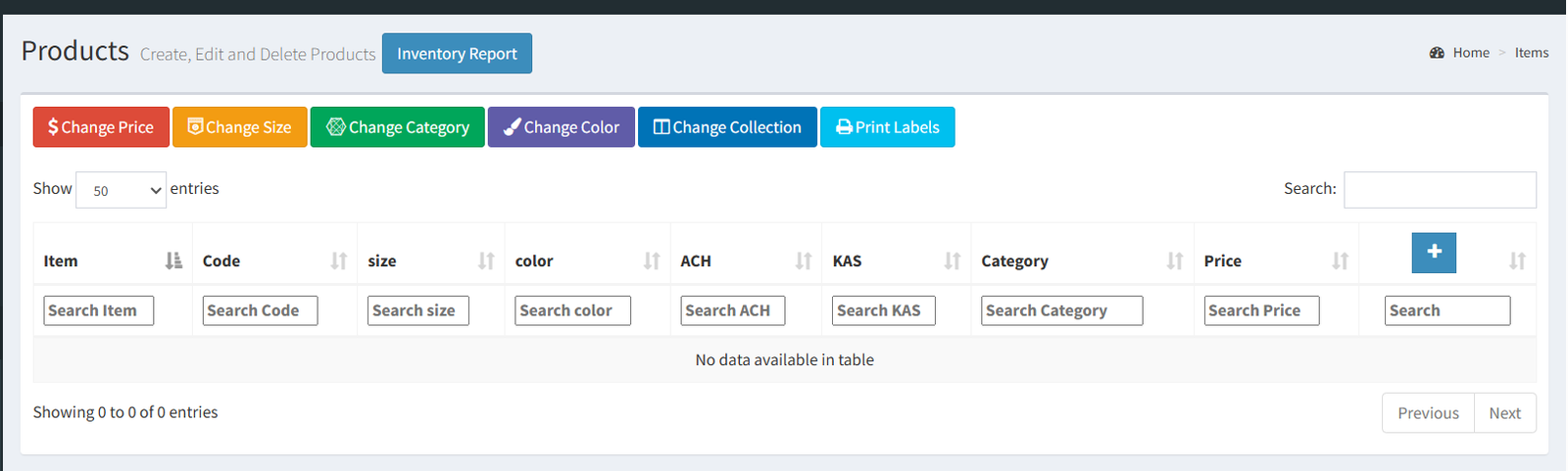
After the matching product list opens, the table includes column search boxes. These can be used to narrow the visible table results by columns such as:
- Item
- Code
- Size
- Color
- Stock columns
- Category
- Price
The bulk update buttons still use the original prefix filter from the first screen. Check the prefix shown in each action modal before applying changes.
Selecting Products
Products Selection does not use checkboxes or manual row selection.
The selected products are the products whose user code begins with the filter value entered on the first screen. For example, filtering by SUM selects products with user codes beginning with SUM.
The result table lets users review the matching products before applying an action.
Applying Selected Products
After filtering, action buttons appear above the product list.
Available confirmed actions include:
- Change Price: set a new price for all matching products.
- Change Size: set a new size for all matching products.
- Change Category: move all matching products to another category.
- Change Color: set a new color for all matching products.
- Change Collection: set a new collection for all matching products.
- Print Labels: print labels for all matching products.
The product list also includes row actions to edit a product or view product details.
Bulk actions apply to all products matching the original prefix filter, not only the rows currently visible after table search.
Where Products Selection Is Used
Products Selection is used as a Products Setup bulk-maintenance page.
Confirmed uses:
- Bulk product price updates by user-code prefix
- Bulk size updates by user-code prefix
- Bulk category updates by user-code prefix
- Bulk color updates by user-code prefix
- Bulk collection updates by user-code prefix
- Label printing for products matching the prefix
- Reviewing, editing, and viewing matching products
Not confirmed in the active UI:
- Purchases
- Transfers
- Promotions
Those modules may use products separately, but they were not found using the Products Selection screen directly.
- Entering a prefix that is too broad and selecting more products than intended.
- Using the table search boxes and expecting bulk actions to apply only to the visible rows.
- Forgetting that bulk actions use the original Filter (begins with) value.
- Printing labels before checking the matching product list.
- Changing category, size, color, or collection without confirming the correct target value.
Troubleshooting
No products appear after filtering.
Check that the entered value matches the beginning of the product user code.
Too many products appear.
Use a more specific prefix and filter again.
Bulk action changed more products than expected.
Bulk actions apply to all products matching the original prefix filter. Review the prefix shown in the action modal before confirming.
The Products Selection menu is missing.
Check that the user has permission for Products Selection.
A bulk action button is missing or does not work as expected.
Check user permissions and confirm that the related setup data exists, such as categories, colors, or collections.
Printed labels are not using the expected layout.
Check the label template settings in Label Setup.