Products Categories
Overview
Products Categories are used to organize products into groups such as clothing, accessories, parts, or any other catalog structure your business uses.
Each product must belong to a category. Categories help users find products, filter product lists, print labels, review reports, and prepare products for website or Shopify integration when those features are enabled.
Accessing Products Categories
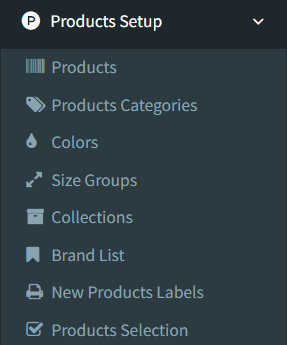
Open Products Setup -> Products Categories.
Access depends on user permissions. If the menu item is not visible, ask an administrator to check access to Products Setup and Products Categories.
Categories List
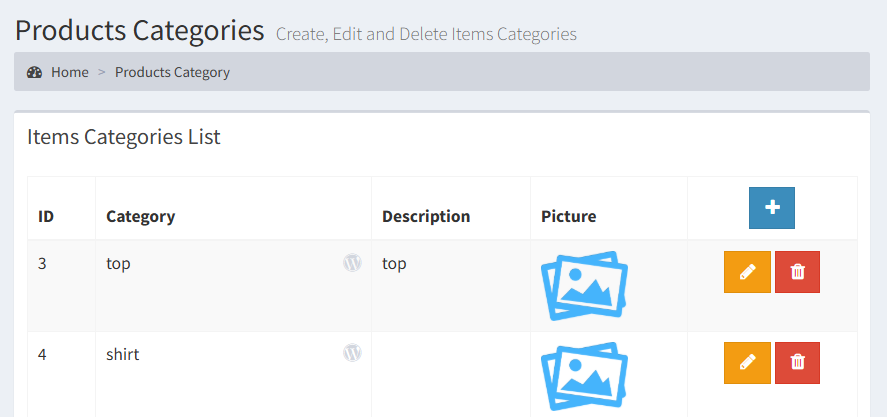
The Products Categories page shows the category list in a table.
[INSERT SCREENSHOT: Categories list]
The list includes:
- Category ID
- Category name
- Description
- Category picture
- Action buttons
The category name column also shows a website indicator when e-shop features are enabled. A WordPress icon shows whether the category has already been linked to the e-shop.
If Shopify is enabled, the action buttons can also include Shopify category actions.
The list uses table sorting and search tools from the page table.
Adding a Category
Click the plus button at the top of the actions column to open the Add New Products Category modal.
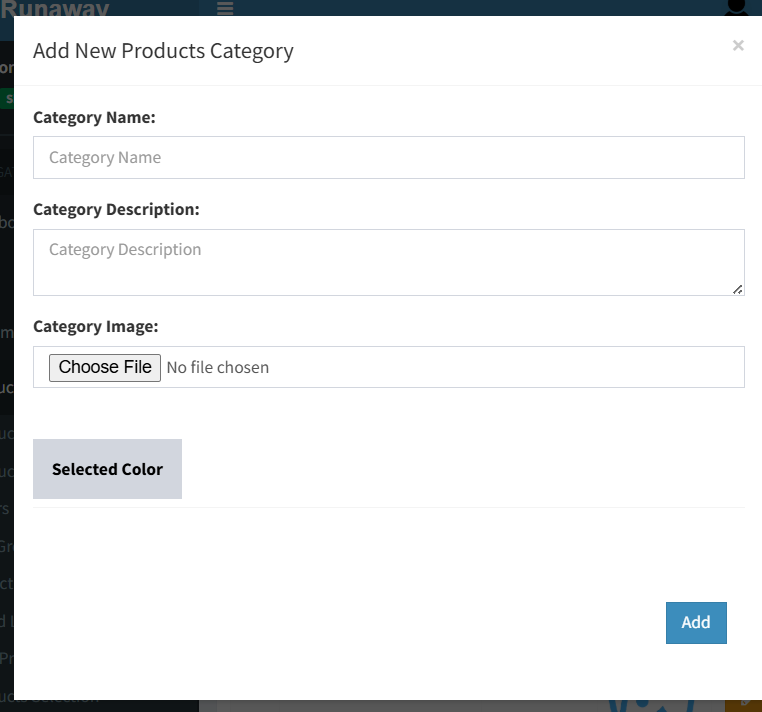
The add form includes:
- Category Name: required.
- Category Description: optional.
- Category Image: optional image used as the category cover picture.
- Selected Color: optional display color selected from the available color buttons.
Click Add to create the category.
Category names must be unique. If the same category name already exists, the system shows an error and does not create a duplicate.
Editing a Category
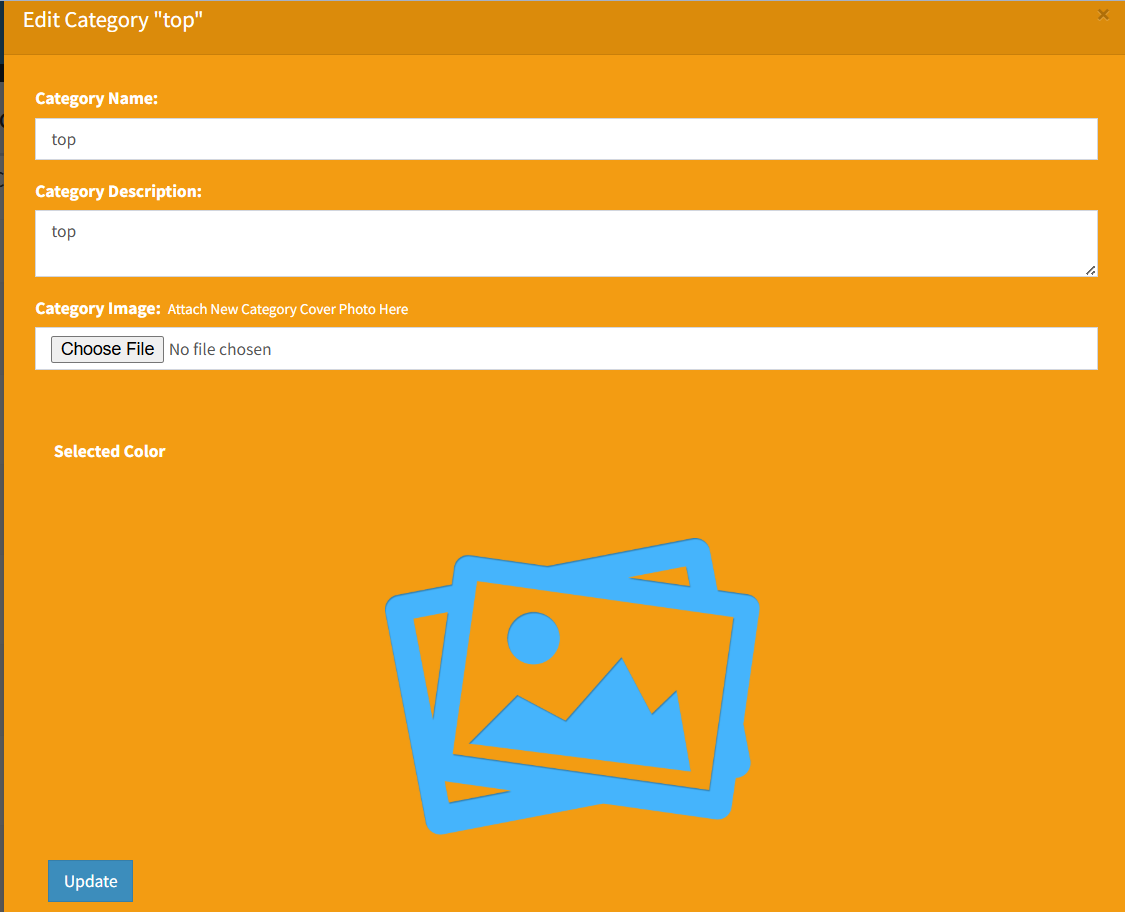
Click the pencil button beside a category to open the edit modal.
[INSERT SCREENSHOT: Edit Category modal]
Editable fields include:
- Category name
- Category description
- Category image
- Selected color
Click Update to save changes.
If a new category image is uploaded, it replaces the current image. Category names must remain unique.
When Shopify is enabled and the category is already linked to Shopify, the page can also show an action to update the Shopify collection title and image.
Deleting a Category
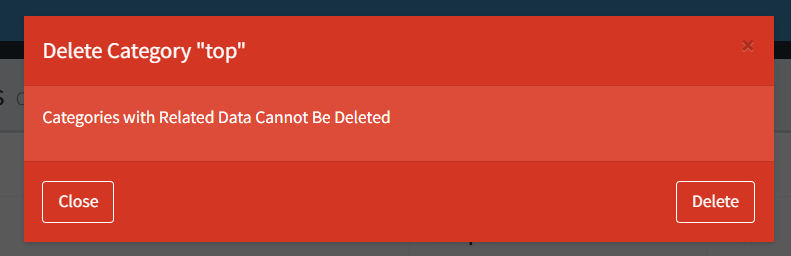
Click the trash button beside a category to open the delete confirmation modal.
Categories cannot be deleted when products are assigned to them. If the category has no related products, the category and its category image are removed.
Before deleting a category, move any products in that category to another category.
Parent Categories / Subcategories
Parent category and subcategory controls were not found in the active Products Categories UI.
The current page manages a flat category list. Use clear category names if you need to represent grouping, for example Men Shirts or Accessories Bags.
Where Categories Are Used
Categories are used in:
- Product creation and editing
- Product list filtering
- Product labels
- Inventory and product reporting
- E-shop category linking, when enabled
- Shopify collection linking, when enabled
When adding or editing a product, the product category is selected from this category list.
- Creating a category with a name that already exists.
- Trying to delete a category that still has products assigned to it.
- Uploading an unsupported image type.
- Forgetting to select a category color when the color is used by your team for visual organization.
- Expecting parent categories or disabled/enabled status controls on this page; those controls are not part of the active Products Categories UI.
Troubleshooting
The Products Categories page is not visible.
Check that the user has permission for Products Setup and Products Categories.
The plus button is missing.
The user may not have permission to add product categories.
The edit button is missing.
The user may not have permission to update product categories.
The delete button is missing.
The user may not have permission to delete product categories.
A category cannot be saved.
Check whether another category already uses the same name.
A category cannot be deleted.
The category likely has products assigned to it. Move those products to another category first.
Website or Shopify buttons are not visible.
Those buttons only appear when the related integration is enabled and the user has update permission.